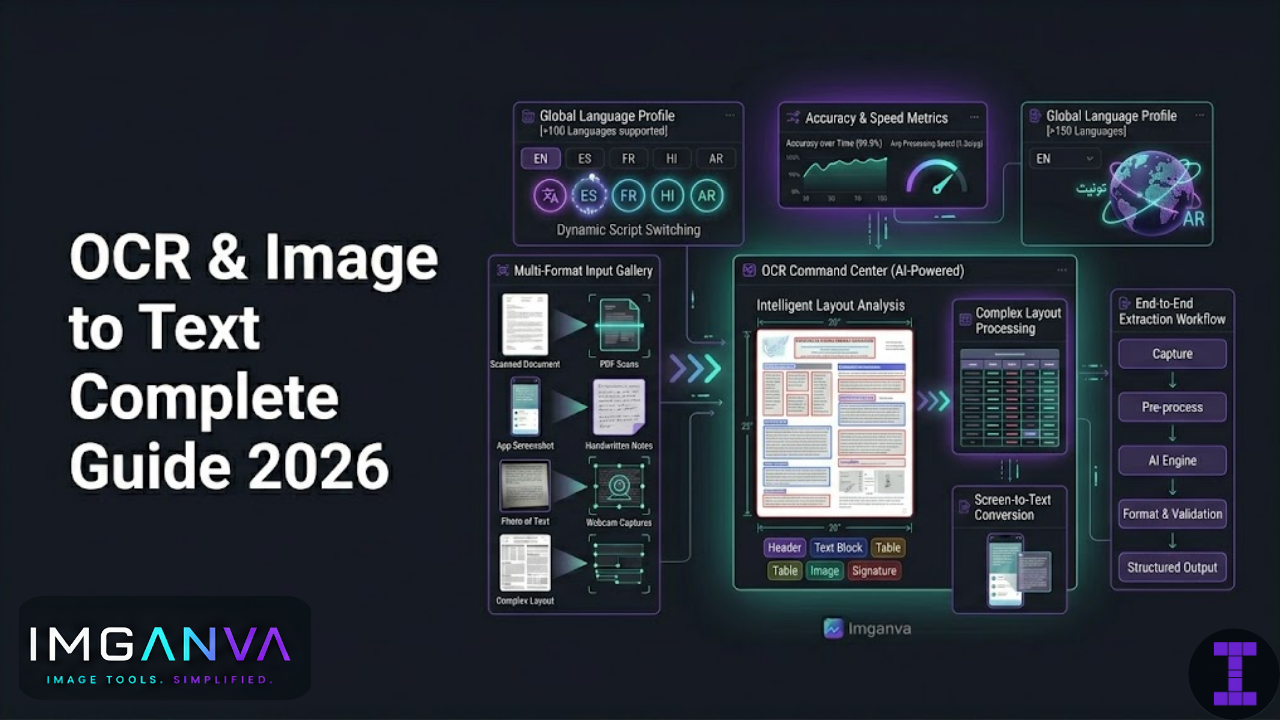

OCR optical character recognition is the technology that reads text from images and converts it into editable, searchable content. You photograph a receipt, scan a contract, or screenshot a paragraph you can’t copy, and OCR pulls the actual text out of the image so you can use it.
It’s been around for decades, but the quality gap between good and bad OCR has narrowed significantly. Modern tools handle handwriting, low-resolution scans, mixed languages, and complex layouts far better than anything available five years ago. This guide covers how OCR works, when it’s accurate, where it falls short, and how to get the best results from any image-to-text task.
Key Takeaways
- OCR accuracy depends more on image quality than the tool itself a clear, well-lit image will outperform a blurry one in any software
- Printed text is reliably recognized; handwriting accuracy varies widely depending on style and clarity
- Most modern OCR tools support multiple languages, but accuracy drops for mixed-language documents
- PDF OCR and image OCR work differently scanned PDFs need image-based OCR, not text extraction
- For best results: shoot straight-on, ensure good lighting, and use at least 300 DPI for scanned documents
- OCR output almost always needs a quick review especially for numbers, punctuation, and similar-looking characters
How OCR Works
OCR breaks down into a sequence of steps that happen behind the scenes in any image-to-text tool.
1. Pre-processing
Before any character recognition happens, the tool prepares the image. This includes straightening skewed pages (deskewing), removing noise and grain, adjusting contrast to make text stand out from the background, and detecting the boundaries of text regions versus images, headers, and margins.
2. Character Segmentation
The engine isolates individual characters or groups of characters from the image. This is where layout matters columns, tables, and text wrapped around images can confuse segmentation if the OCR engine doesn’t handle layout analysis well.
3. Pattern and Feature Recognition
Each character shape is compared against a trained model. Modern OCR engines use deep learning models trained on large datasets of text in various fonts, sizes, and conditions. This is why newer tools handle unusual fonts and degraded text better than older template-matching approaches.
4. Post-processing and Confidence Scoring
The engine assigns a confidence score to each recognized character or word and may use dictionary lookups and language models to correct low-confidence outputs. “0” and “O” look nearly identical the surrounding context (“$0.00” vs “BOOK”) helps the engine make the right call.
What OCR Is Good At
| Content Type | OCR Accuracy | Notes |
|---|---|---|
| Printed documents (clear, high contrast) | Very high (98–99%+) | Typed text in standard fonts at decent resolution |
| Scanned books and articles | High (95–99%) | Depends on scan quality and font age |
| Receipts and invoices | Good to high (90–97%) | Thermal paper fades; alignment matters |
| Business cards | Good (85–95%) | Decorative fonts and low contrast reduce accuracy |
| Screenshots of digital text | Very high (98%+) | Clean source material gives best results |
| Handwritten notes (neat printing) | Moderate (70–90%) | Varies heavily by handwriting style |
| Cursive handwriting | Low to moderate (50–75%) | Connected letterforms are harder to segment |
| Low-resolution or blurry images | Poor (40–70%) | Sharpness is the single biggest accuracy factor |
| Tables and structured data | Moderate (depends on tool) | Specialized tools handle tables better than general OCR |
Image Quality: The Biggest Factor in OCR Accuracy
No OCR engine can read text clearly if the image isn’t clear. The tool matters less than the source. A mediocre OCR engine working on a sharp, well-lit image will outperform a state-of-the-art model working on a blurry, shadow-heavy photograph.
Resolution
For scanned documents, 300 DPI is the standard minimum for reliable OCR. 200 DPI may work for clean, large-font text but will struggle with small print. 150 DPI and below produces noticeably worse results for most documents. If you’re scanning specifically for OCR, 300 DPI is the right setting going higher (600 DPI) doesn’t improve accuracy meaningfully for standard printed text but does increase file size.
Lighting and Contrast
Text needs to stand out clearly from its background. Shadows across a page, uneven lighting from a handheld phone shot, or a background color close in shade to the text all reduce accuracy significantly. For phone photography of documents:
- Use natural daylight or even, diffuse artificial light
- Avoid flash directly on the document it creates glare and hot spots
- Don’t shoot from an angle overhead, parallel to the document surface gives the cleanest result
Image Sharpness
Motion blur from a shaky hand or out-of-focus shots are the fastest way to kill OCR accuracy. Use a steady surface or prop the phone, tap to focus on the text, and check the image is sharp before processing. Small text in particular needs sharp capture body text that looks readable to the human eye at low resolution may fail OCR entirely.
Page Orientation and Skew
Most modern OCR tools handle mild skew automatically, but severe tilt degrades recognition. If the text is at a 20+ degree angle, accuracy drops. Most tools include auto-rotation correction make sure it’s enabled. For double-column documents or non-standard layouts, manually checking the reading order in the output is worth the time.
OCR for Different Document Types
Scanned PDFs
A scanned PDF is just a PDF that contains images there’s no actual text layer. You can’t select or search the text because it doesn’t exist as text yet. OCR adds a text layer behind the image, making the document searchable and copyable. Tools like Adobe Acrobat, ABBYY FineReader, and browser-based OCR tools all handle this, though the approach and accuracy vary.
The key distinction: a “digital” PDF (one generated directly from a Word document or design software) already has a text layer you can copy and paste from it directly. Only scanned PDFs need OCR. If you select text in a PDF and nothing highlights, it’s a scanned image that needs OCR processing.
Receipts and Invoices
Receipts are one of the most practical OCR use cases expense tracking, bookkeeping, warranty records. The challenges are specific: thermal paper fades over time (sometimes drastically), fonts are often condensed, and the high contrast between black ink and white paper can shift to grey-on-grey on older receipts.
For receipts: photograph as soon as possible after receiving (before fading starts), ensure the entire text area is within the frame, and use good lighting. Most dedicated expense apps use OCR tuned specifically for receipt formats and handle them better than general-purpose tools.
Business Cards
Business card OCR is reliable for standard card designs with printed text on a plain background. It breaks down on cards with dark backgrounds and light text, unusual decorative fonts, very small print, or text placed over a texture or image. The most reliable field is usually the email address structured formats with clear delimiters parse well. Job titles and names with uncommon spellings sometimes need manual correction.
Handwritten Notes
Handwriting recognition has improved significantly with deep learning models, but it’s still much less accurate than printed text OCR. Neat block printing in dark ink on clean paper can reach 85–90% accuracy with modern tools. Cursive, personal shorthand, light pencil, or colored ink on a colored background drops significantly. For critical handwritten documents, treat OCR output as a first draft that needs human review rather than a final result.
Screenshots
Screenshots are among the easiest inputs for OCR the text is digitally rendered, high contrast, and often at a resolution well above 300 DPI equivalent. Accuracy is typically 98%+ for standard UI fonts. The only exceptions are screenshots of images within the screenshot (embedded photos with text on them), or screenshots at very small sizes where UI text becomes pixel-level.
OCR for Multiple Languages
Modern OCR tools support dozens of languages, including Indian scripts. Accuracy varies by language based on training data quality and script complexity.
| Language / Script | OCR Support Level | Notes |
|---|---|---|
| English | Excellent | Most tools trained primarily on English |
| Hindi (Devanagari) | Good to very good | Improving rapidly; quality tools handle it well |
| Tamil | Good | Complex script; accuracy varies by tool |
| Telugu | Good | Similar to Tamil in complexity and support level |
| Bengali | Good | Widely supported; accuracy similar to Hindi |
| Kannada / Malayalam | Moderate to good | Fewer training examples; less consistent accuracy |
| Arabic / Urdu (RTL scripts) | Good | Right-to-left text handling needed; most major tools support it |
| Chinese / Japanese / Korean | Good to very good | Large character sets; specialized models needed |
| Mixed languages (same document) | Moderate | Accuracy drops at language boundaries |
For Indian regional language OCR, results are noticeably better when you specify the language before processing rather than relying on auto-detection. Most tools have a language selection use it.
Using Imganva’s Image to Text Tool
For quick image-to-text extraction without software or accounts, Imganva’s image to text tool processes images directly in the browser. Upload your image, and it returns the recognized text you can copy and use immediately. It’s practical for receipts, screenshots, scanned notes, and any one-off extraction task where you don’t want to set up dedicated software.
Best results come from clear, well-lit images at a reasonable resolution the image quality guidance above applies here as much as anywhere else. For complex multi-page documents or large-volume batch processing, a dedicated desktop application may be more practical.
OCR Tools Compared: What to Use When
| Tool Type | Best For | Limitations |
|---|---|---|
| Browser-based OCR tools | Quick one-off extraction, no install needed | File size limits; less suited for batch work |
| Google Lens | Phone camera OCR, quick copy from any image | No desktop batch processing; needs internet |
| Adobe Acrobat | PDF OCR, searchable PDF creation, professional workflows | Paid subscription; overkill for simple tasks |
| ABBYY FineReader | High-accuracy document OCR, complex layouts, batch processing | Expensive; Windows-centric |
| Tesseract (open source) | Developer use, batch processing, custom pipelines | Command-line only; requires setup |
| Microsoft Office Lens | Phone camera capture + Word/OneNote integration | Microsoft ecosystem; less control over output format |
| Dedicated expense/receipt apps | Receipt and invoice parsing with structured output | Domain-specific; not useful for general documents |
Common OCR Errors and How to Fix Them
Even good OCR makes predictable mistakes. Knowing the patterns helps you review output faster.
| Common Error | Example | Cause |
|---|---|---|
| 0 vs O confusion | “C0DE” instead of “CODE” | Similar shapes; context helps but doesn’t always resolve it |
| 1 vs l vs I confusion | “1lI” all look identical in many fonts | Ambiguous letterforms; worst in sans-serif fonts |
| rn vs m | “rnodern” instead of “modern” | Low resolution merges adjacent characters |
| Broken characters | “f1” instead of “fi” ligature | Unusual font ligatures or kerning |
| Missing spaces | “thecat” instead of “the cat” | Words close together or inconsistent spacing |
| Phantom characters | Extra symbols from noise, dust, or image grain | Background noise misread as punctuation |
| Wrong line breaks | Columns merged or words split incorrectly | Layout detection error in multi-column documents |
The most error-prone areas are numbers (especially in financial documents), proper nouns with unusual spelling, and text near the edges of the image where quality is often slightly lower. Always prioritize reviewing these sections first rather than reading the entire output linearly.
How to Get Better OCR Results: Practical Checklist
- Shoot straight-on. Hold the phone directly above the document, parallel to the surface not at an angle.
- Use even lighting. Natural window light or ceiling light. Avoid flash on glossy paper; it causes glare that kills accuracy.
- Check focus before capturing. Tap on the text area to ensure the camera focuses there, not the edge of the frame.
- Use at least 300 DPI for scanning. If scanning specifically for OCR, set the scanner to 300 DPI minimum. Higher doesn’t help much beyond that for standard text.
- Crop tight to the text. Remove excess background, borders, and irrelevant areas before uploading. Less noise means fewer phantom characters.
- Specify the language. Don’t rely on auto-detection for non-English text. Select the correct language in the tool settings.
- Convert to high-contrast if needed. For faded text on faded backgrounds, increasing contrast before OCR processing can substantially improve results.
- Review numbers and proper nouns carefully. These generate the most errors. A quick scan of financial figures and names saves time versus reading all output word by word.
OCR vs Copy-Paste: When Do You Actually Need OCR?
If the source file is a digital document a Word file, a proper PDF (not scanned), a web page you don’t need OCR. You can select and copy the text directly. OCR is for situations where the text is locked inside an image.
Common cases where OCR is the right tool:
- Scanned documents and PDFs where text isn’t selectable
- Photos of physical documents contracts, letters, certificates
- Screenshots where copy-paste isn’t available (locked apps, DRM content)
- Handwritten notes you want to digitize
- Old documents where no digital version exists
- Receipts, invoices, and paper records for digitization
- Business cards to import contact information
Cases where OCR is not the right tool:
- Digital PDFs just select and copy the text
- Web pages select and copy directly from the browser
- Text inside videos use subtitles, transcription tools, or captions instead
- Blurry images where the text genuinely isn’t readable to a human eye fix the image first, or retake it
Privacy Considerations When Using OCR Tools
This is worth thinking about before uploading documents with sensitive information. Online OCR tools process your image on their servers meaning the content of scanned contracts, medical records, financial statements, or personal ID documents may be retained or logged depending on the tool’s privacy policy.
For sensitive documents:
- Use offline OCR software (ABBYY, Tesseract, Microsoft Office) where the file never leaves your device
- Check the tool’s privacy policy before uploading personally identifiable or confidential content
- Consider redacting or cropping out sensitive fields (account numbers, signatures, personal addresses) before uploading to any online tool
Frequently Asked Questions
What is OCR and how does it work?
OCR stands for optical character recognition. It’s the technology that reads text from images and converts it into editable digital text. The process involves pre-processing the image for clarity, segmenting individual characters, matching them against a trained model, and using language context to correct ambiguous results.
How accurate is OCR?
For clear, high-resolution printed text in standard fonts, modern OCR tools consistently reach 98–99% accuracy. Accuracy drops with lower image quality, unusual fonts, handwriting, faded text, or mixed languages. The single biggest factor is image quality a sharp, well-lit image dramatically outperforms a blurry one regardless of which tool you use.
Can OCR read handwriting?
Yes, with varying accuracy. Neat block printing in dark ink on clean paper can reach 85–90% accuracy with modern deep-learning OCR tools. Cursive handwriting, personal shorthand, or light pencil on textured paper is much harder accuracy can drop below 60%. Always review handwriting OCR output before relying on it.
What image format works best for OCR?
JPEG and PNG both work well. For maximum quality, use PNG or TIFF for scanned documents since they preserve sharpness without JPEG compression artifacts. For phone photos, JPEG is fine at a high quality setting. The format matters less than the resolution and sharpness of the image itself.
Can OCR extract text from a PDF?
It depends on the PDF. A digitally created PDF (from Word, design software, etc.) already has a text layer you can copy text directly without OCR. A scanned PDF is just an image inside a PDF container it needs OCR to extract the text. If you try to select text in a PDF and nothing highlights, it’s a scanned document that needs OCR processing.
What resolution do I need for OCR to work well?
300 DPI is the standard minimum for reliable OCR on printed text. 200 DPI may work for large, clean fonts. Going above 300 DPI (600 DPI or higher) doesn’t meaningfully improve accuracy for standard printed text but significantly increases file size. For phone photography, ensure the text is sharp and fill the frame with the document area.
Can I use OCR for Hindi or other Indian languages?
Yes. Most modern OCR tools support Devanagari (Hindi), Tamil, Telugu, Bengali, and other major Indian scripts. Accuracy is generally good for well-printed text in these scripts, though it still lags slightly behind English accuracy for most tools. Specify the language manually in the tool settings rather than relying on auto-detection for best results.
Is it safe to upload personal documents to online OCR tools?
It depends on the tool and the sensitivity of the content. Online tools process files on their servers. For sensitive documents contracts, identity documents, financial records use offline OCR software or check the tool’s privacy and data retention policy before uploading.
Summary
OCR has become genuinely reliable for printed text in good conditions the limiting factor is almost always image quality, not the tool. A clear, well-lit, straight-on photo at adequate resolution gives any decent OCR engine what it needs to produce accurate output. Handwriting is where expectations need adjusting: modern tools handle it better than they used to, but human review is still essential for anything where accuracy matters.
For everyday tasks digitizing receipts, extracting text from screenshots, pulling content from scanned documents browser-based tools are fast and practical. Imganva’s image to text tool handles one-off extractions without any software installation. For volume work, complex layouts, or documents in multiple languages, a dedicated desktop application will give you more control and consistency. Whatever tool you use, the eight-step checklist above for image preparation will do more for your accuracy than any software upgrade.