
Most image editing, compression, conversion, and OCR work happens on phones now. The camera is always with you, storage fills up fast, and for plenty of tasks resizing a photo before uploading it to a form, extracting text from a document, converting a HEIC file to JPEG you don’t want to transfer the file to a laptop just to run a desktop app.
This guide covers the tools, techniques, and practical approaches for handling images directly on mobile what works well, where mobile tools fall short compared to desktop, and how to get good results without the friction.
Key Takeaways
- Mobile browsers can access web-based tools for compression, conversion, resizing, and OCR without app installs
- iPhones default to HEIC format most upload forms and sharing contexts need JPEG instead
- Storage management is one of the most practical mobile image tasks bulk compression saves significant space
- Mobile OCR (camera-to-text) works excellently for printed text in good lighting
- For social media uploads, resize images to platform dimensions on mobile before posting to avoid platform auto-cropping
- Browser-based tools work on Android and iOS without storage permissions or app installs
The Mobile Image Problem
Phones are excellent cameras but awkward image editors. The gap between what you capture and what you can actually do with it on the device is wider than most people realize.
A few specific problems come up constantly:
- File format issues. iPhones save in HEIC by default. Most web forms, government portals, and sharing apps want JPEG. This causes errors that feel mysterious if you don’t know why they’re happening.
- Oversized files. A modern smartphone photo is 3–8MB. Exam portals want under 200KB. Social platforms recompress aggressively. Email attachments pile up fast. There’s no built-in compression on either iOS or Android.
- No native resizing. Neither iOS nor Android includes a built-in tool to resize an image to specific pixel dimensions. You can crop, but you can’t type in “resize to 200×230px.”
- Conversion gaps. Converting between formats on mobile typically requires an app or browser tool there’s no system-level conversion built into either platform.
- Storage pressure. Camera rolls fill up quickly, and most people don’t realize how much space could be recovered by compressing or deleting full-resolution originals of images they’ve already shared.
Browser-Based Tools on Mobile: What You Can Do Without an App
The most practical solution for most mobile image tasks is a browser-based tool. You open it in Safari or Chrome, upload the image from your camera roll, process it, and download the result no app install, no storage permission requests, no subscription.
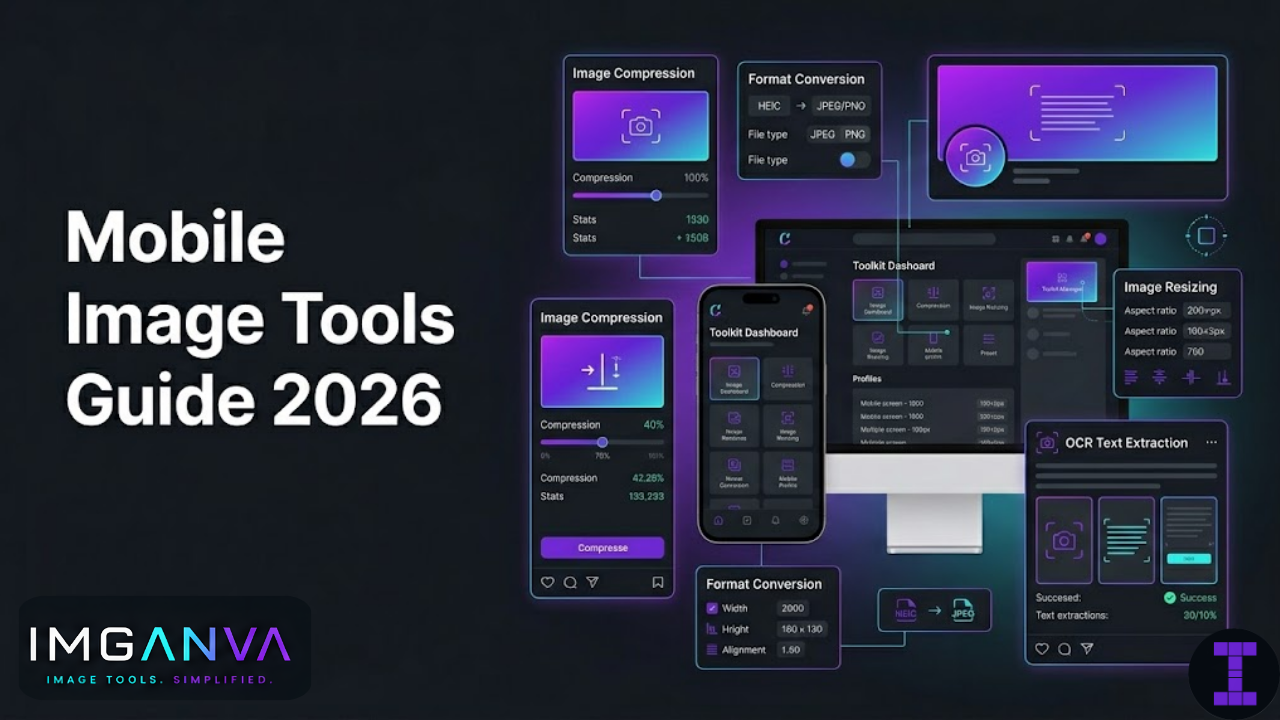
From a phone browser, you can use Imganva’s tools for:
- Image compression bring a 5MB photo down to under 200KB for exam uploads, email attachments, or form submissions
- Format conversion convert HEIC to JPEG, PNG to WebP, or any other format swap directly in the browser
- Image resizing set exact pixel dimensions for exam portals, social platforms, or any upload form with size requirements
- Image to text / OCR extract text from a photo of a document, receipt, or screenshot
These work on both iOS and Android without any setup. The main limitation is file size very large files (20MB+) can be slow to upload on mobile data. On Wi-Fi, this isn’t a practical issue for most phone photos.
HEIC: The iPhone Format Problem
Apple switched iPhone cameras to HEIC (High Efficiency Image Container) format as the default years ago. HEIC files are smaller than JPEG at equivalent quality it’s a genuinely better format for storage. The problem is compatibility.
Most places that accept photo uploads don’t accept HEIC:
- Indian government exam portals (UPSC, NTA, SSC, IBPS) JPEG only
- Many email clients on Windows
- Older Android devices viewing photos shared from iPhone
- Most web forms that specify JPEG
- Various CMS upload fields
Option 1: Change iPhone Camera Settings
Go to Settings → Camera → Formats → Most Compatible. This switches the iPhone camera to shoot in JPEG instead of HEIC. Simple, permanent fix. The tradeoff is slightly larger file sizes per photo but for most people who run into HEIC compatibility problems regularly, this is the cleanest solution.
Option 2: Convert HEIC to JPEG When Sharing
iOS automatically converts HEIC to JPEG when you share a photo using the system share sheet to most apps and email. If you AirDrop to another Apple device or save to a shared Apple Photos library, HEIC is preserved. This automatic conversion is useful but invisible you may not realize it’s happening, which can cause confusion when the file you download from your own share is different from what’s in your camera roll.
Option 3: Convert via Browser Tool
If you already have a HEIC file that needs to be JPEG for an upload form or to share with someone Imganva’s image converter handles HEIC to JPEG conversion directly in the mobile browser. Upload the HEIC file, convert, download the JPEG. Takes about 30 seconds.
Compressing Photos on Mobile
There is no built-in compression tool on iPhone or Android. If you need to get a photo under a specific file size say, 50KB for a bank exam portal or 200KB for a government form you need a tool.
For Exam and Government Form Uploads
The typical requirement is 10–200KB for photo uploads, JPEG format, and specific pixel dimensions. The workflow:
- Open Imganva’s image resizer in your mobile browser
- Upload the photo and resize to the required pixel dimensions (e.g., 200×230px for SSC, 350×450px for NTA)
- Download the resized image
- Open the image compressor, upload the resized image, compress to under the file size limit
- Download and upload to the exam portal
This two-step process (resize then compress) consistently produces better results than trying to hit both dimension and file size requirements in one step.
For Storage Management
If storage is the issue rather than an upload requirement, bulk compressing photos frees significant space. A camera roll of 2,000 photos averaging 4MB each is 8GB. Compressed to a quality that’s visually indistinguishable on a phone screen around 500KB to 1MB the same photos take under 2GB. For most people, the visual difference isn’t noticeable at phone screen sizes.
For large-scale camera roll compression, a dedicated app is more practical than a browser tool processing 2,000 images one at a time in a browser isn’t realistic. Apps like Compress Photos & Picture on iOS or Photo Compress on Android handle batch operations within the app. For photos you want to archive rather than keep in full quality on the device, cloud services like Google Photos can store originals while keeping compressed versions on the device.
Mobile OCR: Camera to Text
OCR on mobile is one of the most genuinely useful image tools available and it’s largely underused. Photographing a document and extracting the text takes seconds and works well for most printed material.
Built-in Options
iOS Live Text (iPhone XS and newer, iOS 15+): Point the camera at any printed text and tap the text icon in the bottom right of the viewfinder. Live Text highlights recognized text you can select, copy, translate, or search. It works in real time without taking a photo. Reliable for clear printed text in good lighting.
Google Lens (Android and iOS): Available through the Google app, Google Photos, and built into many Android camera apps. Point at text and tap to copy. Also identifies objects, translates text on screen, and searches for similar images. Very capable for everyday document and receipt capture.
Google Photos: Open any photo in Google Photos, tap the Lens icon, and it extracts text from the image. Works with existing photos in your camera roll, not just live camera.
Browser-Based Mobile OCR
For situations where you want to extract text from an existing photo and copy it into another app, Imganva’s image to text tool works from a mobile browser. Upload the photo, get the extracted text, copy it. Useful for more complex documents where you want the full text rather than just a snippet.
Mobile OCR Tips
- Photograph straight-on, parallel to the document angles reduce accuracy
- Tap to focus on the text before capturing
- Ensure even lighting; avoid shadows crossing text areas
- Outdoor natural light or indoor ceiling light works well; direct flash creates glare on glossy paper
- For receipts: photograph immediately thermal paper fades quickly
- Review numbers and names in the output these generate the most errors
Resizing Images for Social Media on Mobile
Posting photos to social platforms from a phone involves a tradeoff most people don’t think about: every platform recompresses what you upload. Starting with the right dimensions means the platform does less work to fit it to its layout, which typically means better output quality.
The platforms worth worrying about most:
| Platform | Recommended Upload Size | Key Note |
|---|---|---|
| Instagram (square post) | 1080×1080px | Anything taller than 4:5 gets cropped in feed |
| Instagram (portrait) | 1080×1350px | Best feed visibility; takes up more scroll space |
| Instagram Stories / Reels | 1080×1920px | Full vertical screen; keep text away from top/bottom edges |
| Facebook feed | 1200×630px | Square (1080×1080px) also works well |
| Twitter / X | 1600×900px | Images cropped in feed; expand to full on click |
| LinkedIn post | 1200×627px | Desktop-heavy platform; horizontal works better than vertical |
| 1000×1500px | Vertical 2:3 gets the most feed space |
For most casual mobile posts, the platform handles sizing well enough. Where it matters more is when you’re posting designed graphics, branded content, or anything where text and layout need to display correctly those need proper dimensions set before uploading.
Managing Image Quality When Sharing From Mobile
Sharing images from a phone introduces multiple compression stages that stack on each other. Understanding where quality is lost helps you minimize it.
WhatsApp compresses photos significantly a 5MB JPEG becomes 150–300KB after sending. This is aggressive enough to be visible on close inspection. To share a photo at full quality via WhatsApp, send it as a Document rather than a photo. In the attachment picker, choose “Document” and select the image file. WhatsApp sends documents without compression. The recipient sees it as a file attachment rather than an inline photo, but quality is preserved.
Telegram
Telegram is less aggressive than WhatsApp. Photos are compressed, but it also offers a “Send as File” option that preserves original quality same approach as WhatsApp’s document workaround.
Gmail and most email clients on mobile don’t compress images automatically they send what you attach. The issue on mobile is often attaching the wrong file: iPhone’s share sheet may offer a compressed version by default when sharing from Photos. For email, attach directly from the Files app if you’ve already compressed or converted the image.
AirDrop
AirDrop sends files at full quality without compression. Between Apple devices, this is the cleanest way to share high-quality photos. One catch: HEIC format is preserved in AirDrop if the recipient is on Windows or Android, they may not be able to open HEIC files without conversion.
Mobile Image Tools for Specific Tasks
| Task | Best Mobile Approach | Alternative |
|---|---|---|
| Compress for exam/form upload | Browser tool (Imganva Image Compressor) | Dedicated compression app |
| Convert HEIC to JPEG | Browser tool or change Camera settings to JPEG | iOS share sheet (converts automatically to most apps) |
| Resize to exact pixel dimensions | Browser tool (Imganva Image Resizer) | Resize Me! (iOS), Photo & Picture Resizer (Android) |
| Extract text from image | iOS Live Text or Google Lens (built-in) | Browser OCR tool for full document extraction |
| Share at full quality on WhatsApp | Send as Document instead of photo | Telegram “Send as File” |
| Bulk compress camera roll | Compress Photos app (iOS) / Photo Compress (Android) | Google Photos storage saver (cloud-side) |
| Background removal | iOS built-in (long press photo → Remove Background) | Remove.bg mobile site, dedicated apps |
| Scan document to PDF | iOS Notes camera scan / Google Drive scan | Adobe Scan, Microsoft Office Lens |
iOS vs Android: Built-in Image Capabilities Compared
| Feature | iOS (iPhone) | Android |
|---|---|---|
| Default camera format | HEIC (configurable to JPEG) | JPEG (most manufacturers) |
| Live text / camera OCR | Yes iOS 15+ built-in | Yes Google Lens, usually built into camera |
| Background removal | Yes iOS 16+ (long press on subject) | Google Photos (Magic Eraser, some devices) |
| Native image compression | No | No |
| Native format conversion | Partial (HEIC → JPEG on share) | No |
| Native pixel-level resize | No | No |
| Document scanning built-in | Yes iOS Notes, Files app | Yes Google Drive, Google Photos |
| High-quality sharing (lossless) | AirDrop (full quality) | Nearby Share / Bluetooth (quality preserved) |
Common Mobile Image Mistakes
Uploading HEIC to a Form That Wants JPEG
The form shows an error and most people don’t understand why the file extension often looks normal. Change camera settings to JPEG permanently, or convert before uploading.
Cropping Instead of Resizing
iOS and Android crop tools don’t let you set exact pixel dimensions. Cropping a photo to “look smaller” doesn’t reduce the file size much it still exports at the full resolution of the cropped area. Resizing (reducing total pixel dimensions) is what actually shrinks the file.
Screenshots for Official Documents
Screenshots of ID documents, certificates, or photos from within an app are often lower quality than the original, may have interface elements visible, and can appear suspicious for official submissions. Use the original file wherever possible.
Sharing Full-Resolution Photos Unnecessarily
A 12MB RAW-equivalent phone photo shared as a full-resolution file uses your recipient’s storage and their data to download. For casual sharing, compress to 1–2MB. For printing or archiving, keep the original. Most people don’t need 12MB photos sent to them via WhatsApp.
Trusting “Compress” Sliders Without Checking Output
Many compression apps show a percentage slider without showing you the resulting file size before you save. Always check the output file size after compression “50% compression” means different things in different apps and may not get you within the required limit.
Frequently Asked Questions
How do I compress an image on my phone without an app?
Use a browser-based tool. Open Imganva’s image compressor in your mobile browser (Safari or Chrome), upload the image from your camera roll, compress it, and download the result. No app install or account needed. Works on both iPhone and Android.
How do I convert HEIC to JPEG on iPhone?
Three options: (1) Change your camera to shoot JPEG by default via Settings → Camera → Formats → Most Compatible. (2) When sharing from the Photos app, iOS automatically converts to JPEG for most apps. (3) Use a browser-based converter upload the HEIC file and download as JPEG.
Can I resize an image to specific pixel dimensions on my phone?
Not with built-in tools neither iOS nor Android includes a pixel-level resize function. Use a browser tool or download a dedicated resize app. Imganva’s image resizer works from a mobile browser and lets you set exact pixel dimensions.
Why does my photo look blurry after uploading to a website from my phone?
Either the portal rescaled your image because it was the wrong dimensions, or the platform’s compression degraded it. Resize to the exact required dimensions before uploading don’t let the portal do the resizing. Also check that the format is JPEG, not HEIC or PNG, if the portal specifies JPEG.
How do I share a photo at full quality on WhatsApp from my phone?
In WhatsApp, instead of choosing Photo when attaching, choose Document and select the image file. WhatsApp sends documents without compression, so the recipient gets the original quality file. The photo arrives as a file attachment rather than an inline image, but quality is fully preserved.
What is the best app for compressing images on Android?
For one-off compressions, browser-based tools (accessible from Chrome on Android) are the most convenient no install needed. For bulk compression of your camera roll, Photo Compress and Resize or Reduce Photo Size are well-regarded Android apps. Both allow batch processing and let you set target file sizes.
How do I extract text from a photo on my phone?
On iPhone (iOS 15+): point the camera at the text and tap the Live Text icon, or open an existing photo and tap the Live Text icon to select and copy text. On Android: use Google Lens (available through the Google app or Google Photos) and tap any text in an image to copy it. For more complete document extraction, use a browser-based OCR tool.
Is it safe to use browser-based image tools on mobile?
For most everyday tasks compressing a food photo, resizing an image for an exam form yes, browser-based tools are fine. For sensitive documents (ID scans, financial records, medical documents), consider using offline apps where the file doesn’t leave your device, or check the tool’s privacy policy before uploading.
Summary
Mobile image tools have a real gap where desktop software used to fill in. Neither iOS nor Android includes built-in compression, pixel-level resizing, or format conversion the three things most commonly needed before uploading images to forms, portals, or social platforms. Browser-based tools close that gap without requiring app installs or storage permissions, and they work identically on iPhone and Android.
The most common fixes: switch iPhone camera to JPEG if HEIC compatibility keeps causing problems, use resize-then-compress as a two-step workflow for exam photo uploads, send WhatsApp photos as Documents to preserve quality, and use iOS Live Text or Google Lens for quick camera-to-text extraction. For everything else compression, resizing, format conversion, and OCR Imganva’s tools work directly from a mobile browser with no setup required.