
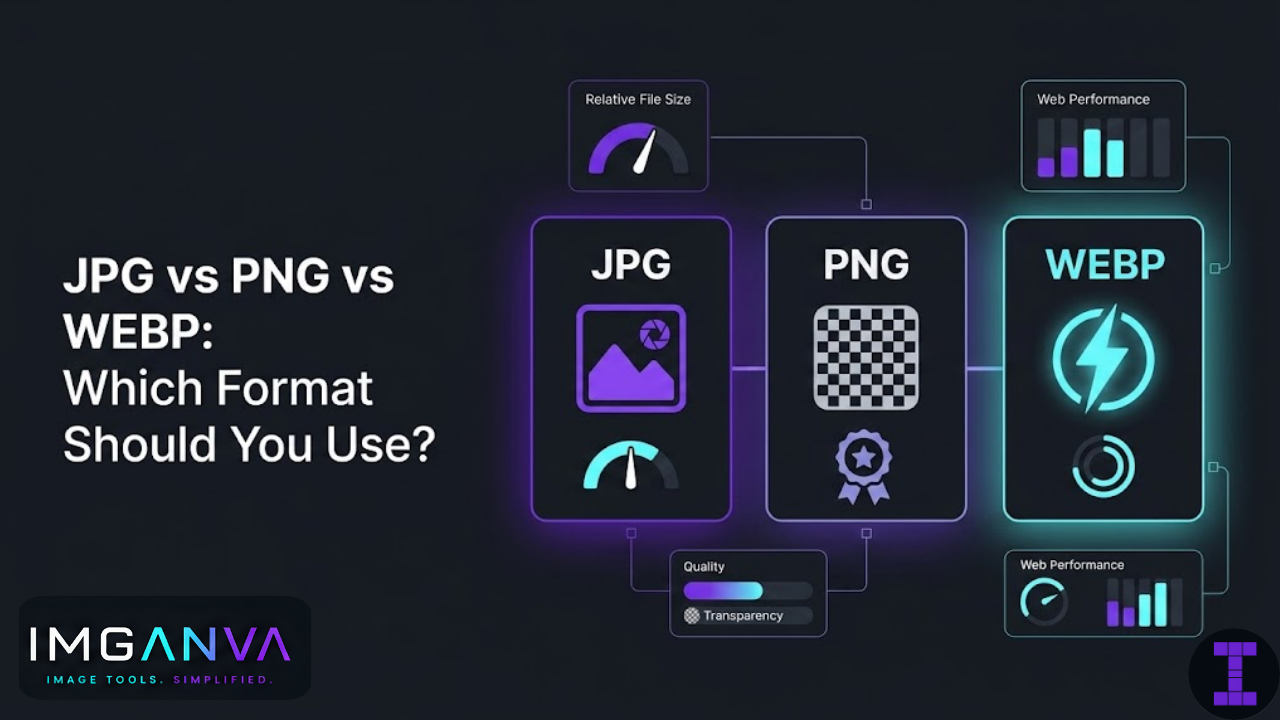

Quick comparison
| Feature | JPG | PNG | WebP |
|---|---|---|---|
| Compression type | Lossy | Lossless | Both (lossy & lossless) |
| File size | Small | Large | Smallest |
| Transparency | No | Yes | Yes |
| Best for | Photos | Logos, UI, illustrations | Web images, photos + graphics |
| Browser support | Universal | Universal | Very good (95%+) |
| Print use | Good | Good | Limited |
| Animation support | No | No (APNG does) | Yes |
JPG (JPEG)
JPG uses lossy compression, meaning it discards some image data to reduce file size. For photographs with smooth gradients, complex textures, and millions of colors, this trade-off is usually invisible you get a much smaller file with no noticeable quality loss.
Where it struggles is with hard edges, text, and flat-color graphics. Compress a logo or a screenshot as a JPG and you’ll often see blurry artifacts around the edges that’s the compression algorithm struggling with sharp transitions.
One important limitation: every time you re-save a JPG, it loses a bit more quality. If you’re editing an image repeatedly, don’t save as JPG each time. Keep the original in a lossless format and export JPG only for the final version.
Use JPG for:
- Product photos
- Portraits and people photography
- Travel and landscape photos
- Any image-heavy web pages where load speed matters
- Email attachments where file size is a concern
Avoid JPG for:
- Logos and icons
- Screenshots with text
- Images that need transparent backgrounds
- Images you plan to edit and re-export multiple times
PNG
PNG is lossless it compresses the file without throwing away any data. What you save is exactly what you get back, pixel for pixel. That makes it ideal for images where precision matters: logos, UI elements, illustrations with flat colors, and anything that needs a transparent background.
The trade-off is file size. A PNG of a photograph will be significantly larger than the equivalent JPG. For a typical product photo, we’re talking 3–5x larger. That adds up fast on a website with dozens or hundreds of images.
PNG also supports full alpha transparency, which JPG simply doesn’t have. If you’ve ever placed an image on a colored background and seen a white box around it, that was a JPG used where a PNG was needed.
Use PNG for:
- Logos and brand assets
- Icons and UI elements
- Screenshots (especially with text)
- Images with transparent or semi-transparent backgrounds
- Graphics that will be edited or layered
Avoid PNG for:
- High-resolution photography on web pages
- Situations where file size is tightly constrained
- Thumbnails and preview images in bulk
If you’re working with large PNG files and need to reduce their size without switching formats, Imganva’s image compressor supports PNG compression with minimal quality impact.
WebP
WebP was developed by Google specifically for the web. It supports both lossy and lossless compression, transparency, and even animation essentially combining the best parts of JPG and PNG into one format, while typically producing smaller files than either.
In practice, WebP files are about 25–35% smaller than comparable JPGs, and significantly smaller than PNGs with similar quality. For websites, that’s a meaningful improvement in load times.
Browser support has caught up considerably. As of now, WebP works in Chrome, Firefox, Safari, and Edge covering well over 95% of web users. It’s no longer the “new format you have to watch out for.”
The main limitation is outside the browser. Some older design tools, image editors, and content management systems don’t handle WebP natively. You might also run into issues with email clients or printing workflows. For those situations, JPG or PNG still makes more sense.
Use WebP for:
- Website images where page speed matters
- E-commerce product galleries
- Blog and editorial images
- Any web-facing image that would otherwise be a JPG or PNG
- Animated images (instead of GIFs)
Avoid WebP for:
- Print workflows
- Sending to clients or teams using older software
- Situations where universal compatibility is required
You can convert JPG or PNG files to WebP (or vice versa) using Imganva’s image converter.
Side-by-side: file size and quality tradeoffs
Here’s roughly what you’d expect from a typical product photo (1200×900px) saved in each format:
| Format | Approx. file size | Visual quality | Transparency |
|---|---|---|---|
| JPG (quality 80) | ~120 KB | Good for photos | No |
| PNG | ~500–800 KB | Perfect (lossless) | Yes |
| WebP (lossy) | ~80–90 KB | Good to excellent | Yes |
| WebP (lossless) | ~300–400 KB | Perfect | Yes |
Numbers vary a lot depending on the image content, but the pattern holds: WebP gives you the smallest lossy files, PNG is the go-to for lossless, and JPG sits in the middle as the most universally compatible option.
When to use which format
Building a website or online store
WebP is the best default for most images. It loads faster, supports transparency, and browser support is solid. If you need a fallback for older tools or email, keep JPG copies of photos and PNG copies of logos.
Creating marketing materials or print assets
PNG for anything with text or flat graphics. JPG for photographs going to print. WebP is not well-suited for print workflows.
Sending images by email
JPG for photos (small, universally supported). PNG for logos and graphics. Avoid WebP in email client support is still inconsistent.
Working in a design tool or editing images
Keep your working files in PNG or your tool’s native format (PSD, AI, etc.). Export as JPG or WebP for final delivery. Never edit and re-save JPGs repeatedly.
Sharing on social media
Most platforms accept JPG and PNG. Upload as PNG for graphics and text-heavy images since platforms often re-compress uploads, and starting with a lossless source gives you better final quality. For photos, JPG works fine.
What about image dimensions?
Format choice and image dimensions are separate concerns, but they’re related. A 4000×3000px WebP is still a big file. If you’re working with oversized images, resizing them before choosing a format can make a noticeable difference in both file size and load speed.
Frequently asked questions
Is WebP better than JPG?
For web use, usually yes. WebP produces smaller files at similar or better quality and also supports transparency. The main advantage JPG still has is universal compatibility older software, email clients, and some print workflows don’t always support WebP.
Why is my PNG so much larger than my JPG?
PNG is lossless, so it preserves every pixel without compression artifacts. For photographs with lots of color variation and fine detail, that means significantly larger files than JPG, which discards some data to achieve smaller sizes. For logos and graphics with flat colors, the size difference is much smaller.
Can I convert JPG to PNG without losing quality?
You can convert JPG to PNG, but any quality loss from the original JPG compression is already baked in converting to PNG won’t restore it. The PNG will just be a lossless copy of the already-compressed JPG data. If quality is important, start from the original uncompressed source when possible.
Does WebP support transparent backgrounds?
Yes. Both lossy and lossless WebP support alpha transparency, so it’s a viable alternative to PNG for logos and UI elements that need see-through backgrounds.
Which format is best for logos?
PNG is the safest choice for logos, especially for web use it preserves sharp edges and supports transparency. If you’re building a web-optimized asset library, lossless WebP is also a good option. Avoid saving logos as JPG.
Can I use WebP for all images on my website?
For most modern websites, yes. Browser support is now very strong. If you need to support older browsers or your CMS has WebP limitations, you can use the HTML <picture> element to serve WebP with a JPG or PNG fallback.
What’s the best format for compressing photos without much quality loss?
WebP lossy compression typically gives the best size-to-quality ratio for photos. If you need maximum compatibility, JPG at a quality setting of 75–85 is a well-tested approach that balances size and visual quality for most photographs.
Bottom line
For everyday use: JPG for photos, PNG for graphics and transparency, WebP when you’re optimizing for the web and can accept slightly less universal support. None of the three is universally “best” they’re each suited to different situations.
If you’re managing a lot of images and want to reduce file sizes before uploading, Imganva’s compressor handles JPG, PNG, and WebP without forcing you to switch formats.