
If you’re running a website and your images are still in JPG or PNG, you’re probably loading more data than you need to. WEBP is a modern image format developed by Google that gives you smaller file sizes without a visible drop in quality. For most websites, switching to WEBP is one of the easiest wins for page speed.
That said, it’s not a format you’d use for everything. This article covers what makes WEBP useful, where it actually helps, and when you’re better off sticking to something else.
The Core Advantage: Smaller Files, Same Visual Quality
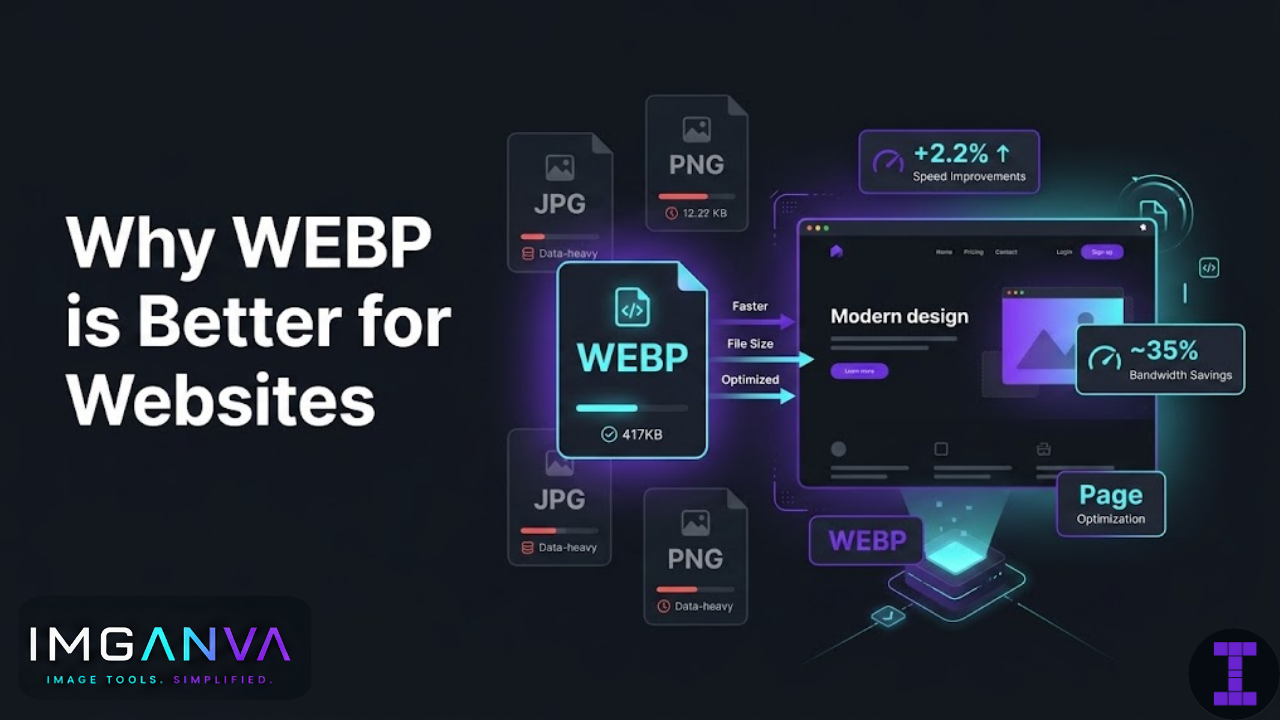
The main reason developers and designers care about WEBP is file size. For equivalent visual quality, WEBP images are typically much smaller than their JPG or PNG counterparts.
| Format | Typical Use Case | Compression Type | Approximate Size vs WEBP |
|---|---|---|---|
| JPG | Photos, product images | Lossy | 25–35% larger |
| PNG | Screenshots, logos, graphics with transparency | Lossless | Can be 2–5x larger |
| WEBP (lossy) | Photos, hero images, gallery images | Lossy | Baseline |
| WEBP (lossless) | Graphics, icons with transparency | Lossless | Baseline |
| AVIF | Photos (newer format) | Lossy/Lossless | Often smaller than WEBP |
Google’s own testing has shown that WEBP lossy images are on average about 30% smaller than JPG at comparable quality levels, and WEBP lossless is about 26% smaller than PNG. Real-world results vary depending on the image, but the savings are consistent and meaningful at scale.
How This Affects Website Performance
Page speed is one of the cleaner performance signals for websites — both for user experience and for search rankings. Images are usually the heaviest assets on a page. Every time a page loads, the browser has to download all those image files.
When those files are smaller, loading time drops. This matters most in two situations: users on slow internet connections, and users on mobile data where every MB has a cost. In India, where mobile traffic dominates and connections can be patchy in smaller cities and towns, image size has a very real effect on whether users wait for your page or leave.
Switching your site images from JPG/PNG to WEBP can measurably reduce load time without changing how your images look to visitors.
WEBP Supports Transparency and Animation
Two things PNG handles that JPG doesn’t: transparency (images with transparent backgrounds) and animation. WEBP handles both as well.
- Transparency: WEBP supports alpha channels the same way PNG does — logos, product cutouts, overlays, icons. You can switch from PNG to WEBP for these and get the same transparent output at a fraction of the file size.
- Animation: WEBP supports animated images, similar to GIF but much more efficient. Animated GIFs are notoriously large files. WEBP animated files are typically much smaller for the same animation.
This makes WEBP a practical replacement for both PNG and GIF in most web contexts.
Browser Support in 2024
One of the main historical objections to WEBP was browser support — specifically Internet Explorer, which didn’t support it at all. That’s no longer a real concern. IE is dead for practical purposes. All modern browsers support WEBP:
- Chrome (including on Android) — full support since 2011
- Firefox — full support since 2019
- Safari — full support since Safari 14 (2020)
- Edge — full support
- Opera — full support
- Samsung Internet — full support
Browser support is essentially universal now among actively used browsers. The only scenario where you might run into issues is if you have specific analytics showing significant traffic from very old iOS devices (pre-iOS 14) or you’re serving a niche audience that might use legacy software.
For most websites today, WEBP works everywhere that matters.
When WEBP Might Not Be the Right Choice
WEBP is not a universal replacement. There are real situations where it’s the wrong format:
Print and professional photography workflows
WEBP is a web format. If you’re working with images that need to go to print, or you’re delivering high-resolution files to clients or designers, TIFF or uncompressed formats are more appropriate. Printing systems and professional design tools don’t standardize on WEBP.
When you need maximum editing compatibility
JPG and PNG open in almost everything — every image editor, every OS viewer, every tool you can think of. WEBP has broader support now, but it’s still not universal outside web contexts. For source files you’ll edit repeatedly, keep working with JPG or PNG and convert to WEBP at the export/publish stage.
Absolutely highest-quality image archiving
If you’re archiving images at the highest possible quality for long-term storage, PNG (lossless) is the most universally safe format. WEBP lossless is also technically lossless, but for archival purposes, PNG has wider compatibility across future tools.
Certain email clients
Email clients have notoriously inconsistent image format support. WEBP doesn’t work in many email clients. If you’re using images in email campaigns or newsletters, stay with JPG or PNG.
How to Convert Images to WEBP
If your images are currently in JPG or PNG, converting them to WEBP is straightforward. You can do it without any software installation using Imganva’s Image Converter. Upload your image, select WEBP as the output format, and download the converted file.
For WordPress users, there are also plugins that automatically serve WEBP versions of your uploaded images. The plugin handles the conversion and delivery logic, so users with WEBP-capable browsers get the smaller file while anyone on an older browser gets the JPG fallback.
If you’re managing images manually (a static site or custom setup), using the HTML <picture> element lets you specify WEBP with a JPG fallback:
<picture>
  <source srcset="image.webp" type="image/webp">
  <img src="image.jpg" alt="Description">
</picture>
Browsers that support WEBP use the source. Others fall back to the img tag automatically. This is the cleanest approach for full compatibility.
WEBP vs AVIF: Is There a Newer Option?
AVIF is a newer format that in many benchmarks outperforms WEBP on compression. It can produce even smaller files at the same quality. Browser support has improved rapidly — Chrome, Firefox, and recent Safari all support it.
The tradeoff right now is encoding speed and tooling maturity. AVIF encoding is slower, and the ecosystem of tools, CMS integrations, and CDN support is still catching up to WEBP. For most websites switching from JPG/PNG today, WEBP is still the pragmatic choice. AVIF is worth watching but not necessarily worth the migration overhead yet for most use cases.
Practical Workflow for Website Images
Here’s a simple, practical approach to using WEBP on a website:
- Keep original source files in JPG or PNG — never delete your originals
- When exporting for web, convert to WEBP using a converter or build tool
- Use the
<picture>element with a JPG/PNG fallback if you need broad compatibility - For WordPress, let a WEBP optimization plugin handle it automatically
- Test your page speed before and after — tools like Google PageSpeed Insights or GTmetrix will show the difference
Frequently Asked Questions
- Is WEBP better than JPG for websites?
- For web use, yes. WEBP produces smaller files at the same visual quality. For print, email, or editing, JPG may still be more practical.
- Does WEBP affect image quality?
- WEBP can be lossy or lossless. At equivalent quality settings, lossy WEBP looks the same as JPG but with a smaller file. Lossless WEBP preserves every pixel like PNG, but at a smaller size.
- Do all browsers support WEBP?
- All modern browsers do — Chrome, Firefox, Safari (since 2020), Edge, Samsung Internet. Internet Explorer doesn’t, but it’s no longer practically relevant.
- Can I convert existing images to WEBP?
- Yes, easily. Imganva’s converter handles JPG to WEBP and PNG to WEBP online, no software needed.
- Should I use WEBP for all images on my site?
- For photos, product images, and page backgrounds — yes. For images you’re sending in emails or to print — stick with JPG or PNG.
- Is WEBP good for SEO?
- Not directly, but the faster load times it enables improve Core Web Vitals scores, which are part of Google’s page experience signals.
The Short Version
WEBP is smaller than JPG and PNG, supports transparency and animation, and works in every browser your visitors are realistically using. For web images, it’s the sensible default. The main exceptions are print workflows, email, and anything where you need broad compatibility outside of a web browser.
If you haven’t switched yet, start with your heaviest images — hero images, gallery photos, large background images. The difference in load time shows up most there.