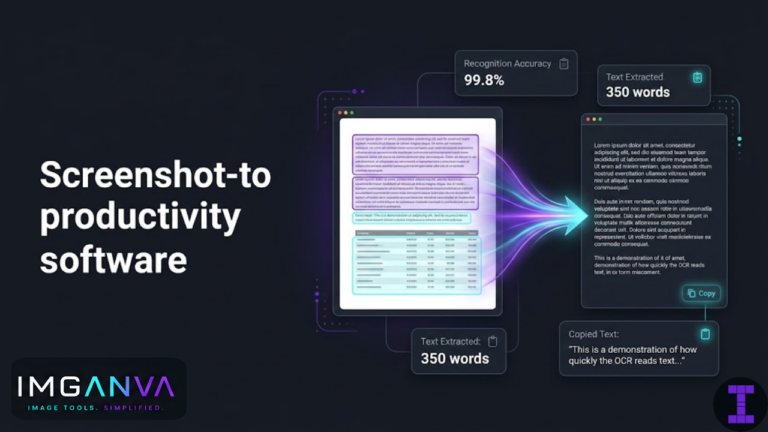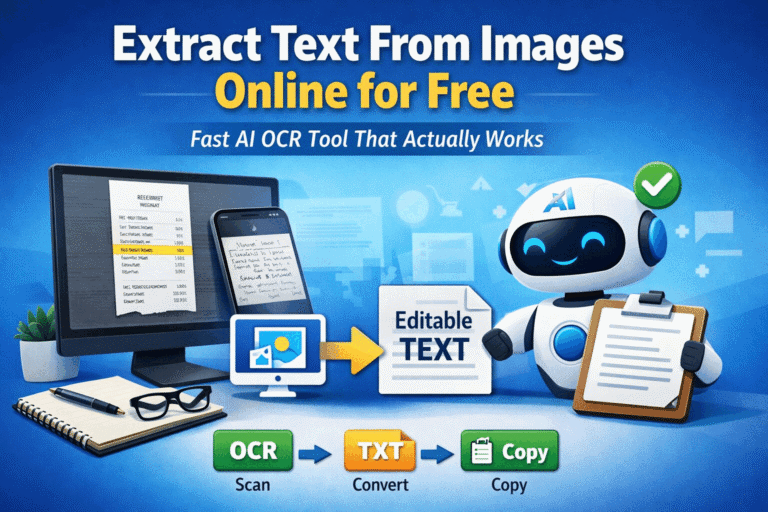

If you have a photo, screenshot, or scanned document with text in it, you can pull that text out in seconds using an OCR tool no typing, no software to install. The process is quick and works directly in your browser.
Here’s how to do it, what affects accuracy, and when it works well versus when it doesn’t.
How to extract text from an image online
- Go to Imganva’s Image to Text tool.
- Upload your image. JPG, PNG, and other common formats are supported. You can upload a photo, a screenshot, or a scanned document.
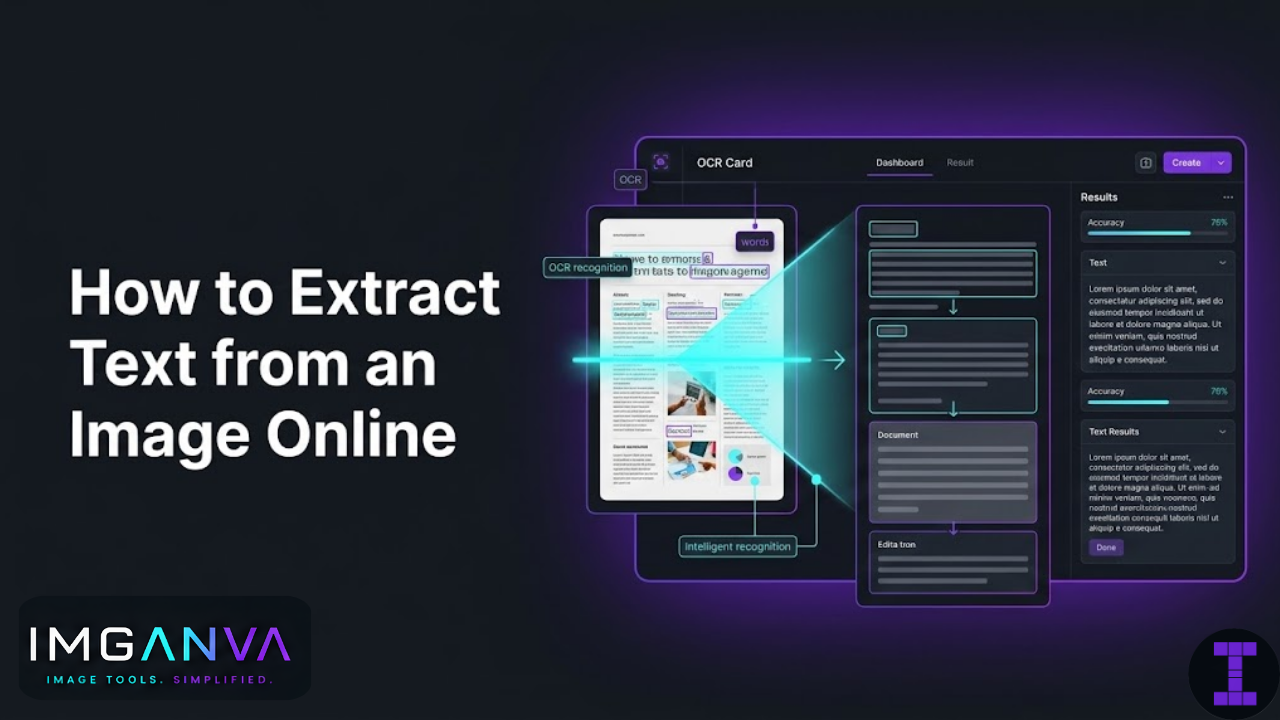
- Let the tool process the image. The OCR engine reads the image and identifies text regions automatically.
- Copy the extracted text. The output appears as plain, editable text that you can copy into any document, spreadsheet, or text editor.
That’s the full process for most images. For clean screenshots and typed documents, accuracy is typically very high close to what you’d get if you typed it manually.
What is OCR and how does it work?
OCR stands for Optical Character Recognition. It’s the technology behind any tool that converts image text into actual editable characters.
When you upload an image, the OCR engine scans it for patterns that match letters, numbers, and punctuation. It analyses shapes, spacing, and context to identify what characters are present and piece them together into words and lines.
Modern OCR tools handle a wide range of fonts and text styles reasonably well. Where they struggle is with handwriting, low-contrast text, unusual fonts, heavy image noise, or text that’s skewed at an angle. More on that below.
What kinds of images work best
The cleaner the image, the better the output. Here’s a general breakdown:
| Image type | Expected accuracy | Notes |
|---|---|---|
| Screenshot of typed text | Very high | Clean fonts, high contrast ideal input |
| Scanned printed document | High | Works well if scan is clear and straight |
| Photo of a printed page | Medium to high | Depends on lighting, focus, and angle |
| Photo of a sign or notice board | Medium | Can struggle with stylised fonts or shadows |
| Handwritten notes | Low to medium | Results vary significantly by handwriting style |
| Low-resolution or blurry image | Low | Text regions may not be identified reliably |
| Image with heavy background patterns | Low to medium | Background noise can interfere with character recognition |
Tips to get better extraction results
If your first result has errors or gaps, a few adjustments often improve it significantly:
Use a higher-resolution image if you can. Blurry or low-resolution images are the most common cause of poor OCR output. If you’re photographing a document, take the photo in good light and make sure it’s in focus. If you’re working from a screenshot, take it at full resolution don’t resize it down before uploading.
Straighten the image. Text at a noticeable angle is harder to read reliably. If your document photo is tilted, rotating it close to straight before uploading helps.
Keep the contrast clear. Dark text on a light background works best. Light text on a light background, or text over a busy pattern, will produce more errors. If the original has contrast issues, increasing contrast in a photo editor before uploading can help.
Crop out unnecessary areas. If your image has large empty margins or unrelated content around the text, cropping closer to the text area can reduce noise for the OCR engine. You can quickly crop using any basic image editor or the resizer before uploading.
For scanned documents, scan at 300 DPI. If you’re scanning specifically to extract text, 300 DPI is the standard minimum that OCR tools handle well. Lower than that and character edges become too soft to read accurately.
Common use cases
It’s worth knowing where this actually gets used day-to-day, because the tool serves a pretty wide range of tasks:
Extracting text from screenshots. A screenshot of an error message, a table from a website, or a chunk of text from a PDF that won’t let you copy OCR turns any of these into editable text in seconds. Much faster than retyping.
Digitising printed documents. Old printed reports, physical letters, or any paperwork that needs to live in a digital format. Scan it, upload it, copy the text out.
Pulling data from photos of forms or invoices. Business documents, receipts, or filled forms where you need specific information in a usable format. OCR gets you there without manual data entry.
Working with photos of whiteboards or notebooks. Meeting notes, diagrams with labels, or handwritten lists OCR has its limits with handwriting, but for block-printed or neat writing it can save a lot of time.
Extracting text from book pages or articles. Photo a page you want to quote or reference and extract the text directly rather than transcribing it.
Reading text in images for accessibility. If you receive an image with important text information and need to access that text in a readable format, OCR is a straightforward solution.
What to do with the extracted text
Once you have the plain text output, it works like any other text you can paste it directly into Word, Google Docs, Notion, Excel, or anywhere else. From there:
- Edit and reformat it as needed
- Search within it (which you can’t do with an image)
- Run spellcheck to catch any OCR errors
- Translate it using any translation tool
- Copy specific sections without retyping
For longer documents, it’s worth quickly scanning the output for errors before using it OCR is accurate but rarely perfect, especially for unusual fonts or compressed images.
Limitations to be aware of
OCR tools work well for a broad range of inputs, but they have genuine limits it’s worth being upfront about:
Handwriting accuracy varies widely. Printed handwriting can work reasonably well. Cursive or cramped handwriting is much harder for OCR to parse accurately. If the text is handwritten, expect to do more correction afterward.
Complex layouts don’t always transfer cleanly. Multi-column documents, tables, and text wrapped around images may come out in the wrong order or with formatting stripped. The extracted text is plain the layout doesn’t carry over.
Non-Latin scripts may need specific language support. OCR for Hindi, Arabic, Chinese, and other non-Latin scripts requires language-specific models. Results for these scripts may vary depending on the tool’s language capabilities.
Very small text may not extract correctly. Fine print, footnotes, and tiny captions are harder to read. If the text is small, see if you can crop and zoom in before uploading.
None of these are reasons not to try they’re just situations where you should expect to review and clean up the output rather than use it as-is.
Image file size and format
Most OCR tools accept JPG and PNG without issues. If your image is very large (several MB), it may slow down processing. If you’re working with large files regularly, compressing the image first can speed things up without affecting the OCR output quality, as long as you’re not compressing so aggressively that the text becomes blurry.
If your image is in a format that isn’t supported, converting it to JPG or PNG first takes a few seconds and ensures compatibility.
Frequently asked questions
How do I extract text from an image online for free?
Upload your image to an OCR tool like Imganva’s Image to Text tool. It processes the image and returns the text as editable plain text that you can copy. No account or software installation needed.
What file formats are supported for image to text conversion?
Most OCR tools support JPG and PNG at minimum. Some also accept WEBP, BMP, TIFF, and PDF. If you’re unsure, JPG is the safest format to use it’s universally accepted.
Can OCR extract text from a PDF?
It depends on the PDF. Text-based PDFs (where the text was created digitally) don’t need OCR you can usually copy text directly from them. Scanned PDFs are essentially images, and those do need OCR to extract the text. For scanned PDFs, you may need to convert the pages to images first, then run OCR on them.
Why is my extracted text inaccurate?
The most common causes are low image resolution, poor lighting in a photo, text at an angle, blurry focus, or a cluttered background. Try uploading a cleaner or higher-resolution version of the image. For photos of documents, good flat lighting and a straight-on angle make a significant difference.
Can I extract text from a handwritten image?
Yes, though accuracy depends on the handwriting. Neat, printed handwriting works reasonably well. Cursive or unclear writing will produce more errors. Always review the output when working with handwritten text.
Does image to text work for languages other than English?
Many OCR tools support multiple languages, including common ones like French, Spanish, German, and Portuguese. Support for non-Latin scripts such as Hindi, Arabic, or Chinese depends on the specific tool and its language models. Results for less common languages may need more manual correction.
Is it safe to upload documents to an online OCR tool?
For general use, yes reputable tools process your image and return text without storing it. That said, for sensitive documents like financial records, legal papers, or personal identification, be cautious about any online tool and check its privacy policy before uploading.
What’s the difference between copy-pasting text and using OCR?
If the text is already selectable (in a web page, a regular PDF, or a document), you don’t need OCR just copy it directly. OCR is for situations where the text is locked inside an image and can’t be selected or copied: photos, screenshots, scans, and image-based PDFs.