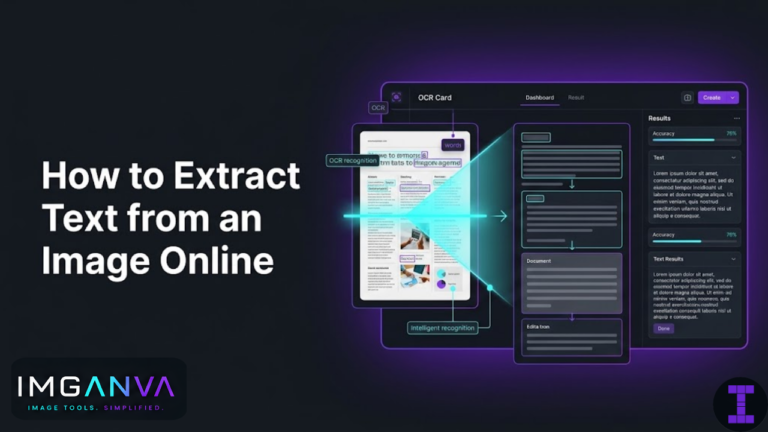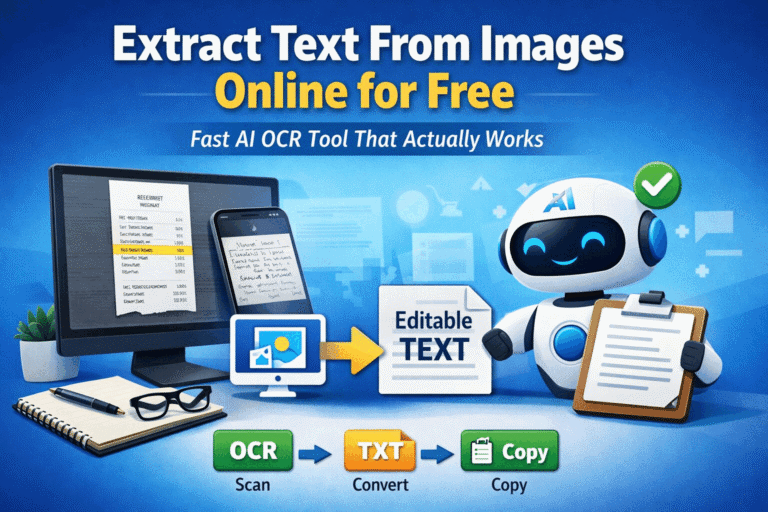
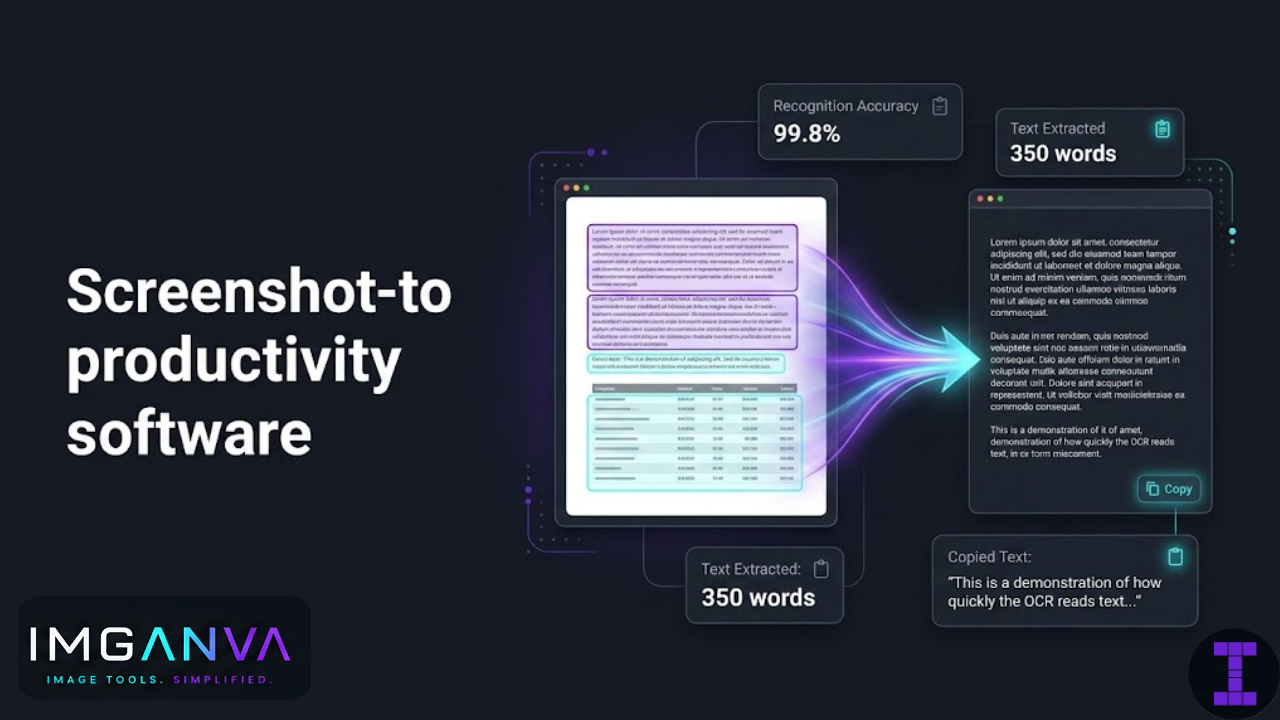

The fastest way to do this is to run the screenshot through an OCR tool online. Upload it, wait a few seconds, and you get back the text as actual, selectable, copyable content. No retyping required.
Imganva’s Image to Text tool does exactly this it reads the text in your screenshot and outputs it directly.
Why Screenshots Are Actually Great for OCR
OCR Optical Character Recognition reads text from images. Its accuracy depends heavily on image quality. And screenshots happen to have qualities that make them ideal inputs:
- High contrast: Most screenshots have dark text on white or light backgrounds, which is the best possible condition for character recognition.
- Sharp pixels: Screenshots are pixel-exact. There’s no blur from camera shake, lens distortion, or JPEG compression artifacts (as long as you save them as PNG).
- Consistent formatting: Digital text in screenshots usually has uniform font rendering, consistent spacing, and clean edges all of which help OCR accuracy.
In practice, OCR on a clean screenshot is about as reliable as it gets. You can expect very high accuracy for standard interface text, email screenshots, documents, code, and most other digital content.
Common Screenshot Situations Where This Helps
Error messages and logs
You encounter an error on screen, take a screenshot to remember it, and later need to search for the exact message or paste it into a bug report. Rather than retyping a long error string with exact capitalization and punctuation, run the screenshot through OCR and copy the text directly. This is especially useful for stack traces or error codes with lots of specific characters.
Chat and messaging screenshots
If you’ve saved screenshots of conversations WhatsApp, Telegram, email threads and need to pull specific information from them (an address, a date, a reference number), OCR saves you from reading and retyping.
Documents shared as images
Not everyone sends PDFs. Sometimes documents arrive as photos or screenshots price lists, invoices, menus, meeting notes. If you need to copy numbers, names, or content from these, OCR makes it quick.
Screenshots of web pages or articles
Sometimes people share content as screenshots instead of links. If you want to quote or reference the text, OCR lets you extract it without visiting the original page (which may no longer exist).
Software interfaces and settings
Screenshots of configuration panels, form fields, settings menus, or code editors are easy to extract text from. Useful for documentation, tutorials, or reporting issues.
Receipts and transaction notifications
Screenshot of a payment confirmation, an UPI transaction, or a bank notification? You can pull the transaction ID, amount, date, and merchant name with OCR rather than switching between apps to copy it.
Presentation slides
If someone shares presentation slides as images (rather than a PowerPoint or PDF), OCR lets you extract the slide text for notes, summaries, or reference.
How to Extract Text from a Screenshot on Imganva
- Take your screenshot and save it (PNG is best most OS screenshot tools default to PNG)
- Go to Imganva Image to Text
- Upload the screenshot drag and drop or click to browse
- The tool processes the image and displays the extracted text
- Copy the text directly or download it as a .txt file
The whole process typically takes under 30 seconds for a normal-sized screenshot.
Getting the Best Accuracy from Screenshot OCR
Save screenshots as PNG, not JPG
When you take a screenshot and save it as JPG, compression artifacts can blur sharp letter edges. PNG is lossless every pixel is exactly as captured. Most OS screenshot tools (Windows Snipping Tool, Mac screenshot, Android and iPhone screenshot) save as PNG by default. Don’t manually re-save as JPG before uploading.
Use full resolution
Don’t resize or scale down a screenshot before uploading for OCR. The full-resolution version gives the OCR engine more pixel data to work with. Even if the file is a few hundred kilobytes, upload the original.
Crop to the relevant area
If your screenshot contains a large image or background with only a small amount of text you need, cropping to just the text area can help. Less visual noise makes it slightly easier for the tool to focus on what matters and it also produces cleaner, less cluttered output text.
Check the output for common character confusions
Even with clean screenshots, OCR can occasionally confuse similar-looking characters. Common ones:
| Characters That Get Confused | Context |
|---|---|
| 0 (zero) and O (letter) | Codes, IDs, alphanumeric strings |
| 1 (one), I (capital i), l (lowercase L) | Reference numbers, passwords |
| 5 and S | Amounts, codes |
| rn vs m | Small font sizes |
| Period and comma | Decimal numbers, European number formatting |
For anything that will be used verbatim transaction IDs, confirmation codes, reference numbers do a quick visual check of the output against the screenshot.
Screenshots with Multiple Columns or Complex Layouts
Most OCR tools read text in a left-to-right, top-to-bottom flow. This works well for single-column content. Complex layouts two or three columns side by side, tables, mixed headers and body text can sometimes produce output where the text order doesn’t match the visual order.
If you’re extracting text from a screenshot of a multi-column document or a complex table, it helps to:
- Crop and upload each column separately
- Or manually reorder the text in the output if sequence matters
For straightforward text paragraphs, bullet points, single-column content layout issues rarely come up.
Dark Mode Screenshots
Dark mode screenshots (white or light text on a dark background) can reduce OCR accuracy in some tools. The OCR engine is generally optimized for the typical dark-on-light pattern. If you’re extracting text from a dark mode screenshot and getting poor results, try inverting the image colors first using any basic image editor, then re-upload.
Screenshots in Indian Languages
If your screenshot contains text in Hindi, Tamil, Telugu, Kannada, Marathi, or other Indian scripts, OCR support varies by tool. English and Latin-script languages have the most reliable support. For Indian language scripts, test the tool with a sample and see how well it handles the specific script. Results may be less accurate than for English, particularly for complex scripts or smaller font sizes.
Downloading and Using the Extracted Text
Once the OCR tool produces the output, you have a few options:
- Copy to clipboard: Fastest for short content paste directly into your document, chat, or form
- Download as .txt: Useful if you’re extracting a large amount of text you’ll save or work with later
- Select and copy specific portions: If you only need part of the extracted text, you can select just what you need from the output
Screenshot to Text vs. Built-In OS Features
Some operating systems now have built-in text recognition from images. Here’s how they compare:
| Option | Platform | How It Works | Limitations |
|---|---|---|---|
| iOS Live Text | iPhone / iPad (iOS 15+) | Long press on text in Photos app | Works inline in Photos; not for all image types |
| Google Lens | Android / Chrome | Select text from image via Lens | Works well; requires Google account / app |
| Windows Snipping Tool (OCR) | Windows 11 | Text Actions button in Snipping Tool | Only works at capture time; newer feature |
| Mac Preview | macOS Ventura+ | Select text directly in image | Works for clean images; not always reliable for all fonts |
| Online OCR (Imganva) | Any browser | Upload screenshot; download text | Requires internet; best for existing screenshots |
Built-in OS options are convenient for quick grabs while you’re working. An online tool is more useful when you have a saved screenshot you want to process later, or when the built-in option doesn’t cover your device or OS version.
Frequently Asked Questions
- How do I copy text from a screenshot?
- Upload the screenshot to an OCR tool like Imganva’s Image to Text. The tool reads the image and outputs the text for you to copy.
- Is screenshot OCR accurate?
- For clean screenshots with standard fonts and good contrast, accuracy is very high. Dark mode screenshots, small text, and complex layouts can reduce it slightly.
- What’s the best image format for screenshot OCR?
- PNG. It’s lossless, so character edges stay sharp. JPG compression can blur fine details and reduce accuracy.
- Can I do this on mobile?
- Yes. Imganva works in mobile browsers. On Android, Google Lens is also a quick option. On iPhone, iOS Live Text works directly in the Photos app.
- Does it work for Hindi or Tamil text?
- Support varies. English OCR is highly reliable. For Indian language scripts, test with a sample accuracy may be lower for smaller text or complex scripts.
- What if the text order is wrong in the output?
- OCR reads top-to-bottom, left-to-right. Multi-column layouts can produce out-of-order text. Crop to single-column sections and process them separately for better results.
The Short Answer
If you have a screenshot and need the text from it, uploading to an OCR tool is the fastest approach. Screenshots are actually the best input for OCR high contrast, sharp text, consistent formatting. The results are usually clean enough to use without editing.
For anything where the exact text matters codes, reference numbers, specific names a quick review of the output is worth it. But for most everyday uses, it’s upload, copy, done.