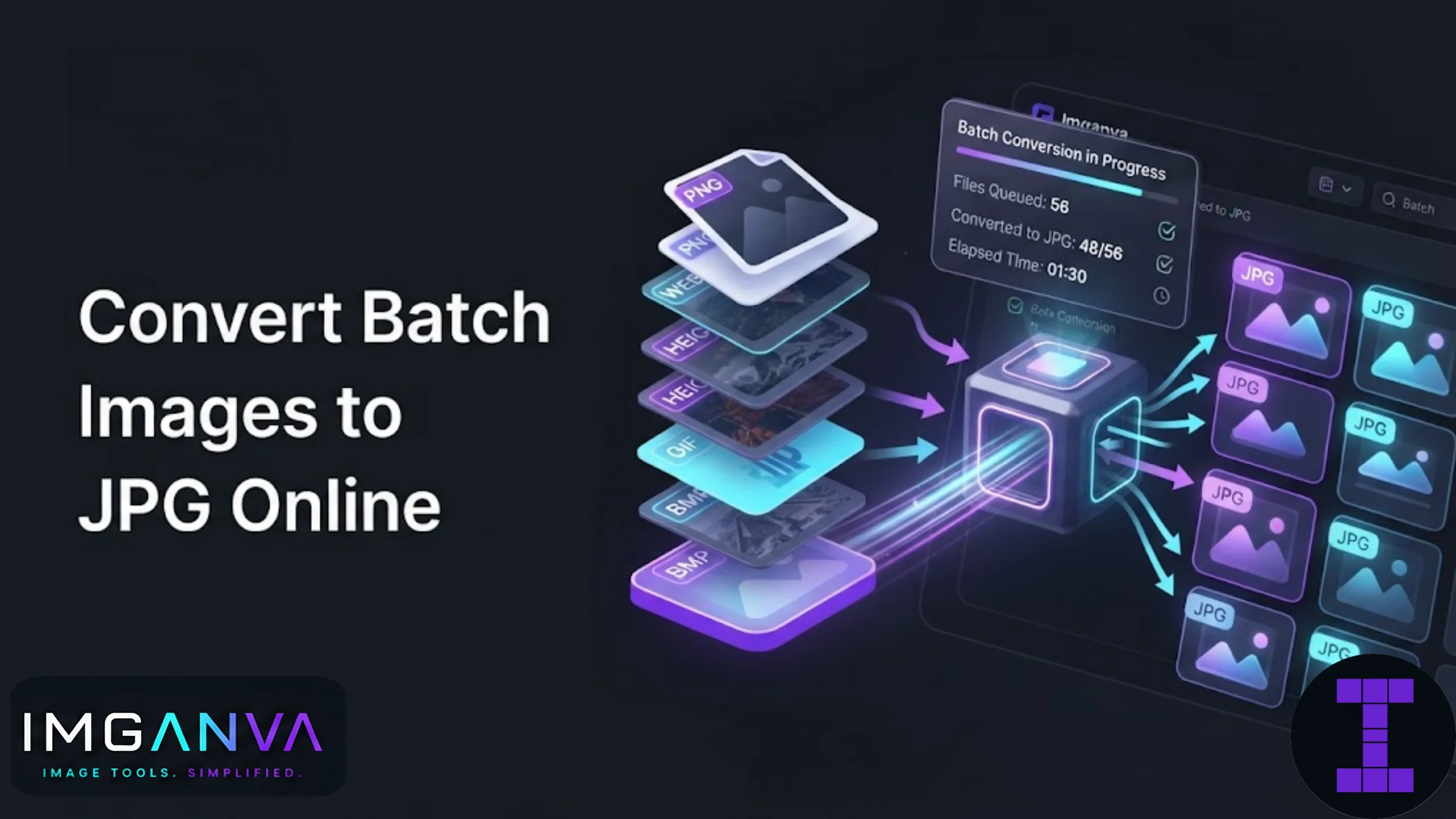

If you have a folder full of PNGs, WEBPs, or screenshots and need them all in JPG format, opening each one individually is a waste of an afternoon. Batch conversion solves this by processing every file in one pass, so you get the same output format across your whole set without repeating the same steps over and over.
This guide covers how batch image to JPG conversion works, when it makes sense, what you might lose in the process, and how to do it online without installing anything.
Key Takeaways
- Batch conversion changes multiple images to JPG in a single upload instead of one at a time.
- JPG works best for photos and complex images, not for graphics that need transparency.
- Converting PNG or WEBP to JPG usually shrinks file size but drops transparency support.
- Browser-based converters skip installation and keep files off third-party servers when they process locally.
- Quality settings matter more than most people realize when converting in bulk.
What Batch Image Conversion Actually Means
Batch conversion is just processing a group of files through the same operation at once. Instead of converting image1.png, then image2.png, then image3.png separately, you upload all three (or three hundred) and the tool applies the same output settings to each one.
This matters most when you’re dealing with product photos for an online store, a folder of screenshots for documentation, scanned pages, or camera exports that came out as PNG or HEIC and need to be JPG for a website, CMS, or upload form.
Why Convert to JPG Specifically
JPG remains the default format for photographic content because it compresses well without a huge visible quality drop, and it’s supported everywhere: every browser, every CMS, every social platform, every printer.
| Reason to Convert to JPG | Why It Helps |
|---|---|
| Smaller file size | JPG compression reduces size significantly compared to PNG for photos |
| Universal compatibility | Every platform and device renders JPG without issue |
| Faster page loads | Smaller files mean quicker website and gallery loading |
| Upload form requirements | Many government and job portals accept JPG only |
| Email attachments | Smaller JPGs avoid hitting attachment size limits |
The tradeoff: JPG doesn’t support transparency, and repeated saves at low quality settings will degrade an image. If your source files are PNGs with transparent backgrounds, converting to JPG will fill that transparency with a solid color, usually white.
How to Batch Convert Images to JPG Online
- Open the Image Converter and select the batch or multi-file upload option.
- Select all the images you want converted. Most browser tools accept PNG, WEBP, BMP, TIFF, and HEIC as source formats.
- Choose JPG as the output format.
- Set your quality level. 80-85% is a reasonable default that keeps files small without visible artifacts.
- Start the conversion and download the batch as a ZIP file once processing finishes.
Because this runs in the browser, there’s no waiting for files to upload to a remote server and back, which matters when you’re converting fifty or a hundred images at once.
Quality Settings: What to Choose
| Use Case | Recommended Quality | Notes |
|---|---|---|
| Web thumbnails | 60-70% | Small size matters more than sharpness |
| Blog or article images | 75-85% | Good balance of size and clarity |
| Product photography | 85-95% | Detail matters for customer trust |
| Print or archival use | 95-100% | Minimal compression, larger files |
A common mistake is applying the same aggressive compression setting to every image in a batch regardless of content. A screenshot with flat colors and text compresses very differently than a detailed photograph, and running both through identical settings can leave one looking fine and the other blurry or blocky.
Common Mistakes When Batch Converting
- Ignoring transparency loss. PNG logos or graphics with transparent backgrounds turn into solid white or black backgrounds once converted to JPG.
- Converting already-compressed JPGs again. Re-saving a JPG as another JPG adds another round of lossy compression, degrading quality slightly each time.
- Not checking output file names. Some tools rename files in bulk, which can break references if the images are linked elsewhere, like in a website’s HTML.
- Using one quality setting for everything. Text-heavy screenshots and detailed photos don’t compress the same way, so a single setting rarely suits both well.
- Uploading originals to unknown third-party tools. If the images are sensitive, prefer a converter that processes files locally in the browser rather than sending them to a server.
JPG vs PNG vs WEBP for Batch Work
| Format | Best For | Transparency | Typical File Size |
|---|---|---|---|
| JPG | Photos, product shots, general web use | No | Small |
| PNG | Logos, graphics, screenshots with text | Yes | Larger |
| WEBP | Modern websites needing both quality and speed | Yes | Smallest |
If your batch mixes photos and graphics, it’s worth splitting the job. Convert the photographic content to JPG and keep transparent graphics in PNG or WEBP instead of forcing everything into one format.
After Conversion: What to Check
Once a batch finishes, spot-check a few files before deleting the originals. Look for banding in gradients, blurred text on screenshots, or unexpected background colors where transparency used to be. If several images look off, bump the quality setting up and re-run the batch rather than trying to fix individual files afterward.
If the goal is meeting a specific file size limit rather than just changing format, a tool built around changing image size in KB can be more precise than adjusting quality percentages by trial and error.
When Batch Conversion Isn’t the Right Move
Batch tools apply the same settings across every file, which is efficient but not always accurate. If a handful of images in your set need very different treatment, like one requiring a specific dimension for a passport photo and the rest needing web optimization, it’s usually faster to handle that one file separately rather than trying to force a single batch job to cover both needs.
For a broader look at format decisions beyond just JPG, the Image Format Conversion Guide 2026 covers when PNG or WEBP might actually serve you better.
Frequently Asked Questions
Can I convert PNG images to JPG in bulk for free?
Yes. Browser-based converters like Imganva’s Image Converter let you upload multiple PNG files, convert them all to JPG in one pass, and download the results as a batch without any cost.
Will converting PNG to JPG remove transparency?
Yes. JPG doesn’t support transparent backgrounds, so any transparent areas in a PNG will be filled with a solid color, usually white, once converted.
What’s the best quality setting for batch JPG conversion?
A quality setting between 75 and 85 percent works well for most general use cases, balancing file size and visual clarity. Higher settings suit product photos, lower settings suit thumbnails.
Does batch conversion reduce image quality?
Some quality loss is expected since JPG uses lossy compression, but at reasonable quality settings the difference is barely visible to the eye while file sizes shrink significantly.
Can I convert HEIC photos from an iPhone to JPG in bulk?
Yes, most browser converters accept HEIC as a source format and can convert an entire camera roll export to JPG in one batch.
Is it safe to batch convert images online?
It depends on the tool. Converters that process files locally in your browser don’t upload your images to a server, which is safer for personal or sensitive photos.
Why do some converted JPGs look worse than the original PNG?
This usually happens when the quality setting is too low or when transparency gets replaced with a background color that clashes with the image content.
Can I batch convert images and resize them at the same time?
Some converters allow this in one step, but for precise dimension control it’s often better to convert first, then use a dedicated resizer for exact sizing needs.
What file formats can I convert to JPG in batch?
Most online converters accept PNG, WEBP, BMP, TIFF, and HEIC as source formats for batch conversion to JPG.
Should I convert an already compressed JPG to JPG again?
Generally no. Re-saving a JPG as JPG adds another round of lossy compression, which can slightly degrade quality without any real benefit.
Summary
Batch converting images to JPG saves time when you’re dealing with more than a handful of files, and it’s the right call for photos, product shots, and general web content. Just watch for transparency loss on graphics, pick a quality setting that matches the content type, and spot-check a few results before assuming the whole batch turned out fine. For mixed batches with both photos and graphics, converting each group separately usually gives a cleaner result than forcing one setting on everything.