
If your site feels slow or your images take too long to load, the format you’re saving them in matters more than most people realize. WebP and JPG are the two formats you’ll run into most, and picking the right one can shave real weight off your pages.
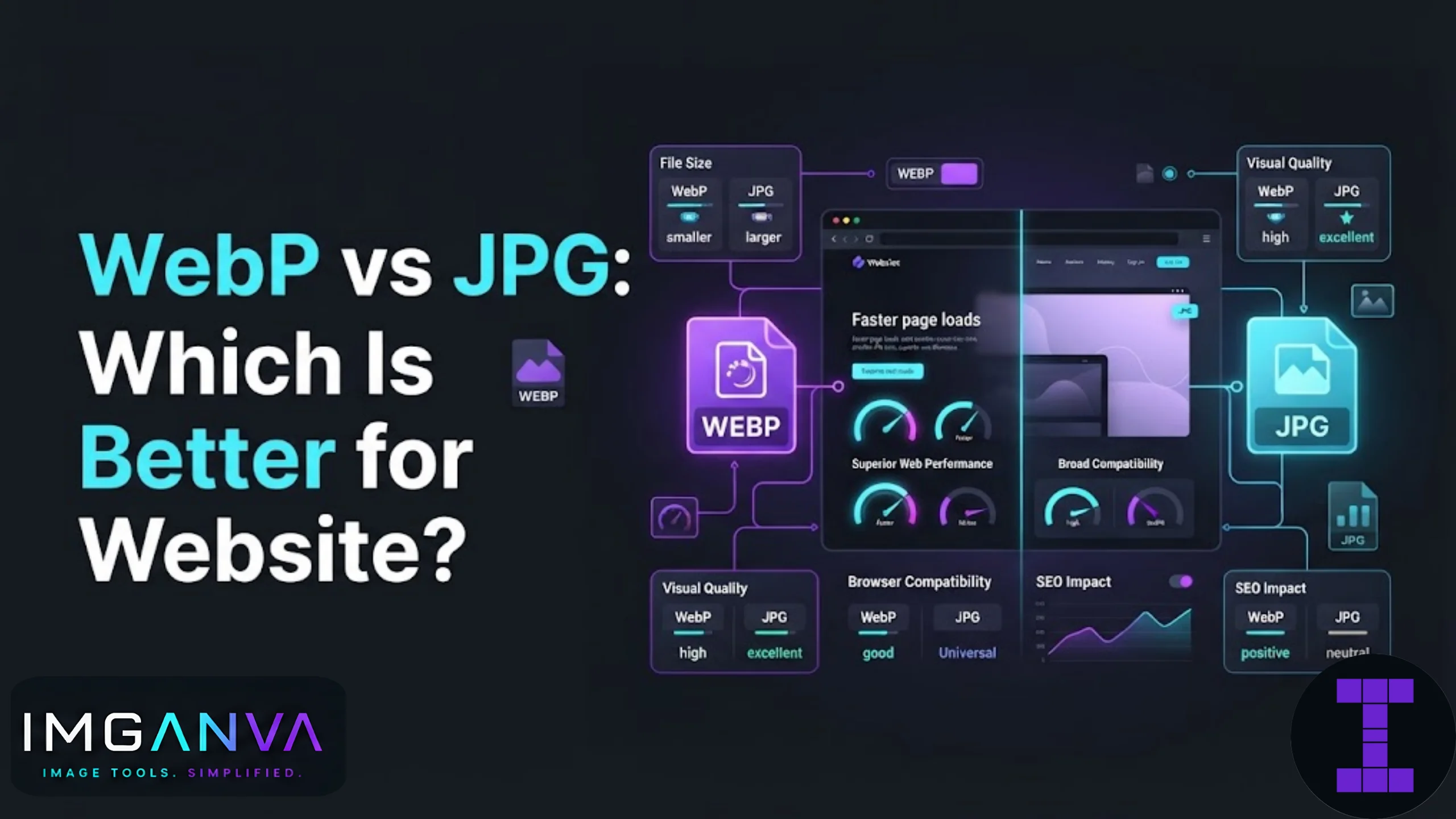
Short answer: WebP is better for websites in almost every case. It compresses smaller than JPG at the same visual quality, supports transparency, and loads faster on modern browsers. JPG still has a place, mainly for compatibility with older systems or specific print and email workflows.
Key Takeaways
- WebP files are typically 25-35% smaller than JPG at equivalent quality.
- WebP supports transparency, JPG does not.
- Almost all modern browsers support WebP, including Chrome, Firefox, Safari, and Edge.
- JPG is still useful for legacy systems, some email clients, and certain print workflows.
- Page speed and Core Web Vitals both benefit from switching to WebP.
WebP vs JPG: Direct Comparison
| Factor | WebP | JPG |
|---|---|---|
| File Size | Smaller at same quality | Larger |
| Transparency | Supported | Not supported |
| Animation | Supported | Not supported |
| Browser Support | Excellent (all modern browsers) | Universal |
| Compression Type | Lossy and lossless | Lossy only |
| Best Use Case | Website images, icons, product photos | Photography workflows, older platforms, email attachments |
| Editing Support | Growing, but not universal | Supported everywhere |
Why WebP Usually Wins for Websites
Website performance depends heavily on how much data a browser has to download before it can show the page. Images are usually the biggest contributor to that weight. WebP was built by Google specifically to solve this problem, and it does the job well.
A product photo that’s 180KB as a JPG might come down to 110-120KB as a WebP without any visible difference in quality. Multiply that across a page with 15-20 images and the savings add up fast, especially on mobile connections.
WebP also supports both lossy compression (like JPG) and lossless compression (like PNG), so you get flexibility depending on the type of image. Photos usually work best as lossy WebP. Logos, icons, and graphics with sharp edges do better as lossless WebP.
When JPG Still Makes Sense
JPG isn’t obsolete. There are a few situations where sticking with it is the practical choice:
- Legacy systems: Some older CMS platforms, plugins, or internal tools don’t handle WebP cleanly.
- Print and design software: Many desktop editing tools and print workflows still expect JPG or PNG.
- Email attachments: Some email clients render WebP inconsistently or not at all.
- Third-party integrations: If you’re uploading to a platform that explicitly requires JPG, don’t fight it.
If you’re unsure which situation applies to you, check our image format conversion guide for a broader breakdown of when each format fits.
How to Convert Images to WebP
- Open the image converter tool.
- Upload your JPG or PNG file.
- Select WebP as the output format.
- Download the converted file and check the visual quality before publishing.
If the resulting file is still larger than you’d like, running it through an image compressor afterward can bring it down further without a noticeable quality drop.
Common Mistakes to Avoid
- Converting without a fallback: A small percentage of older browsers still don’t support WebP. Use a fallback image tag (`<picture>` element) if your audience includes older devices.
- Over-compressing photos: Pushing WebP quality too low creates visible blotching on gradients and skin tones.
- Assuming WebP always wins: For images with heavy noise or grain, JPG sometimes compresses more predictably. Test both when in doubt.
- Forgetting to re-check dimensions: Converting format doesn’t fix oversized dimensions. Resize first if the image is larger than it needs to be on the page.
WebP Limitations Worth Knowing
WebP isn’t perfect for every workflow. Some design tools still lack full native support, so if your team collaborates heavily in software like older versions of Photoshop, you may hit friction. Animated WebP files, while supported, aren’t as widely recognized as GIF in casual sharing contexts like messaging apps. And if your site serves a userbase with a meaningful share of outdated browsers, a fallback strategy is worth the extra setup time rather than skipping it.
Is WebP better than JPG for SEO?
Yes, indirectly. Smaller WebP files load faster, and page speed is a ranking factor, so switching can support better Core Web Vitals scores.
Do all browsers support WebP?
Nearly all modern browsers support WebP, including Chrome, Firefox, Edge, and Safari (from version 14 onward). Very old browser versions may not.
Will converting to WebP reduce image quality?
Not noticeably if done correctly. WebP can match JPG visual quality while using a smaller file size, though extremely low quality settings will show artifacts in both formats.
Can I convert WebP back to JPG if needed?
Yes, WebP to JPG conversion is straightforward and useful when a platform or tool requires JPG specifically.
Should I use WebP for product photos on an ecommerce site?
Yes, product photos are one of the best use cases since ecommerce pages often carry many images and benefit heavily from reduced file size.
Does WordPress support WebP by default?
Recent WordPress versions support WebP uploads natively. Older versions may need a plugin or manual configuration.
Is WebP good for logos and icons?
Yes, especially using lossless WebP, which keeps sharp edges and transparency intact while still reducing file size compared to PNG.
What’s the biggest downside of using WebP?
Limited support in some older editing software and inconsistent handling in a small number of legacy browsers and email clients.
Do I need special software to open WebP files?
Most modern browsers open WebP directly. For editing, current versions of major image editors support it, though older ones may not.
Summary
For most websites, WebP is the better choice. It’s smaller, supports transparency and animation, and works across nearly every modern browser without visible quality loss. JPG still has its place for legacy systems and specific workflows, but if page speed and Core Web Vitals matter to you, converting your images to WebP is one of the simplest wins available. Start with your heaviest pages first, convert with the image converter, and compress further if needed with the image compressor. For the full picture on format decisions, the image format conversion guide covers the rest of the landscape.