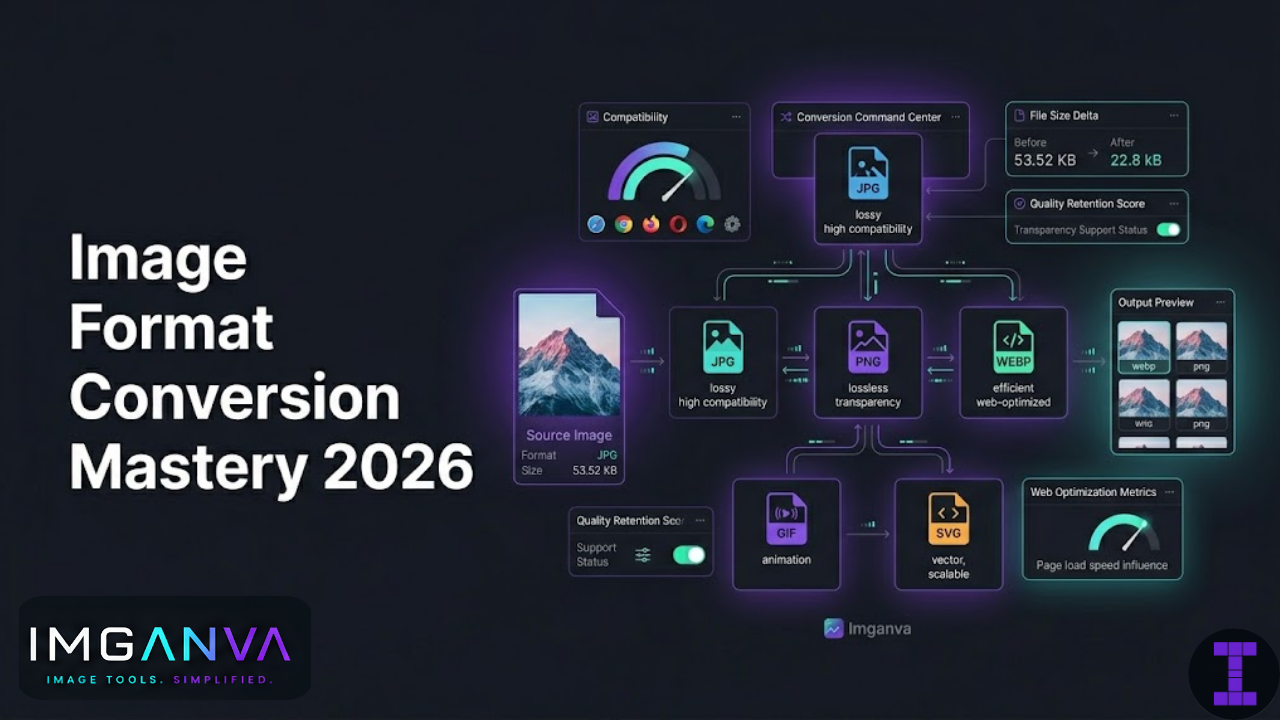

Converting an image from one format to another sounds simple and often it is. But pick the wrong format for the job and you’ll end up with a logo that looks muddy, a photo that’s five times larger than it needs to be, or a transparent background that’s suddenly white.
This guide covers every major image format, when to convert between them, what you’ll gain or lose in the process, and how to avoid the mistakes that trip people up.
Key Takeaways
- Format choice affects file size, quality, transparency support, and browser compatibility
- Converting from lossless to lossy (PNG → JPEG) permanently discards quality always keep originals
- WebP replaces JPEG and PNG for most web use cases in 2026
- AVIF offers the best compression quality ratio but encodes slowly
- Never convert screenshots, logos, or text-heavy images to JPEG
- SVG cannot be meaningfully converted to/from raster formats without losing its vector nature
Understanding Image Format Types
Before getting into conversions, it helps to know what separates formats from each other. Image formats fall into two broad categories: raster and vector. Most formats JPEG, PNG, WebP, AVIF, GIF, BMP are raster. SVG is the main vector format you’ll deal with on the web.
Raster images are made of pixels. Resize them beyond their original dimensions and they get blurry. Every conversion between raster formats involves a tradeoff between file size, quality, and features.
Vector images (SVG) are mathematical descriptions of shapes. They scale infinitely without quality loss. Converting an SVG to a raster format means rasterizing it at a specific resolution once done, that scaling ability is gone.
Within raster formats, there’s another key split:
| Compression Type | What It Means | Formats |
|---|---|---|
| Lossy | Permanently discards data to achieve smaller sizes | JPEG, WebP (lossy mode), AVIF (lossy mode) |
| Lossless | Compresses without touching image data | PNG, WebP (lossless), AVIF (lossless), GIF, BMP (uncompressed) |
This distinction is the most important thing to understand before converting anything. Going from lossless to lossy discards information permanently. Going from lossy to lossless doesn’t recover what was already lost you just get a large file of a compressed image.
Every Major Format Explained
JPEG / JPG
The most widely used format for photos. JPEG uses lossy compression tuned for natural images photos with gradual color transitions and organic textures. It handles those well. It handles sharp edges, text, and flat-color graphics poorly, producing visible blocky artifacts around them.
No transparency support. Quality degrades each time you re-save at lossy compression. Good for photos, bad for logos, screenshots, or anything with text.
PNG
Lossless compression with full transparency support. PNG is the right choice for logos, icons, screenshots, UI elements, and any image where sharpness and accuracy matter more than file size. Photos saved as PNG are much larger than they need to be that’s a common mistake worth correcting.
WebP
Google’s format designed to replace both JPEG and PNG for web delivery. Supports lossy and lossless modes, transparency, and even simple animation. At equivalent quality settings, WebP files are typically 25–35% smaller than JPEG and noticeably smaller than PNG. Browser support is near-universal in 2026. The main limitation is email client support, which is still inconsistent.
AVIF
Based on the AV1 video codec. Offers exceptional compression often 40–50% smaller than JPEG at comparable quality. Supports transparency, HDR, and wide color gamut. Browser support has matured significantly. The tradeoff is encoding time, which is slower than WebP, making it less practical for real-time image processing pipelines. Best used where maximum size reduction matters and encoding time isn’t a constraint.
GIF
Limited to 256 colors, making it terrible for photos. Still widely used for short animations, though WebP and AVIF both support animation with better quality and smaller sizes. If you’re working with GIFs in 2026, the main question is whether you need the animation if not, convert to a modern format immediately.
BMP
Uncompressed raster format. Large file sizes with no benefit for web use. You’ll encounter BMP files coming out of certain Windows applications or legacy systems. They should almost always be converted to something more practical before use.
TIFF
High-quality format common in print workflows, professional photography, and document scanning. Supports very high bit depth and multiple compression options. Not suitable for web delivery browsers don’t render TIFF. Useful as an archival or print production format; convert to WebP or JPEG for web use.
SVG
XML-based vector format. Logos, icons, and illustrations in SVG scale perfectly at any size. Web-native: browsers render SVG directly. Can be styled with CSS and manipulated with JavaScript. For any graphic that needs to work across multiple sizes, SVG beats raster every time if the source artwork supports it.
Format Comparison at a Glance
| Format | Compression | Transparency | Animation | Web Use | Best For |
|---|---|---|---|---|---|
| JPEG | Lossy | No | No | Universal | Photos, complex images |
| PNG | Lossless | Yes (alpha) | No | Universal | Logos, icons, screenshots |
| WebP | Both | Yes | Yes | All modern browsers | General web images |
| AVIF | Both | Yes | Yes | Most modern browsers | High-quality photos, HDR |
| GIF | Lossless (256 colors) | Binary only | Yes | Universal | Simple animations |
| BMP | None | No | No | No | Legacy/uncompressed source |
| TIFF | Multiple options | Yes | No | No | Print, archival, scanning |
| SVG | Vector (XML) | Yes | Yes (CSS/SMIL) | Universal | Icons, logos, illustrations |
Common Conversion Scenarios and What to Expect
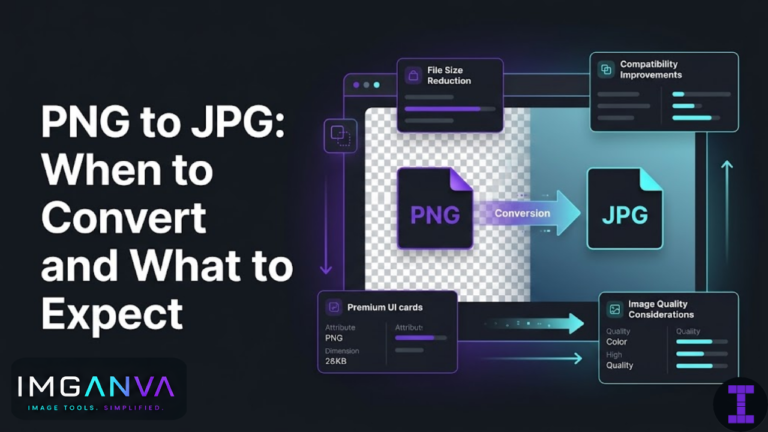
PNG to JPEG
Use this when you have a photo that was incorrectly saved as PNG. You’ll get a much smaller file. What you lose: transparency. If the PNG has a transparent background, it will be filled with white (or a color you specify) after conversion. If the image is a logo or graphic with flat colors and sharp edges, don’t make this switch JPEG will handle it poorly. For actual photos, PNG to JPEG is a straightforward and useful conversion.
JPEG to PNG
One of the most misunderstood conversions. People do this thinking it will improve quality it won’t. JPEG artifacts are already baked into the pixel data. Converting to PNG gives you a lossless copy of a lossy image. The file will be larger, but not better quality. The only time this makes sense is when you need to do multiple edits without further quality loss, or when you need transparency (though starting from a JPEG means you have no clean transparency to work with).
PNG to WebP
One of the most practical conversions for web work. WebP lossless mode produces smaller files than PNG while keeping the same quality. WebP also supports transparency, so transparent PNGs convert cleanly. For logos and UI graphics you serve on the web, this is worth doing. Keep the original PNG as your source file.
JPEG to WebP
Typically reduces file size 25–35% at equivalent quality. The conversion is straightforward for photos. Convert at a quality setting that matches or slightly exceeds your JPEG quality converting at quality 70 from a quality 85 JPEG will introduce extra degradation. Keep your original JPEG or source file.
Image to AVIF
AVIF conversion produces the smallest files of any common format at comparable quality. Encoding is slower than WebP a consideration for batch jobs or server-side processing. For static assets where you’re pre-converting files, the size savings are often worth the encoding time. Browser support is good enough for production use in 2026, though you may want a JPEG or WebP fallback for older environments.
GIF to WebP or AVIF
If you’re dealing with animated GIFs, converting to animated WebP typically reduces file size substantially often 70–80% smaller while supporting more colors and smoother animation. AVIF supports animation too. For non-animated GIFs (which are just limited-color images), convert to PNG or WebP directly.
BMP or TIFF to Web Formats
These are source files that need to be converted before web delivery. BMP to WebP or JPEG is a straightforward size reduction. TIFF to JPEG or WebP is common for photos coming out of print production or professional scanning workflows. You’ll typically want to adjust quality settings and potentially resize during this conversion since these source formats are often very high resolution.
Raster to SVG
This is the tricky one. You can’t meaningfully auto-convert a photo or complex raster image to SVG the result is either a massive file that embeds the raster data in XML, or a heavily approximated trace that looks nothing like the original. SVG auto-tracing works reasonably well only for simple flat-color graphics with clean edges, like logos built in pixel art or icons. For anything else, SVG needs to be created in a vector editor like Illustrator or Inkscape from the start.
SVG to PNG or WebP
This is rasterization converting a scalable vector to pixels at a specific size. This is appropriate when you need a raster version of a vector graphic: for use in email, embedding in a document, or sharing in a context that doesn’t support SVG. Set the output resolution carefully once rasterized, you lose the scalability. Export at the largest size you’ll need, or keep the SVG for future exports at other sizes.
Which Conversion Loses Quality? A Clear Reference
| Conversion | Quality Impact | Notes |
|---|---|---|
| PNG → WebP (lossless) | None | Lossless to lossless, smaller file |
| PNG → JPEG | Yes permanent | Lossy; transparency lost |
| PNG → WebP (lossy) | Yes slight | Lossy mode; choose quality carefully |
| JPEG → PNG | No improvement | Existing artifacts preserved in larger file |
| JPEG → WebP | Minimal at high quality | Match or exceed source JPEG quality setting |
| JPEG → JPEG (re-save) | Yes cumulative | Each save degrades quality further |
| TIFF / BMP → JPEG | Yes first compression | First lossy conversion from uncompressed source |
| SVG → PNG/WebP | Scalability lost | Rasterized at fixed resolution; vector nature gone |
| GIF → WebP | None to improvement | More colors, smaller file, smoother gradients |
Transparency: The Conversion Trap
Transparency is where format conversions most often go wrong. PNG, WebP, AVIF, and SVG all support alpha transparency. JPEG and GIF do not at least not the way you’d expect.
When you convert a transparent image to JPEG, the transparent areas need a fill color. Most tools default to white. Sometimes that’s fine. Often it’s not a product photo with a transparent background suddenly has a white box around it, or a logo looks wrong on a dark-background page.
GIF has binary transparency a pixel is either fully transparent or fully opaque. This means semi-transparent edges (like a soft shadow or a feathered logo) get cut off harshly. GIF can’t handle the smooth alpha blending that PNG and WebP support.
The practical rules:
- If an image has transparency and needs to stay transparent: keep it as PNG, WebP, or AVIF
- If you’re converting to JPEG: specify a background fill color, or flatten the image deliberately first
- GIF transparency works only for hard-edged graphics not photos, gradients, or soft shadows
Color Profiles and Conversion Accuracy
Most users won’t need to think about this, but it matters in professional workflows. Images can carry embedded color profiles sRGB, Adobe RGB, ProPhoto RGB, CMYK. These describe how color values in the file map to actual visible colors.
When converting between formats, color profile handling varies by tool. A conversion that strips or misinterprets the color profile can shift colors noticeably particularly in images edited in a wide-gamut color space. Photos intended for print that use Adobe RGB or CMYK profiles should be converted to sRGB before any web delivery format conversion, otherwise colors may look washed out or shifted in browsers.
For everyday web use with standard sRGB photos, this isn’t a concern. For photographers, print designers, or anyone working with professionally edited images, it’s worth checking that the output color profile is what you expect.
How to Convert Images: Practical Options
Browser-Based Tools
The fastest option for one-off conversions with no software to install. Imganva’s image converter handles all major format conversions JPEG, PNG, WebP, AVIF, GIF, BMP, and more directly in your browser. Useful for quick jobs or when working on a machine where you can’t install software.
Desktop Software
Photoshop, GIMP, Affinity Photo, and most professional image editors support export to all major formats with fine-grained control over quality, color profiles, and metadata. Better for images that need editing as part of the conversion, or when you need precise control over the output settings.
Command-Line Tools
ImageMagick, libvips, and cwebp (Google’s WebP encoder) are the standard options for batch conversion and automated pipelines. ImageMagick handles nearly every format and can convert thousands of files with a single command. libvips is faster for large batches. These are the tools to reach for when you’re automating image processing at scale.
CMS and Platform Plugins
WordPress, Shopify, and most modern CMS platforms have plugins that automatically convert uploaded images to WebP or AVIF. These handle conversion transparently without any manual work. The output quality depends on the plugin settings it’s worth checking that the defaults match your quality expectations.
Format Conversion for Specific Platforms
WordPress
WordPress added native WebP support in version 5.8. Plugins like Imagify, ShortPixel, or WebP Express can handle automatic conversion on upload. AVIF support is available through plugins but not native yet. The main consideration is ensuring your theme and image display code serves the converted format correctly.
Shopify
Shopify automatically serves WebP to supported browsers from uploaded JPEG and PNG files. You don’t need to manually convert product images upload the best quality source you have and let the platform handle delivery format. Where you do need to convert is when uploading graphics that need transparency, since JPEG doesn’t support it.
Stick to JPEG for photos and PNG for graphics with transparency. WebP support in email clients remains inconsistent across providers in 2026. Outlook on Windows in particular has poor WebP support. For email, format compatibility beats optimization a slightly larger JPEG that renders everywhere beats a smaller WebP that breaks in Outlook.
Mobile Apps
Both iOS and Android support WebP and AVIF. For app assets distributed with the app, AVIF or WebP are good choices for photos. For icons and UI elements, use SVG where the platform allows (iOS and Android both support SVG natively), or PNG for raster UI assets.
Mistakes That Waste Time and Quality
Converting to Improve Already-Compressed Images
If you start with a low-quality JPEG, converting it to WebP or PNG doesn’t recover the lost quality. The artifacts are in the pixel data they come along for the ride. Always work from your highest-quality source file, ideally the original uncompressed or losslessly-compressed version.
Using JPEG for Screenshots and UI Images
Screenshots contain text, interface elements, and sharp color boundaries. JPEG handles these badly. The compression algorithm creates ringing artifacts around high-contrast edges that make text look fuzzy and interface screenshots look amateur. Use PNG or lossless WebP for anything that contains text or UI elements.
Ignoring File Size After Conversion
Converting PNG to WebP doesn’t automatically give you a small file a 5000×4000px PNG converted to WebP losslessly is still a large file. Conversion handles format; resizing handles dimensions. If the converted file is still too large, the image probably needs to be resized too. Imganva’s image resizer can handle this before or after format conversion.
Converting Vector to Raster at Too Low a Resolution
When you export an SVG to PNG or WebP, the output resolution matters. Export too small and the image looks blurry at larger display sizes. A common mistake is exporting a logo SVG at 100×100px when it needs to display at up to 400px wide on a retina screen (which needs 800px). Export at the maximum size you’ll need, or keep the SVG for future exports.
Re-saving JPEGs Through a Conversion Pipeline
Every time a JPEG goes through a lossy compress-decompress cycle, quality degrades. A JPEG edited in Photoshop and re-saved three times is noticeably worse than the original. Keep sources lossless (TIFF, PNG, or RAW) and only export to JPEG at the final step.
Frequently Asked Questions
What’s the best format to convert images to for a website in 2026?
WebP is the best default for most web images. It supports photos and graphics, includes transparency support, and produces files 25–35% smaller than equivalent JPEG or PNG. AVIF is worth considering where maximum compression matters and you can tolerate slower encoding times. Keep JPEG and PNG as fallbacks where needed.
Does converting PNG to JPEG reduce quality?
Yes, permanently. PNG is lossless and JPEG is lossy, so converting introduces compression artifacts. The quality reduction is visible mainly on sharp edges, text, and flat-color areas. For photos this is usually acceptable at quality 80+. For logos, icons, or screenshots, don’t make this conversion use PNG or WebP instead.
Can I convert JPEG to PNG to get better quality?
No. Converting a JPEG to PNG doesn’t remove existing compression artifacts it just stores the already-compressed pixel data losslessly. The result is a larger file with the same visual quality as the JPEG. This is only useful if you need a lossless copy for further editing without accumulating additional compression damage.
Will converting to WebP break anything on my website?
Browser support for WebP is near-universal in 2026. Edge cases to check: very old browser versions, email content, RSS feeds, and Open Graph images (social sharing). For main website images, WebP is safe. For email or social sharing, keep a JPEG or PNG version.
How do I convert an image without losing the transparent background?
Convert to PNG, WebP, or AVIF all support alpha transparency. Avoid converting transparent images to JPEG (which has no transparency support and will fill the background with white or another color) or GIF (which only supports binary transparency, losing any soft edges or semi-transparent areas).
What’s the difference between WebP and AVIF?
Both are modern formats that replace JPEG and PNG. AVIF generally produces smaller files at the same quality often significantly so. WebP encodes faster and has broader support across tools and platforms. For production web use where encoding time isn’t a concern, AVIF offers better compression. WebP is the safer, faster-to-work-with option for most workflows.
Should I keep my original files after converting?
Always. The converted files are delivery versions keep your originals (RAW, TIFF, high-quality JPEG, PNG, or SVG) for any future editing or re-export. Storage is cheap; re-creating originals from compressed versions is often impossible without visible quality loss.
Can I convert a photo to SVG?
Not in any meaningful way. SVG is a vector format designed for geometric shapes and paths, not photographic data. Auto-tracing tools can approximate simple graphics, but photos converted to SVG end up either as embedded raster data (just a different wrapper) or heavily abstracted illustrations that don’t resemble the original photo. Create SVGs from vector artwork, not photos.
Summary
Image format conversion is mostly about matching the right format to the job not chasing the newest or smallest format at the expense of compatibility and workflow. For web delivery, WebP handles the majority of cases well and is safe to use broadly. AVIF is worth adopting where you can pre-convert assets and don’t need fast encoding. PNG stays relevant for anything with transparency or sharp graphics. JPEG remains the safe choice for email and legacy environments.
The biggest practical rule: always work from originals. Convert copies, keep sources. Going from a lossless source to a compressed delivery format is a one-way trip you can always re-export from the original, but you can’t un-compress a degraded file. For quick conversions without any setup, Imganva’s image converter handles all the major formats in the browser. If your converted files are still too large after switching formats, pairing conversion with compression usually gets you where you need to be.