
Image compression is one of those things that either makes your website fast or quietly kills it. A photo that looks fine on your screen might be 4MB sitting in your uploads folder, slowing down every page load, inflating mobile data usage, and hurting your search rankings.
This guide covers everything you actually need to know how compression works, which format to use, how much to compress without losing quality, and when different approaches make sense. No fluff, just practical answers.
What Is Image Compression, Really?
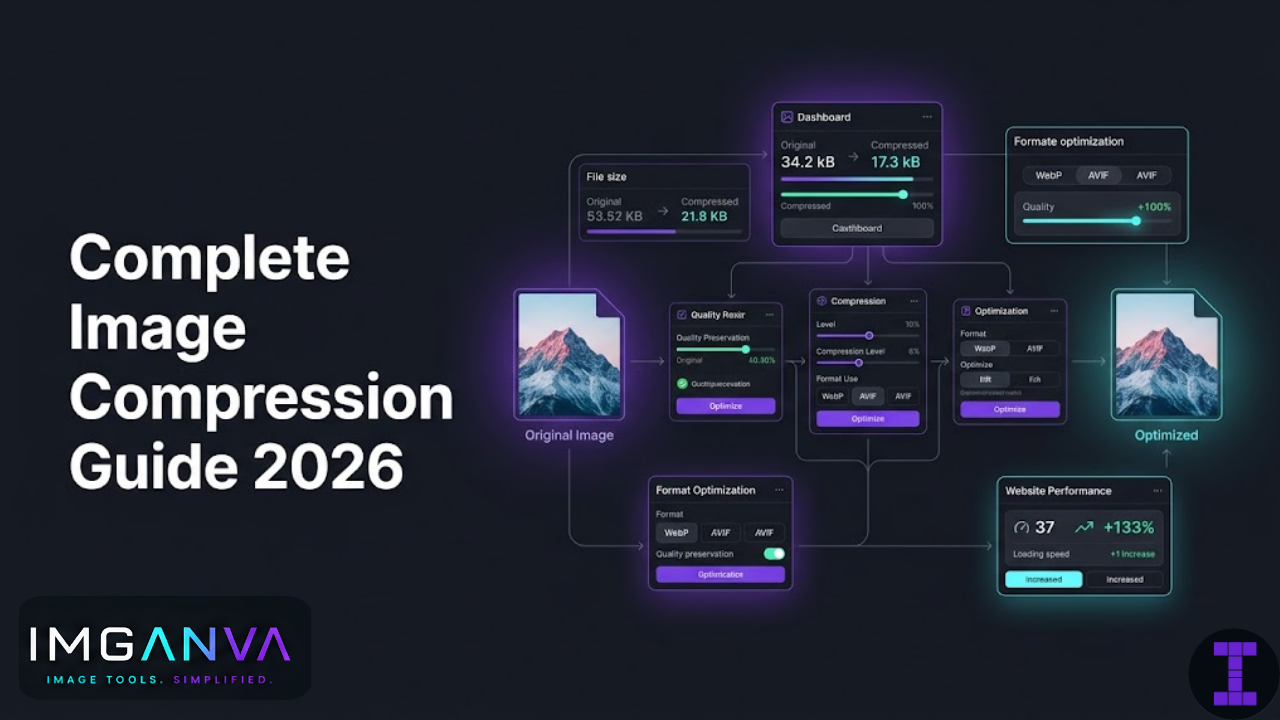
Compression reduces a file’s size by removing data either data you can’t see (lossless) or data your eye won’t miss much (lossy). The two types behave very differently in practice.
Lossless compression removes redundant data without touching image quality. The file gets smaller, but the image is bit-for-bit identical to the original when decompressed. PNG uses lossless compression. So does WebP in lossless mode. Good for logos, icons, screenshots, anything with text.
Lossy compression discards some image information to achieve much higher size reductions. JPEG is the classic example. At quality 80–85, most people can’t tell the difference from the original. At quality 40, the artifacts become obvious. The sweet spot for photos is usually somewhere in the 70–85 range depending on the image.
| Type | Quality Impact | Typical Size Reduction | Best For |
|---|---|---|---|
| Lossless | None | 10–40% | Logos, screenshots, text-heavy images |
| Lossy | Slight to moderate | 50–90% | Photos, banners, product images |
Which Image Format Should You Use?
Format choice matters as much as compression settings. A well-compressed JPEG will still be larger than the same image in WebP at equivalent quality. Here’s how the main formats compare in 2026.
| Format | Compression Type | Transparency | Browser Support | Best Use Case |
|---|---|---|---|---|
| JPEG / JPG | Lossy | No | Universal | Photos, complex imagery |
| PNG | Lossless | Yes | Universal | Logos, icons, UI elements |
| WebP | Both modes | Yes | All modern browsers | Web images replacing JPEG/PNG |
| AVIF | Lossy / Lossless | Yes | Most modern browsers | High-quality photos with tiny sizes |
| SVG | N/A (vector) | Yes | Universal | Icons, illustrations, scalable graphics |
| GIF | Lossless (palette) | Partial | Universal | Short animations (WebP preferred now) |
The short version: Use WebP for most web images. Keep PNG for graphics that need transparency or sharp edges. Use JPEG when WebP isn’t an option. AVIF is excellent where supported but encoding is slower. If you need to switch between these formats quickly, Imganva’s image converter handles all the major format conversions in seconds.
How Much Compression Is Too Much?
There’s no universal answer, but here’s a practical framework based on image type and use case.
Photos and Complex Images
For JPEG, quality 75–85 is the standard range for web use. Below 70 and most people start noticing compression artifacts around high-contrast edges, text, and fine textures. Above 90 and file sizes balloon without a visible quality gain most users would notice.
WebP delivers noticeably better results at equivalent quality settings a WebP at quality 75 typically looks as good as a JPEG at quality 85 while being 25–35% smaller.
Product and Hero Images
These get looked at closely. Go with quality 80–85 minimum. Large hero images that dominate the screen deserve a bit more care than a small thumbnail.
Thumbnails and Small Previews
Quality 65–75 is usually fine here. At small display sizes, compression artifacts are harder to spot, and the size savings are significant when you’re loading 20–50 thumbnails on a page.
Logos and Flat Graphics
Use PNG or SVG. Don’t apply lossy compression to these the banding and artifacts on clean lines and flat colors look terrible.
| Image Type | Recommended Format | Quality Setting | Expected File Size |
|---|---|---|---|
| Photography / Hero Images | WebP / JPEG | 80–85 | 100–400 KB |
| Product Images | WebP / JPEG | 78–83 | 80–250 KB |
| Thumbnails | WebP / JPEG | 65–75 | 15–60 KB |
| Blog / Article Images | WebP / JPEG | 75–82 | 60–180 KB |
| Logos / Icons (raster) | PNG / SVG | Lossless | 5–50 KB |
| Screenshots with text | PNG / WebP lossless | Lossless | 50–300 KB |
Image Dimensions vs File Size: Don’t Ignore This
Compression reduces file size without changing dimensions. But if you’re serving a 4000×3000px photo on a page where it displays at 800×600px, you’re wasting bandwidth no matter how well-compressed it is.
Resize images to match their display dimensions first, then compress. A photo resized to 1200px wide and then compressed will almost always produce a much smaller file than the full-resolution version compressed at the same quality level.
The rule of thumb: serve images at 1x–2x the display size (the extra for retina/high-DPI screens), not at the original camera resolution. If you need to resize images before compressing, Imganva’s image resizer lets you set exact pixel dimensions or scale by percentage.
Compression for Different Use Cases
E-commerce and Product Pages
Product images need to look sharp on zoom and across device sizes. Use WebP at quality 80–83 with responsive image sizing. Batch compressing large product catalogs before uploading saves significant storage and speeds up page load both of which affect conversion rates.
Blog and Editorial Content
In-article images are viewed briefly at medium sizes. Quality 75–80 in WebP handles this well. The priority here is page load speed Google’s Core Web Vitals penalize pages where images are a bottleneck.
Social Media
Each platform re-compresses images you upload, often aggressively. Starting with a higher quality source (85–90) before uploading means less quality loss after their processing. Resolution requirements vary by platform and change frequently, so check current specs before bulk exporting.
Email Newsletters
Email images get loaded fresh on every open, often on mobile connections. Keep them under 100KB where possible. JPEG is still the safest choice for email given older email client support. Avoid WebP in email until support improves significantly.
Portfolio and Photography Sites
These audiences are judging image quality directly. Use quality 85–90 minimum. The slightly larger files are acceptable because users have come specifically to see the work.
How Compression Affects SEO and Core Web Vitals
Google’s Core Web Vitals specifically Largest Contentful Paint (LCP) are directly influenced by image loading. A hero image that takes 3+ seconds to load will hurt your LCP score regardless of how good your server is.
Key things that matter for image SEO:
- File size smaller files load faster, improving LCP
- Format Google explicitly recommends WebP and AVIF
- Lazy loading off-screen images should load on demand
- Width and height attributes prevents layout shift (CLS)
- Alt text separate from compression but equally important
PageSpeed Insights will flag “serve images in next-gen formats” and “properly size images” if you’re still using unoptimized JPEG or PNG. Compressing your images properly often moves these two checks from red to green relatively quickly.
Batch Compression: When You Have a Lot of Images
One-off compression is straightforward. The challenge comes when you have hundreds or thousands of images product catalogs, photo archives, website migrations.
For batch work, you need a tool that can process multiple files without manual intervention on each one. Imganva’s image compressor lets you drag in multiple files and compress them in one go, which saves a significant amount of time compared to processing them individually.
For very large bulk operations tens of thousands of images command-line tools like ImageMagick, libvips, or Sharp (Node.js) are worth setting up. They can be scripted, run in pipelines, and process images much faster than browser-based tools for truly massive volumes.
Common Compression Mistakes to Avoid
Re-compressing Already-Compressed Images
Each time you save a JPEG with lossy compression, quality degrades slightly the artifacts accumulate. Always keep your original uncompressed files and compress fresh from the source when you need a new version. Never compress a compressed JPEG again.
Compressing Screenshots with Text
Lossy compression creates visible artifacts around high-contrast edges like text and interface elements. Use PNG or lossless WebP for screenshots, diagrams, or anything with sharp lines and text. The file sizes are larger but the result is actually readable.
Uploading Full Camera Resolution
A modern smartphone shoots 12–50 megapixel photos. Uploading these raw to your website or app means 5–25MB files before compression. Resize to a reasonable display size first usually 1200–2000px wide for most web use cases then compress.
Skipping Compression for Background Images
Background images often get overlooked because they’re applied via CSS rather than HTML img tags. They still need compression. A full-width background that’s a 3MB JPEG will slow down your page just as much as a 3MB hero image.
Setting Quality Too High
Quality 95–100 on JPEG produces files 2–3x larger than quality 85, with differences most users genuinely can’t see. Unless you’re archiving masters, quality 95+ for web delivery is wasted file size.
Frequently Asked Questions
What’s a good file size for images on a website?
For most web images, aim for under 200KB. Hero images can go up to 300–400KB if they’re very large and visually important. Thumbnails should be under 50KB. These aren’t hard rules, but pages where most images are in these ranges tend to load noticeably faster than pages with multiple 500KB+ images.
Does compressing an image reduce its quality permanently?
With lossy compression, yes once you save and discard the original, the quality reduction is permanent. That’s why you should always keep your originals. With lossless compression, there’s no quality change regardless of how many times you compress it.
Is WebP better than JPEG for everything?
For most web use cases, yes. WebP delivers better quality at smaller file sizes. The main exception is email, where WebP support is still unreliable. For general web delivery, WebP is the better default in 2026.
How do I compress images without losing visible quality?
Use quality settings in the 75–85 range for photos. Anything above 70 typically looks good for most images on screen. Compare the compressed version at 1:1 zoom against the original if you can’t spot the difference at normal viewing distance, the compression level is fine.
Should I compress PNG files?
Yes, but with lossless tools. Running PNGs through an optimizer like OptiPNG or using a tool with lossless PNG compression can reduce file sizes 20–40% without any quality change. For photos saved as PNG (common mistake), converting to WebP or JPEG will dramatically reduce the file size.
What’s the difference between compressing and resizing?
Compression reduces file size while keeping the same pixel dimensions. Resizing changes the pixel dimensions. For best results, resize to your target display size first, then compress. Compressing a 4000px wide image down to 100KB still delivers a 4000px image to the browser it downloads faster but displays at 800px, which wastes the resolution.
Can I compress images that have already been compressed?
You can, but with lossy formats you’ll lose additional quality each time. If you’re working from a JPEG and need to compress further, the quality degradation stacks. Try to work from your original file whenever possible rather than recompressing an already-compressed version.
Does image compression help with Google rankings?
Indirectly, yes. Compressed images load faster, which improves your Core Web Vitals scores particularly LCP (Largest Contentful Paint). Google uses these as ranking signals. Switching from unoptimized images to properly compressed WebP files can meaningfully improve your LCP score on image-heavy pages.
Summary
Compression is one of the most practical things you can do for your website’s performance. The payoff faster load times, lower bandwidth costs, better Core Web Vitals comes from relatively simple decisions: pick WebP over JPEG where you can, resize images to their display dimensions before compressing, and use quality settings in the 75–85 range for photos rather than defaulting to 100.
The biggest gains usually come not from fine-tuning quality settings but from fixing the obvious issues: full-resolution camera photos sitting on product pages, PNGs used for photography, background images that were never touched. Sort those out first, then optimize the rest.
If you need a fast way to compress images without installing software, Imganva’s image compressor handles individual files and batches directly in the browser no upload limits or account required.