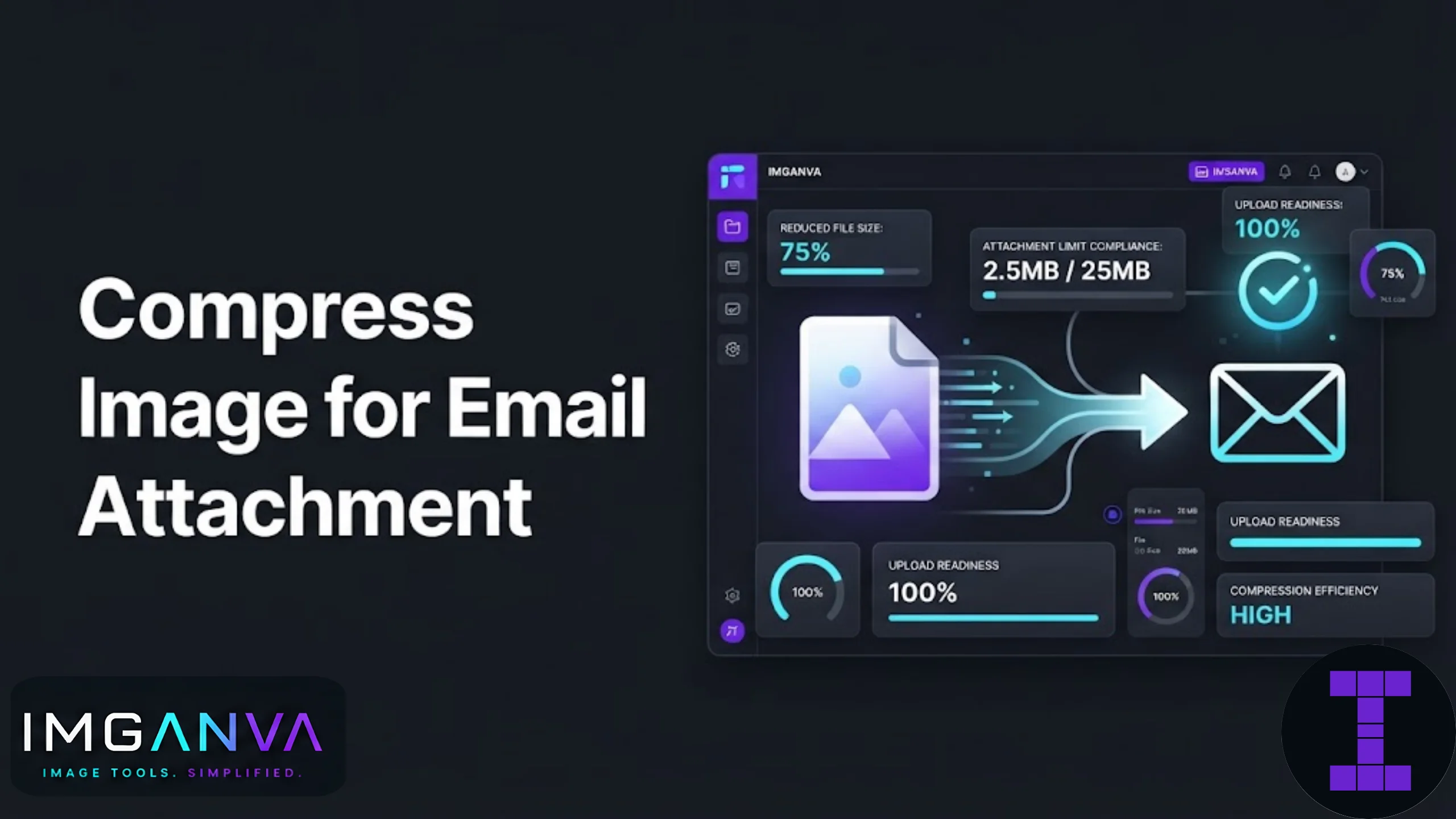

Most email providers reject attachments once you cross a certain size, and photos from modern phones cross that line easily. A single photo from a recent iPhone or Android flagship can run 4-8MB, and if you’re attaching four or five of them to one email, you’re already past what Gmail or Outlook will accept.
The fix is simple: compress the images before attaching them. This article walks through exactly how much you need to shrink your photos, what quality settings actually hold up, and how to do it in under a minute using Imganva’s image compressor.
Key Takeaways
- Gmail caps attachments at 25MB total, Outlook.com at 20MB, and Yahoo Mail at 25MB per message.
- Compressing to 70-85% JPEG quality usually cuts file size by 60-80% with no visible difference on screen.
- If you’re sending 4+ photos, compress each one individually rather than relying on your email client’s auto-resize, which often ruins quality unpredictably.
- PNG files compress poorly for photos; convert to JPEG first if the image doesn’t need transparency.
- For attachments that still don’t fit, split across two emails or use a cloud link instead of fighting the size limit.
Email Attachment Size Limits (2026)
Every provider enforces a different cap, and it applies to the combined size of all attachments in one email, not just one file.
| Email Provider | Max Attachment Size | Notes |
|---|---|---|
| Gmail | 25MB | Files over 25MB auto-convert to a Google Drive link |
| Outlook.com / Microsoft 365 | 20-33MB | Varies by plan; 20MB is the safe assumption |
| Yahoo Mail | 25MB | Combined across all attached files |
| Corporate/Enterprise email (Exchange) | 10-25MB | Often set lower by IT policy, sometimes as low as 10MB |
| ProtonMail | 25MB | Free plan may have a lower storage-linked cap |
If you’re emailing a company or government address for a job application or document submission, assume the limit is on the lower end, around 10MB, unless stated otherwise. A lot of recruitment and government portals in India specifically ask for attachments under 2MB or 5MB per file, separate from the email provider’s own cap.
How Much Should You Compress a Photo for Email?
There’s no single right answer, it depends on how many photos you’re sending and what they’ll be used for.
- Single photo, casual sharing: compress to under 2MB. Quality loss is invisible at this range.
- Multiple photos (5-10) in one email: aim for 500KB-1MB each so the total stays well under 20MB.
- Document scans or receipts: under 500KB per image is usually enough to keep text legible.
- Photos for print or professional use attached via email: don’t compress below 2-3MB, since aggressive compression will show up in print even if it looks fine on a screen.
Step-by-Step: Compressing Photos Before Attaching Them
- Open Imganva’s image compressor in your browser.
- Upload the photo or photos you want to send. Multiple files can be compressed in one batch.
- Set the quality slider to 75-80% as a starting point. This is the range where file size drops sharply but visual quality stays intact.
- Check the estimated output size shown before downloading. Adjust the slider down if you need to hit a specific size target.
- Download the compressed files and attach them to your email as usual.
If you need an exact file size rather than a rough quality percentage, the change image size in KB tool lets you target a specific number directly, which is useful when a portal or HR system specifies an exact upload limit like 200KB.
JPEG vs PNG for Email Attachments
This matters more than people expect. PNG is a lossless format built for graphics and screenshots with sharp edges and flat colors, not photographs. Attaching a PNG photo instead of a JPEG can mean a 3-4x larger file for no visual benefit.
| Format | Best for Email | Typical Size at Same Quality |
|---|---|---|
| JPEG | Photos, casual images | Smallest for photographic content |
| PNG | Screenshots, graphics with text/transparency | 2-5x larger for photos |
| HEIC | Not recommended for email | Small on device, but many recipients can’t open it |
| WEBP | Web use, not email attachments | Small, but poor compatibility with older email clients |
If your phone saves photos as HEIC (common on iPhones) and you’re emailing someone on Windows or an older Android device, convert to JPEG first. HEIC files often show up as unreadable or as a generic file icon on the recipient’s end. Imganva’s image converter handles this conversion in a few seconds, and you can compress the same file right after.
Common Mistakes When Sending Photos by Email
- Relying on the email client’s built-in resize. Gmail and Outlook sometimes auto-shrink large attachments, but the compression is inconsistent and you can’t control the output quality.
- Attaching RAW or unedited camera files. RAW files can run 20-50MB each and aren’t readable by most recipients anyway.
- Compressing once and reusing for everything. A setting that works for one photo won’t always work for a photo with more detail or a different resolution. Check the output each time.
- Not checking the recipient’s actual limit. Government and job portals often have stricter caps than your email provider, sometimes as low as 100KB per file.
- Sending 10+ full-size photos in one thread. Even under the size cap, large emails are slow to send, slow to receive, and often get flagged as suspicious by spam filters.
When Compression Isn’t the Right Fix
If you’re sending professional photography, architectural renders, or anything where fine detail matters at full resolution, compressing to fit an email limit will show. In these cases, it’s usually better to use a file-sharing link (Google Drive, WeTransfer, Dropbox) instead of forcing the file to shrink. Email attachments were never designed for high-resolution media distribution, they were designed for quick, casual file sharing.
Quick Reference: Target Sizes by Use Case
| Use Case | Recommended Size | Suggested Quality |
|---|---|---|
| Casual photo to a friend | Under 2MB | 80-85% |
| Multiple photos in one email | 500KB-1MB each | 70-75% |
| Job application photo/document scan | Under 200KB-500KB | 60-70% |
| Government portal upload attached via email | Check specific limit (often 20-100KB) | 50-65% |
| High-detail work sample | 2-5MB | 85-90%, or use a share link instead |
What is the maximum image size I can attach to a Gmail email?
Gmail allows up to 25MB total across all attachments in one email. If your files exceed that, Gmail automatically converts them into a Google Drive link instead of a direct attachment.
Why does my photo look blurry after compressing it for email?
This usually happens when the quality setting is pushed too low, typically under 50%. Staying between 70-85% quality keeps photos sharp while still cutting file size significantly.
Should I convert HEIC photos before emailing them?
Yes, if the recipient isn’t using an iPhone or Mac. HEIC files often fail to open on Windows or older Android devices, so converting to JPEG first avoids that problem entirely.
How many photos can I attach to one email?
There’s no fixed photo count, it depends on total file size. As long as the combined size of all attachments stays under your provider’s limit (usually 20-25MB), you can attach as many as fit.
Does compressing an image reduce its dimensions too?
Not necessarily. Compression tools like Imganva primarily reduce file size through quality adjustment, not by shrinking width and height, though resizing dimensions can be combined for even smaller files.
What’s the best format for emailing photos?
JPEG is the best choice for photographs sent by email. It compresses efficiently, is universally supported, and doesn’t carry the compatibility issues that HEIC or WEBP can have with older email clients.
Why did my email bounce even though the attachment was under 25MB?
Some recipient mail servers, especially corporate ones, enforce stricter limits than the sender’s provider allows, sometimes as low as 10MB. If a bounce message mentions size, try compressing further or splitting attachments across two emails.
Can I compress multiple photos at once for an email?
Yes, batch compression is the fastest way to prepare several photos for one email. Upload all the files together, apply the same quality setting, and download them as a set.
Is there a way to hit an exact file size instead of guessing the quality percentage?
Yes, tools that target a specific KB size, rather than just a quality slider, let you compress directly to a number like 200KB or 500KB, which is useful for portals with strict upload limits.
Summary
Email attachment limits haven’t kept pace with how large modern phone photos have become, so compression is usually a required step, not an optional one. Aim for 70-85% quality for casual photos, drop lower for document scans or strict portal uploads, and convert HEIC files to JPEG before sending to anyone outside the Apple ecosystem. For a broader look at compression settings, formats, and quality tradeoffs beyond just email, the Complete Image Compression Guide 2026 covers the topic in full.