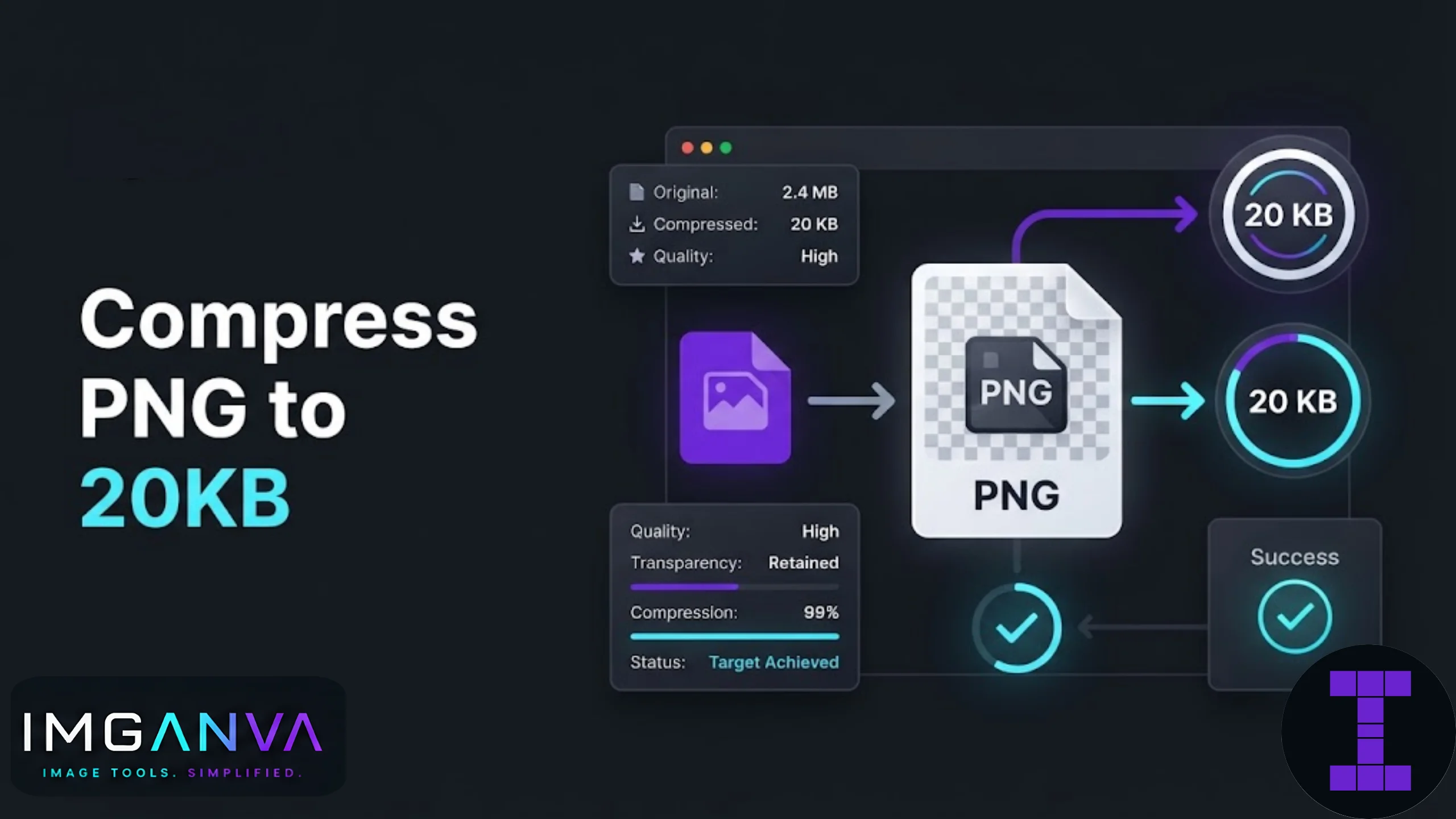

PNG files are notoriously stubborn when it comes to shrinking down to tiny sizes. Unlike JPEG, PNG uses lossless compression by default, which means a 2MB screenshot or logo file can be a real pain to squeeze under 20KB without turning it into a blurry mess or converting it to a different format altogether.
If you’re trying to hit a strict 20KB limit for a form upload, an exam portal, or a website asset, here’s exactly how to get there without wrecking the image.
Key Takeaways
- PNG is lossless by default, so getting to 20KB usually means reducing color depth, resizing dimensions, or converting to a lossy format.
- Photos and complex images almost never hit 20KB while staying PNG. Simple graphics, icons, and text-heavy images have a much better shot.
- Using an image compressor that supports PNG optimization gets you there faster than manual editing.
- If PNG genuinely won’t compress enough, converting to JPEG or WEBP is often the more practical fix.
Why PNG Is Hard to Compress to 20KB
PNG was built to preserve every pixel exactly as it is. That’s great for logos, screenshots with text, and images needing transparency, but it’s terrible news when you need a small file size. There’s no built-in “quality slider” like JPEG has, so most of the size reduction comes from limiting colors (a technique called quantization) or shrinking the pixel dimensions.
A photograph saved as PNG at 1200×800 pixels can easily be 3-4MB. Getting that down to 20KB while keeping it PNG usually means the image no longer looks like the original. It’s not a limitation of any particular tool, it’s just how PNG compression math works.
Step-by-Step: Compressing a PNG to 20KB
1. Try a dedicated PNG optimizer first
Upload your file to Imganva’s image compressor. It automatically applies PNG-specific optimization (reducing color palettes and stripping unnecessary metadata) without asking you to guess quality percentages. For simple graphics, icons, or screenshots, this alone can get surprisingly close to 20KB.
2. Reduce the color palette
PNG supports full 24-bit color, but most simple images don’t need it. Dropping to an 8-bit or indexed palette (256 colors or fewer) can cut file size by 60-80% with barely any visible difference on graphics, diagrams, or icons.
3. Resize the dimensions down
If the image is larger than it needs to be for its use case, shrink it. A screenshot meant for a support ticket doesn’t need to be 1920px wide. Cutting dimensions in half often reduces file size by 70% or more, since file size scales roughly with pixel count.
4. Use a KB-target tool if you need an exact size
If you need the file to land at exactly 20KB (not “close to” 20KB), a tool like Imganva’s change image size in KB page lets you set the target directly. It handles the resizing and quality adjustments automatically to hit that number.
5. Consider converting to JPEG or WEBP
If your image is a photo or has gradients and complex color, PNG is fighting against you. Converting to JPEG or WEBP through the image converter almost always gets you a smaller file at the same visual quality, since both formats use lossy compression designed for exactly this kind of size reduction.
What Kind of PNG Actually Reaches 20KB
| Image Type | Realistic at 20KB as PNG? | Recommended Approach |
|---|---|---|
| Simple logo or icon | Yes, easily | Color reduction, minimal resizing |
| Screenshot with text | Usually yes | Resize + color palette reduction |
| Line art or diagram | Yes | PNG optimizer, indexed color |
| Photograph | Rarely without major resizing | Convert to JPEG/WEBP instead |
| Image with gradients | Difficult | Convert to JPEG/WEBP or accept size increase |
| Image needing transparency | Depends on complexity | Stay PNG, reduce colors, or use WEBP (supports transparency too) |
PNG vs JPEG vs WEBP for Small File Sizes
| Format | Compression Type | Best For 20KB Target | Transparency Support |
|---|---|---|---|
| PNG | Lossless | Simple graphics only | Yes |
| JPEG | Lossy | Photos, complex images | No |
| WEBP | Lossy or lossless | Almost anything | Yes |
WEBP is often the best middle ground if you need transparency and a small file size. It can compress far more aggressively than PNG while still supporting transparent backgrounds, something JPEG can’t do at all.
Common Mistakes When Compressing PNG
- Compressing a photo as PNG instead of converting it first. You’ll fight the format the whole way and still end up with visible quality loss.
- Not checking the resulting dimensions. A 20KB image squeezed from a huge original might end up too small or pixelated for its intended use.
- Ignoring metadata. Some PNGs carry embedded color profiles or thumbnail data that adds unnecessary KBs. A good compressor strips this automatically.
- Assuming all PNG compressors work the same way. Some only strip metadata, others also do color quantization. The results can vary a lot.
- Re-compressing an already compressed PNG repeatedly. Since PNG is lossless, doing this multiple times won’t reduce quality, but it also won’t get you much smaller. It’s a plateau, not a slope.
When PNG Just Won’t Get to 20KB
Sometimes the image content simply won’t cooperate. If you’ve reduced colors, resized the dimensions, and stripped metadata and you’re still above 20KB, that’s usually a sign the source image has too much visual complexity for PNG’s lossless approach. At that point, converting to JPEG (for photos) or WEBP (for anything needing transparency) is the more practical route, rather than continuing to degrade the PNG.
This comes up a lot with Indian exam and application portals too. Many government portals like SSC, IBPS, and various state PSC applications specify PNG or JPEG with strict KB caps for photo and signature uploads. If the portal accepts either format, JPEG will almost always get you under the limit with better visual results than a heavily degraded PNG.
For a broader look at compression techniques, formats, and quality settings, the Complete Image Compression Guide 2026 covers the full picture beyond just PNG.
Can I compress any PNG to exactly 20KB?
Not always. Simple graphics and screenshots usually compress down easily, but detailed photos or images with gradients often need heavy resizing or format conversion to reach 20KB without visible quality loss.
Will compressing a PNG to 20KB make it blurry?
It depends on the image. Reducing color depth on simple graphics rarely causes visible blur, but resizing dimensions or reducing color on photographic content can noticeably soften details.
Should I convert PNG to JPEG to hit 20KB?
For photographs and complex images, yes. JPEG’s lossy compression is built for exactly this kind of size reduction and usually looks better than a heavily degraded PNG at the same file size.
Does reducing PNG colors affect transparency?
No, color palette reduction and transparency are handled separately. You can reduce colors to 256 or fewer and still keep a transparent background intact.
What’s the fastest way to compress a PNG to 20KB online?
Uploading it to an online image compressor that supports PNG-specific optimization is the quickest method, since it automatically handles color reduction and metadata removal without manual editing.
Why is my PNG still large after compression?
This usually means the compressor only stripped metadata without reducing color depth or dimensions. Try a tool that also applies color quantization or resize the image before compressing.
Is WEBP better than PNG for small file sizes?
Generally yes. WEBP can achieve much smaller file sizes than PNG while still supporting transparency, making it a strong alternative when PNG can’t hit your target size.
Can I compress a PNG to 20KB without losing transparency?
Yes, as long as you use a compressor that preserves the alpha channel while reducing colors or dimensions rather than one that flattens the image to a solid background.
How many times can I compress the same PNG?
Since PNG compression is lossless, repeated compression won’t degrade quality further, but it also won’t shrink the file much beyond the first optimization pass.
What image size in pixels gets a PNG under 20KB?
There’s no fixed number since it depends on content, but simple graphics under 400×400 pixels with reduced colors often land under 20KB comfortably.
Summary
Getting a PNG down to 20KB is very achievable for logos, icons, screenshots, and simple graphics, especially with a compressor that handles color reduction alongside resizing. For photos and visually complex images, PNG’s lossless nature works against you, and converting to JPEG or WEBP will almost always get better results at that size. Start with a dedicated PNG compressor, check the output against your actual use case, and switch formats if the numbers just won’t cooperate.