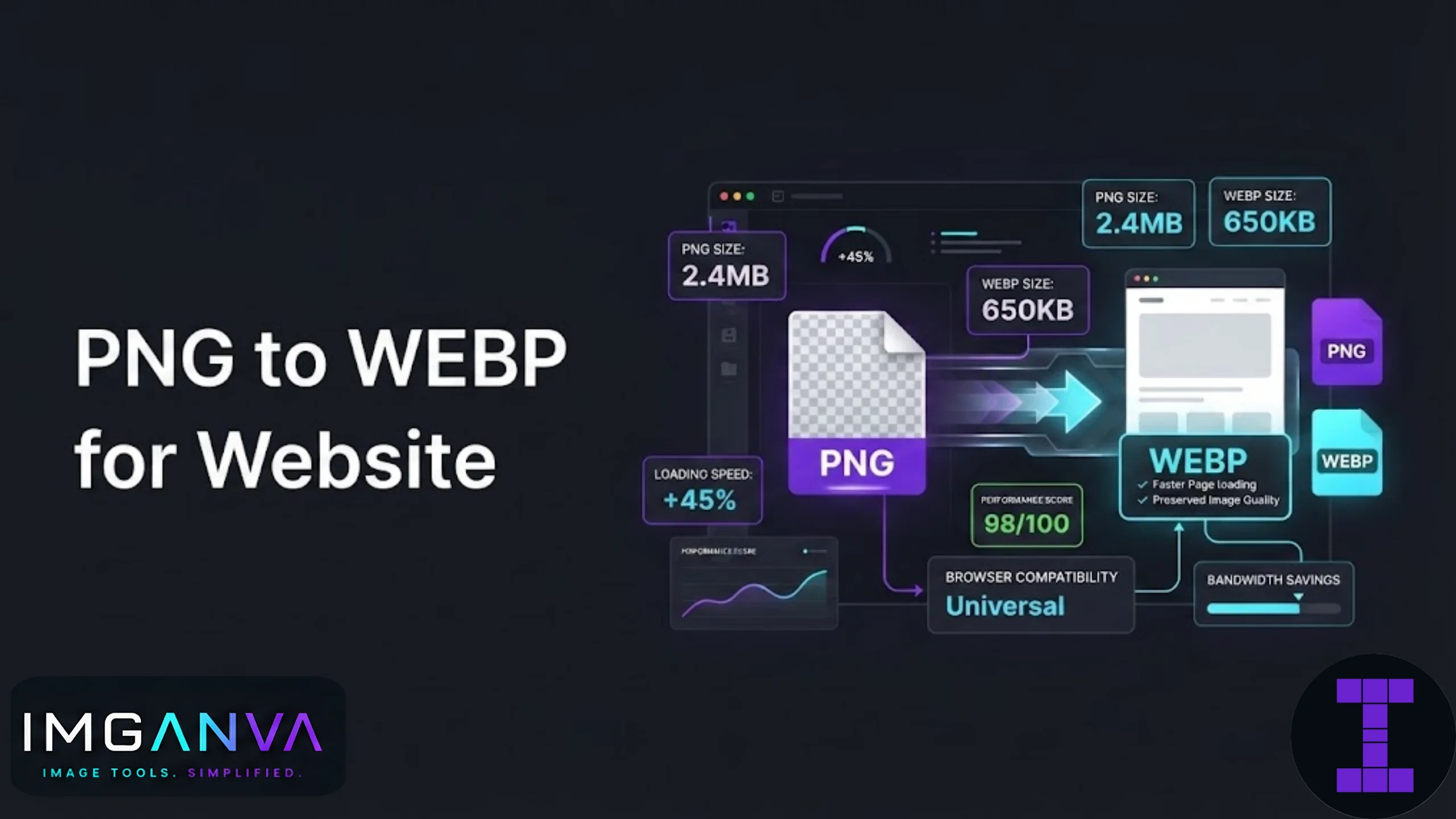

If your website is loaded with PNG images and pages feel slow to load, converting to WEBP is usually the fastest fix available without touching your design. PNG files are large by nature, and most websites don’t need the kind of lossless quality PNG provides for every single image.
This guide covers when PNG to WEBP conversion actually helps, when it doesn’t, and how to do it without breaking image quality or transparency.
Key Takeaways
- WEBP files are typically 25-35% smaller than PNG at similar visual quality
- WEBP supports transparency, so you don’t lose alpha channel effects from PNG
- Photos and complex graphics benefit most; simple icons and logos may not shrink much
- Almost all modern browsers support WEBP, but keep a fallback for very old browsers if your audience needs it
- Convert in bulk using a browser-based tool to avoid uploading images to unknown servers
Why Convert PNG to WEBP for a Website
PNG was built for lossless image storage, not for the web. It compresses without throwing away pixel data, which is great for screenshots, diagrams, and graphics with sharp edges or text. The tradeoff is file size. A PNG screenshot that’s 800KB might convert to a 250KB WEBP file with almost no visible difference.
Page speed is a ranking factor and a conversion factor. Slow-loading images push up your Largest Contentful Paint (LCP) score, which affects both Google’s Core Web Vitals and how long visitors stick around before leaving. Swapping PNG for WEBP is one of the few optimizations that improves speed without requiring a redesign or code changes.
PNG vs WEBP: Quick Comparison
| Factor | PNG | WEBP |
|---|---|---|
| Typical file size | Larger | 25-35% smaller on average |
| Transparency support | Yes (full alpha) | Yes (full alpha) |
| Compression type | Lossless only | Lossy or lossless |
| Browser support | Universal | Supported by all major browsers since 2020 |
| Best for | Icons, logos, graphics needing pixel-perfect edges | Photos, hero images, banners, most website visuals |
| Animation support | No | Yes (replaces animated GIF too) |
When PNG to WEBP Actually Helps
Not every PNG on your site needs converting. Here’s where it makes a real difference:
- Hero images and banners: Large PNG banners are often the single biggest file on a page. Converting these gives the most visible speed improvement.
- Product photos: If you’re running an ecommerce site and using PNG for product shots, WEBP will cut load time noticeably across category pages.
- Blog images and featured images: These load above the fold and directly affect perceived speed.
- Background graphics with transparency: WEBP keeps the transparency while shrinking the file.
Where it matters less: tiny icons under 10KB, favicons, or simple two-color graphics. The savings there are often just a few kilobytes and not worth the extra conversion step.
How to Convert PNG to WEBP
- Open Imganva’s image converter and upload your PNG file or a batch of PNG files.
- Select WEBP as the output format.
- Choose a quality level. 75-85% quality is usually the sweet spot for web images, keeping file size low while avoiding visible artifacts.
- Download the converted files and check that transparency (if your PNG had it) carried over correctly.
- Replace the PNG files in your website’s media library or upload folder with the new WEBP versions.
If your site is on WordPress, you’ll usually need a plugin or manual re-upload since WordPress doesn’t auto-convert existing PNGs unless you have an image optimization plugin installed. Some hosting platforms handle this conversion automatically at the CDN level, so it’s worth checking before doing it manually across hundreds of images.
Common Mistakes to Avoid
- Converting everything without checking quality: Text-heavy PNGs (screenshots with small fonts) can blur at aggressive compression settings. Always spot-check a few converted images before replacing them site-wide.
- Forgetting fallback formats: If your site still gets traffic from very old browsers or certain email clients that render web pages, keep an original PNG as backup or use a “picture” tag with multiple sources.
- Not renaming files consistently: Broken image links after conversion are usually a file naming or path mismatch, not a WEBP problem.
- Ignoring alt text and SEO metadata: When you swap file formats, make sure alt attributes and file names carry over, since these matter for image search rankings.
PNG to WEBP vs Other Optimization Methods
Format conversion is one lever, but it’s not the only one. Resizing oversized images (a 4000px wide photo displayed at 800px is wasted bandwidth) and lazy loading below-the-fold images both compound with format conversion for real speed gains. If you’re only doing one thing, format conversion usually delivers the biggest single improvement with the least manual work. For a broader breakdown of formats and when to use each one, see the complete image format conversion guide.
Frequently Asked Questions
Does converting PNG to WEBP reduce image quality?
At quality settings of 75% or higher, most viewers won’t notice a difference. WEBP uses smarter compression than PNG, so you get similar visual quality at a much smaller file size. Very high-detail images may show minor changes if you push compression too aggressively.
Will WEBP images work on all browsers?
Yes, all major browsers including Chrome, Firefox, Safari, and Edge have supported WEBP since 2020 or earlier. Very old browser versions may not render it, so a fallback is worth keeping if your analytics show significant traffic from outdated browsers.
Does WEBP support transparent backgrounds like PNG?
Yes. WEBP fully supports alpha transparency, so logos, icons, and graphics with transparent backgrounds convert without losing that effect.
How much smaller is WEBP compared to PNG?
On average, WEBP files are 25 to 35 percent smaller than PNG at comparable visual quality, though the exact savings depend on the image content and compression settings used.
Should I convert my entire website’s images to WEBP?
Focus on the images that affect load time the most first, such as hero banners, product photos, and blog featured images. Small icons and simple graphics often aren’t worth the conversion effort since the size difference is minimal.
Can I convert PNG to WEBP without losing SEO value?
Yes, as long as you keep the same alt text, descriptive file names, and update any image sitemap references. The format change itself doesn’t hurt SEO and often helps due to faster page speed.
Is WEBP better than JPG for website images?
WEBP generally produces smaller files than JPG at similar quality and also supports transparency, which JPG doesn’t. For most modern websites, WEBP is the better default choice over both PNG and JPG.
What quality setting should I use when converting PNG to WEBP?
A quality setting between 75 and 85 percent works well for most web images, balancing file size and visual clarity. Screenshots with fine text may need a slightly higher setting to avoid blur.
Do I need special software to convert PNG to WEBP?
No. You can convert PNG files to WEBP directly in your browser using Imganva’s image converter without installing any software or uploading files to unfamiliar servers.
Can WEBP replace animated GIFs on my website?
Yes, WEBP supports animation and typically produces much smaller file sizes than animated GIF, making it a solid replacement for lightweight web animations.
Summary
PNG to WEBP conversion is one of the simplest ways to speed up a website without changing layout or design. It works best on hero images, product photos, and blog visuals where file size actually matters, and it keeps the transparency support PNG is known for. Convert selectively, check quality on a few samples first, and use the image converter to handle the bulk of the work in your browser.