
Every time you compress an image, you’re choosing between two completely different approaches to shrinking file size. One keeps every pixel exactly as it was. The other throws away data it decides you won’t notice missing. Pick the wrong one for the job and you end up with either a file that’s still too large, or a photo that looks noticeably worse than the original.
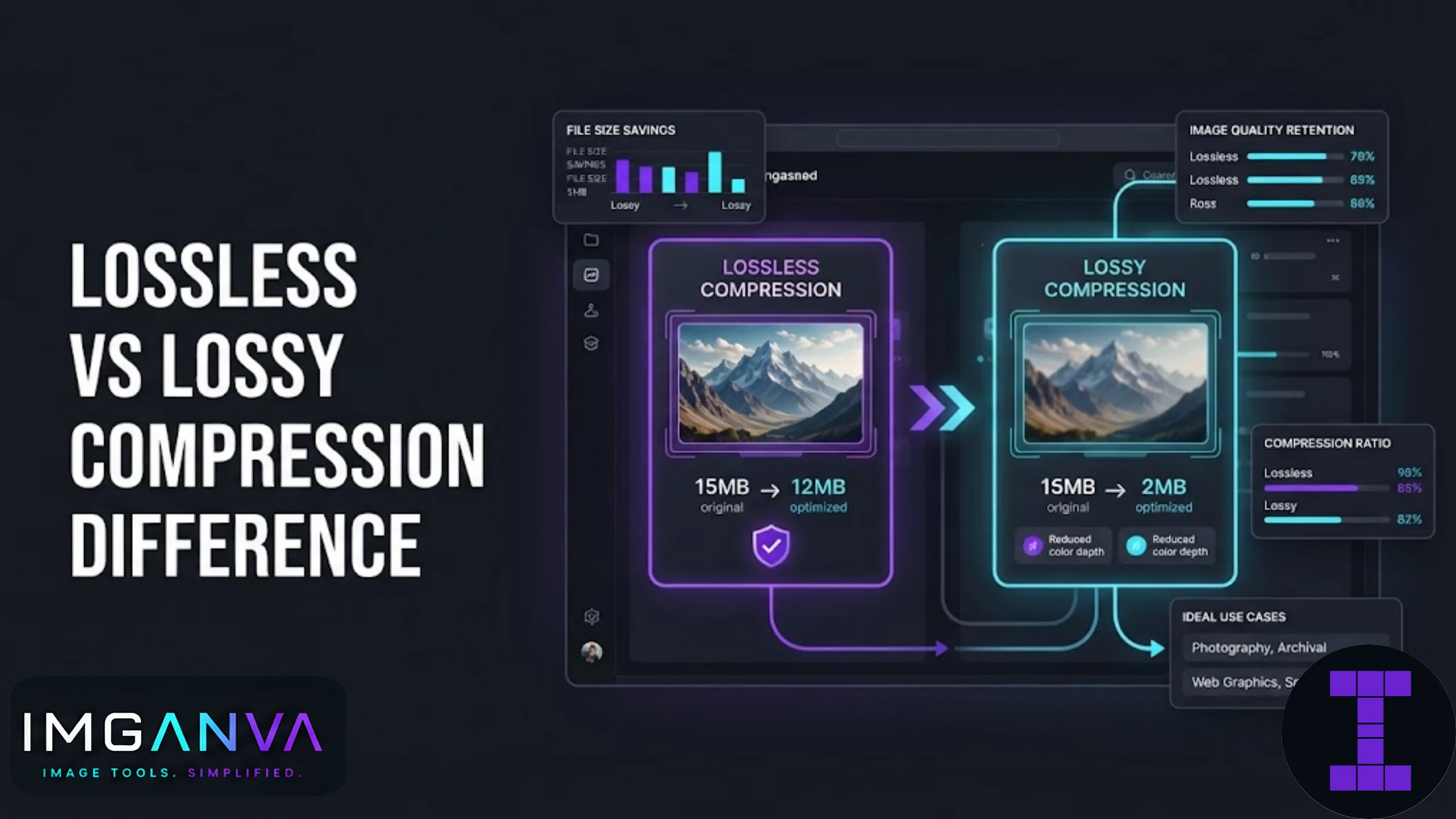
Here’s the short version: lossless compression reduces file size without losing any image data, while lossy compression reduces file size by permanently removing some data, usually detail the human eye is less likely to catch. Both have a place. Neither is universally “better.”
Key Takeaways
- Lossless compression preserves 100% of the original image data. Lossy compression removes some data permanently to achieve smaller files.
- PNG is lossless. JPG is lossy. WEBP can do both, depending on how it’s exported.
- Lossless files are larger but safe for repeated editing. Lossy files are smaller but degrade further with each re-save.
- For web use and uploads, lossy compression at 70-85% quality usually gives the best balance of size and appearance.
- For logos, screenshots with text, or anything you’ll edit again later, lossless is the safer choice.
What Is Lossless Compression?
Lossless compression shrinks a file by finding smarter, more efficient ways to store the exact same information. Nothing is removed. If you compress an image losslessly and then decompress it, you get back a file that’s pixel-for-pixel identical to the original.
Think of it like folding a shirt more efficiently to fit it in a suitcase. The shirt doesn’t change. It just takes up less space. PNG is the most common lossless image format, and it works by looking for repeating patterns in the pixel data (like large blocks of a single flat color) and storing them more compactly.
This is why PNG handles screenshots, logos, and graphics with flat colors or text so well; there’s a lot of repetition for the algorithm to exploit. A photo of a forest, on the other hand, has far less repetition, so lossless compression on photographic images tends to produce underwhelming size reductions.
What Is Lossy Compression?
Lossy compression takes a different route. It analyzes the image and removes information that contributes least to how humans perceive the picture, small color variations, subtle gradients, high-frequency detail in busy areas. Once that data is gone, it’s gone. There’s no getting it back by “decompressing” the file.
JPG is the classic lossy format. It was built specifically around how human vision works: we’re much more sensitive to changes in brightness than to small shifts in color, so JPG compression leans on that gap to cut file size dramatically, often by 70-90% compared to an uncompressed original, while keeping the image looking acceptable to the eye.
The tradeoff is real, though. Push the compression too far and you’ll start seeing blocky artifacts, color banding, or blurring around sharp edges, especially in areas with fine detail or text.
Lossless vs Lossy: Side-by-Side Comparison
| Factor | Lossless Compression | Lossy Compression |
|---|---|---|
| Data preserved | 100% of original data | Partial, some data permanently discarded |
| Typical formats | PNG, GIF, WEBP (lossless mode), TIFF | JPG, WEBP (lossy mode), HEIC |
| File size reduction | Moderate (usually 20-50%) | High (often 60-90%) |
| Quality after compression | Identical to original | Slight to noticeable loss, depending on setting |
| Best for | Logos, screenshots, text, graphics, source files for editing | Photos, web images, social media uploads, general sharing |
| Repeated saving | No degradation, ever | Quality drops a little more each time it’s re-saved |
When to Use Lossless Compression
Reach for lossless when the image needs to stay exactly as it is, or when you know you’ll be editing it again later. A few practical scenarios:
- Logos and brand assets: A logo with flat colors and sharp edges will look worse with lossy artifacts, and since it gets reused everywhere, quality loss compounds.
- Screenshots with text: JPG compression tends to smear text edges. PNG keeps every character crisp.
- Source files you’ll edit again: If you’re going to open the file in an editor multiple times over weeks or months, lossless prevents the slow quality decay that comes from repeatedly saving a lossy format.
- Images with transparency: PNG supports transparent backgrounds; standard JPG does not.
When to Use Lossy Compression
Lossy makes sense almost everywhere else, particularly when file size actually matters more than pixel-perfect accuracy:
- Website images: Page load speed depends heavily on image weight. A photo compressed at 75-80% quality often looks nearly identical to the original but loads in a fraction of the time.
- Social media uploads: Instagram, WhatsApp, and most platforms re-compress your images anyway, so uploading an already lightweight JPG saves time without a visible quality tradeoff.
- Email attachments: Many providers cap attachment sizes. Lossy compression gets photos under those limits fast.
- Government portal and form uploads: Most Indian exam and application portals (UPSC, SSC, IBPS, NTA) specify a JPG file within a strict KB range, which is a lossy compression job by design.
If you need to hit an exact file size target for one of these uploads, a tool like Imganva’s image compressor lets you compress a photo down without manually testing quality percentages one by one.
How Much Quality Do You Actually Lose?
This is where a lot of confusion comes from. “Lossy” sounds alarming, but at reasonable settings, the loss is often invisible to the naked eye. It’s really a spectrum, not a switch.
| JPG Quality Setting | Typical File Size Reduction | Visible Impact |
|---|---|---|
| 90-100% | 10-30% smaller | No visible difference in most cases |
| 75-89% | 40-60% smaller | Minimal, only visible on close zoom |
| 50-74% | 60-80% smaller | Slight softness, acceptable for web and uploads |
| Below 50% | 80%+ smaller | Visible blockiness, banding, blurred detail |
For most practical purposes, quality settings between 70 and 85 hit the sweet spot: meaningful file size savings without a difference a casual viewer would notice.
Common Mistakes People Make
- Using PNG for photographs. PNG’s lossless nature makes photo files huge, often 5-10 times larger than an equivalent JPG, for no visible quality gain on photographic content.
- Re-saving a JPG repeatedly during editing. Each save re-applies lossy compression on top of the last one. Quality erodes a little more every time, even if you don’t touch the compression slider.
- Assuming lossless means “no compression.” Lossless still reduces file size, it just does so without discarding data. It’s a smaller reduction than lossy, not zero reduction.
- Ignoring format when converting. Converting a heavily compressed JPG to PNG doesn’t restore lost detail. It just locks in the existing quality loss inside a bigger file.
Where WEBP Fits In
WEBP is a bit different because it supports both modes. Lossless WEBP typically produces smaller files than PNG for the same image, and lossy WEBP usually beats JPG at equivalent visual quality. That flexibility is part of why it’s becoming the default recommendation for web images, though older Indian government portals and some legacy systems still expect JPG or PNG specifically, so it’s worth checking upload requirements before assuming WEBP will be accepted. If you need to switch between formats for compatibility, Imganva’s image converter handles JPG, PNG, and WEBP conversions directly in the browser.
For a deeper breakdown of formats, quality settings, and compression techniques across use cases, the Complete Image Compression Guide 2026 covers the full picture beyond just lossless versus lossy.
Quick Decision Guide
| If you’re working with… | Choose… |
|---|---|
| A photo for a website or blog | Lossy JPG or WEBP, 75-85% quality |
| A logo or icon | Lossless PNG |
| A screenshot with text | Lossless PNG |
| An exam or application photo upload | Lossy JPG, compressed to the specified KB limit |
| A source file you’ll keep editing | Lossless format until final export |
| A photo for WhatsApp or social sharing | Lossy JPG or WEBP, moderate compression |
What is the main difference between lossless and lossy compression?
Lossless compression reduces file size while keeping every bit of the original image data intact, so the decompressed file is identical to the original. Lossy compression permanently removes some image data to achieve a smaller file, which can slightly reduce quality depending on the setting used.
Is PNG always better than JPG?
No. PNG is lossless and better for logos, screenshots, and graphics with flat colors or text. For photographs, JPG usually produces a much smaller file with no noticeable quality difference, making it the better practical choice.
Does lossy compression always make images look worse?
Not necessarily. At quality settings above 70%, most lossy compression is invisible to the naked eye. Quality loss only becomes obvious at low settings, typically below 50%.
Can I convert a lossy JPG back to lossless PNG to restore quality?
No. Once data is removed during lossy compression, converting to a lossless format afterward does not bring back the lost detail. It only preserves whatever quality remains at that point, inside a larger file.
Why do government exam portals ask for small JPG file sizes?
Government portals like UPSC, SSC, and NTA specify small JPG size limits, often 20 to 100KB, to keep upload servers fast and storage manageable across millions of applicants. JPG’s lossy compression is what makes hitting those tight limits possible without cropping the photo.
Is WEBP lossless or lossy?
WEBP supports both modes. It can be exported as lossless, similar to PNG, or as lossy, similar to JPG, often producing smaller files than either at comparable quality.
Will repeatedly saving a JPG ruin the image?
Each time a JPG is opened, edited, and re-saved, lossy compression is reapplied, causing a small amount of additional quality loss. This is called generation loss. It’s not usually noticeable after one or two saves but becomes visible after many repeated edits.
What quality percentage should I use for web images?
Between 70 and 85% quality is the practical sweet spot for most web images. It gives a substantial reduction in file size while keeping the image visually indistinguishable from the original for most viewers.
Does lossless compression reduce file size at all?
Yes, but by a smaller margin than lossy compression. Lossless typically reduces file size by 20 to 50% by storing the same data more efficiently, without discarding any information.
Which format should I use for a logo I’ll reuse across a website?
Use a lossless format like PNG or lossless WEBP. Logos have flat colors and sharp edges that lossy compression can blur or distort, and since logos get reused repeatedly, preserving quality from the source file matters more than saving a few extra kilobytes.
Summary
Lossless and lossy compression solve different problems. Lossless keeps every pixel intact and works best for logos, screenshots, and files you plan to edit again. Lossy trades a small, often invisible amount of quality for a much smaller file, which is exactly what you want for web images, photo uploads, and sharing. Knowing which one to use, and at what quality setting, makes the difference between a fast-loading, upload-ready image and one that’s either too large or noticeably degraded. When in doubt, start with a lossy JPG or WEBP around 75-85% quality using an image compressor, and switch to lossless only when the image itself calls for it.