
Most people assume that compressing an image online means sending that image to some server, waiting for it to get processed, and downloading the result. That used to be true. It isn’t anymore, at least not for tools built the right way.
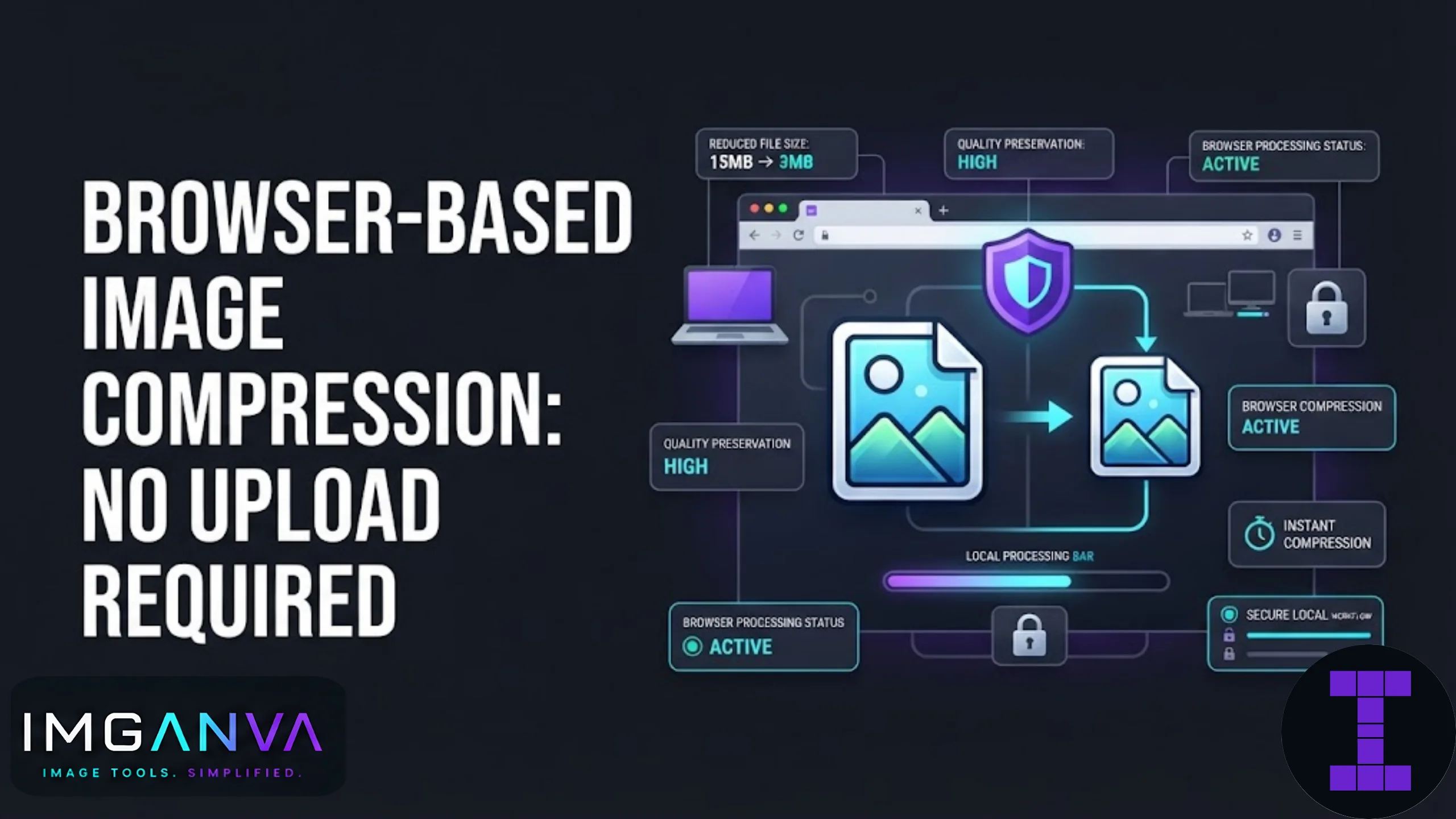
Browser based image compression means your photo never leaves your device. The compression happens locally, inside your browser, using your device’s own processing power. No upload, no server storage, no waiting on someone else’s bandwidth. This matters more than people realize, especially when the image being compressed is a scanned document, an ID photo, a signature, or anything else you’d rather not hand over to a random server.
Key Takeaways
- Browser based compression processes images locally using JavaScript and the Canvas API, so files never get uploaded to a server.
- It’s faster for most everyday images since there’s no round trip to a remote server.
- It’s a better fit for sensitive files: IDs, exam documents, signatures, scanned forms, and personal photos.
- Very large files or batch jobs can strain browser memory, since your device is doing all the work.
- Imganva’s image compressor runs this way by default, no sign-up or server upload required.
How Browser Based Compression Actually Works
When you drop an image into a browser based tool, the file is read directly by your browser using the File API. From there, it’s drawn onto an HTML canvas element, where the compression logic adjusts quality, strips unnecessary metadata, and re-encodes the image in the format you want. The final file is generated and offered as a download, all without a single byte touching a remote server.
Some tools go a step further and use WebAssembly (WASM) versions of compression libraries like MozJPEG or libwebp, running compiled C/C++ code directly inside the browser. This gets you compression quality close to what desktop software produces, but still entirely on your machine.
Browser Based vs Server Based Compression
| Factor | Browser Based (No Upload) | Server Based (Upload Required) |
|---|---|---|
| Where processing happens | Your device | A remote server |
| Privacy | File never leaves your browser | File is transmitted and often temporarily stored |
| Speed for small/medium files | Usually faster, no upload wait | Depends on your internet speed |
| Handling very large files | Limited by device RAM | Can offload heavy lifting to powerful servers |
| Works offline | Often yes, once the page loads | No, requires an active connection |
| Best for | IDs, personal photos, sensitive documents, quick everyday use | Very large batch jobs, enterprise workflows |
Why the “No Upload” Part Matters
A lot of image compression happens in contexts where privacy is genuinely important, not just a nice-to-have. A few examples:
- Government exam and application portals: Photos for UPSC, SSC, IBPS, RRB, or GATE applications often include ID-linked images. Users are naturally cautious about where these files end up.
- Passport and visa photos: These are tied directly to identity documents, and most people would rather not upload them to an unfamiliar server.
- Work documents: Scanned contracts, invoices, or internal reports frequently get compressed before emailing, and companies are increasingly strict about where files travel.
- Personal photos: Simple as it sounds, most people just don’t want random images of themselves or their family sitting on a third-party server, even briefly.
With browser based compression, there’s no server-side storage to worry about, no logs to question, and nothing to delete later because nothing was ever sent in the first place.
Step-by-Step: Compressing an Image Without Uploading It
- Open a browser based compression tool such as Imganva’s Image Compressor.
- Select or drag your image file into the tool. At this point, the file loads into your browser’s memory, not a server.
- Choose your target quality or file size. Some tools let you set an exact KB target using something like the change image size in KB feature.
- Preview the compressed result directly in the browser before downloading.
- Download the compressed file. It’s saved straight from your browser to your device, no intermediate server involved.
When Browser Based Compression Isn’t the Best Fit
It’s not a perfect solution for every scenario, and it’s worth being honest about that.
- Very large files (50MB+) or RAW images: Browsers have memory limits, and older devices or phones can slow down or crash on massive files.
- Bulk batch processing of hundreds of images at once: Server based tools with dedicated processing power tend to handle this more reliably.
- Older browsers: Some legacy browsers don’t fully support the APIs modern compression tools rely on, which can lead to inconsistent results.
- Very low-end devices: If a phone has limited RAM, compressing several large images back-to-back in the browser may feel sluggish.
For the vast majority of everyday use, though, from resizing a photo for a form to shrinking an image before emailing it, browser based tools handle the job just fine.
Common Mistakes to Avoid
- Assuming every online tool is browser based. Many compression websites still upload your file to a server behind the scenes, even if the interface looks similar. Check whether the tool advertises client-side or local processing.
- Closing the tab mid-process on large files. Since compression is happening in your browser, closing the tab stops the process entirely, unlike server based tools where a job might continue in the background.
- Expecting identical results across browsers. Chrome, Firefox, and Safari sometimes handle canvas rendering and image encoding slightly differently, which can lead to minor differences in output quality.
- Ignoring format compatibility. If you compress a PNG and expect a JPG, you’ll need to convert it separately using something like an image converter.
Browser Based Compression and Exam or Job Portals
A specific and very common use case worth calling out: Indian government exam portals like UPSC, SSC, NTA, IBPS, RRB, GATE, CAT, and JEE/NEET frequently ask for photos and signatures within strict KB limits, often between 20KB and 200KB. Applicants regularly search for a quick way to shrink these files without creating an account or uploading personal documents anywhere.
Browser based compressors solve this cleanly. The photo or signature scan stays on the applicant’s device the entire time, gets compressed to the required size, and is ready to upload directly to the actual portal, without a third-party server sitting in between.
FAQs
What does browser based image compression mean?
It means the image is compressed directly inside your web browser using local processing, instead of being uploaded to a remote server for processing.
Is browser based compression safe for personal photos?
Yes. Since the file never leaves your device, there’s no server storage or transmission involved, which makes it a safer choice for sensitive or personal images.
Does browser based compression work without internet?
In many cases, yes, once the tool’s page has fully loaded. The actual compression logic runs locally, so an active connection usually isn’t needed after that point.
Why do some online compressors still ask me to wait after uploading?
That usually means the tool is server based, sending your file to a remote server for processing rather than compressing it locally in your browser.
Can browser based tools handle very large image files?
They can handle most everyday images well, but very large files like RAW photos or files over 50MB may strain browser memory, especially on older or low-end devices.
Is browser based compression good for passport or exam photos?
Yes, it’s actually a strong fit. Since these photos are tied to personal identity, keeping them on your device during compression avoids unnecessary exposure.
Does compressing in the browser reduce image quality more than server tools?
Not necessarily. Modern browser based tools using WebAssembly libraries can match server based quality for most common compression tasks.
Can I compress multiple images at once in a browser based tool?
Many tools support batch compression, though very large batches may process slower on lower-end devices since everything runs on your local hardware.
Do I need to install anything for browser based compression?
No installation is required. It works directly through your web browser using built-in web technologies like the Canvas API.
What happens to my image after I compress it in the browser?
Nothing is stored remotely. The compressed file is generated locally and offered to you as a direct download from your browser.
Summary
Browser based image compression keeps the entire process on your device, from reading the file to generating the final compressed output. There’s no upload step, no server storage, and no waiting on someone else’s bandwidth. It’s especially useful for sensitive files like ID photos, exam documents, and personal images, though very large files or bulk batches can still benefit from server based alternatives. For most day-to-day compression needs, including exam photo uploads and quick file-size fixes, a browser based tool like Imganva’s image compressor gets the job done without sending your files anywhere. For a broader look at compression formats, quality settings, and techniques, the Complete Image Compression Guide 2026 covers the full picture.