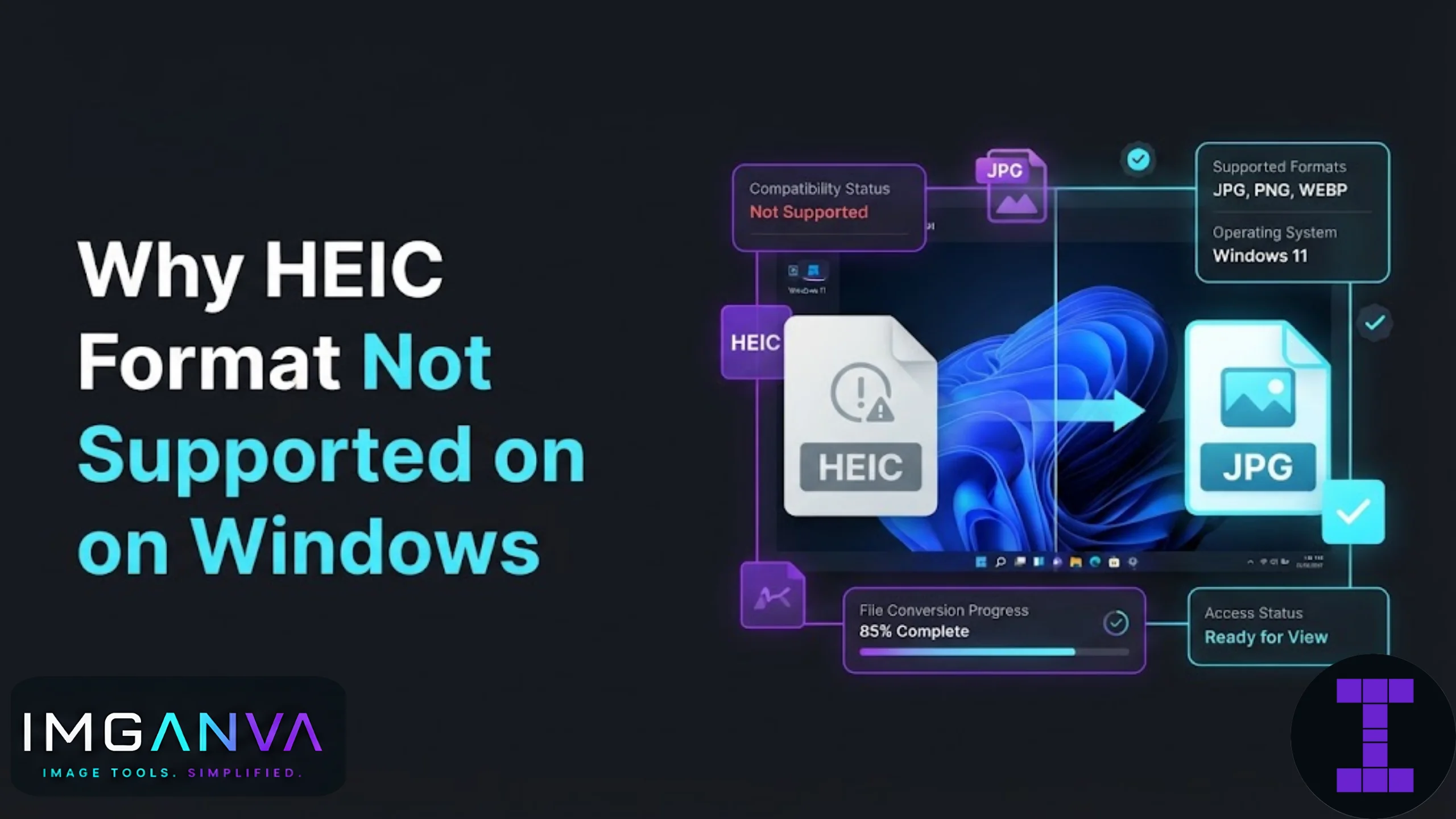

You copy a batch of photos from your iPhone to your Windows laptop, double click one, and instead of a picture you get a blank thumbnail or an error saying Windows can’t open this file. That’s HEIC doing what HEIC does on Windows by default. It’s not a broken file. It’s a format Windows doesn’t fully understand out of the box.
Key Takeaways
- HEIC is Apple’s default photo format on iPhones running iOS 11 and later.
- Windows doesn’t ship with native HEIC support because of licensing costs tied to the HEVC codec.
- You can fix this with a free codec extension, a Microsoft Store add-on, or by converting files to JPG or PNG.
- Converting is usually the more reliable fix, especially if you plan to share images or upload them elsewhere.
What Is HEIC and Why Does Apple Use It
HEIC stands for High Efficiency Image Container. Apple adopted it as the default photo format starting with iOS 11, replacing JPG for most camera captures. The appeal is simple: HEIC files store roughly the same image quality as JPG at about half the file size, using the HEVC compression standard underneath.
For Apple, this made sense. iPhones save storage space, photo libraries sync faster over iCloud, and quality holds up well even after compression. For everyone outside the Apple ecosystem, it created a compatibility gap that’s been showing up on Windows PCs for years.
The Real Reason Windows Doesn’t Support HEIC
This isn’t an oversight from Microsoft. HEVC, the video codec HEIC is built on, is patent-encumbered. Companies that want to decode HEVC content have to pay licensing fees to the patent pool that owns the technology. Microsoft chose not to bundle this decoder into Windows by default, likely to avoid those licensing costs across every Windows installation worldwide.
Instead, Microsoft moved the decoder into a separate, paid extension on the Microsoft Store called the HEVC Video Extensions. Apple, on the other hand, already pays into HEVC licensing for its hardware and software ecosystem, so HEIC support comes free and built-in on every Apple device.
| Aspect | Apple Devices | Windows PCs |
|---|---|---|
| HEIC support | Native, built-in | Not built-in by default |
| Underlying codec | HEVC (licensed by Apple) | HEVC (licensing avoided by Microsoft) |
| Fix required | None | Extension, app, or file conversion |
| Cost to enable | Free | Sometimes paid, sometimes free workaround |
How to Open HEIC Files on Windows
There are a few practical routes here, ranked roughly by how permanent and hassle-free they are.
1. Install the HEVC Video Extensions
Microsoft sells an official HEVC Video Extensions package on the Microsoft Store. Once installed, Windows Photos app and File Explorer thumbnails can read HEIC files natively. It’s a small one-time purchase, though some regions or Windows builds occasionally get a free version bundled with an OEM device.
2. Use the free HEIF Image Extensions alongside it
Microsoft also offers a separate HEIF Image Extensions app, which handles the container format. In most cases you need both the HEVC and HEIF extensions installed together for full HEIC support in File Explorer and Photos.
3. Convert HEIC files to JPG or PNG
This is usually the most dependable option, especially if you’re going to share the image, upload it to a form, or use it somewhere that flatly won’t accept HEIC at all. Converting removes the dependency on Windows codecs entirely, since JPG and PNG are universally supported.
Tools like Imganva’s image converter let you upload a HEIC file and get a JPG or PNG back in seconds, directly in the browser, without installing anything on your PC.
4. Use third-party photo software
Apps like IrfanView (with plugins) or some free viewer tools include their own HEIC decoders, bypassing Windows’ native limitations. This works but adds another piece of software to maintain.
Should You Convert or Install the Extension?
| Situation | Better Choice |
|---|---|
| You just want to view a few photos once | Install Microsoft’s extensions |
| You regularly receive HEIC photos from iPhone users | Install extensions for long-term convenience |
| You need to upload photos to a website or form | Convert to JPG or PNG |
| You’re sharing images with someone on an older device | Convert to JPG |
| You want the smallest possible hassle with no installs | Convert using an online tool |
Preventing the Problem at the Source
If you’d rather not deal with HEIC on Windows at all, you can change your iPhone’s camera settings so it captures in JPG instead of HEIC going forward. Go to Settings, then Camera, then Formats, and select “Most Compatible” instead of “High Efficiency.” Existing HEIC photos won’t be affected, but new photos will save as JPG automatically.
This trades some storage efficiency for guaranteed compatibility, which is often a fair swap if you regularly move photos to a Windows machine, external drives, or older devices.
Common Mistakes to Avoid
- Assuming the file is corrupted. A HEIC file that won’t open on Windows is almost always a codec issue, not a damaged file.
- Renaming the file extension manually. Changing a file from .heic to .jpg by renaming it doesn’t convert the actual image data. The file will still fail to open properly.
- Forgetting both extensions are needed. Installing only the HEVC extension without the HEIF Image Extensions sometimes still leaves thumbnails broken in File Explorer.
- Uploading HEIC directly to forms or portals. Many websites, especially government and exam application portals, reject HEIC outright and only accept JPG or PNG.
Where This Matters Beyond Just Viewing Photos
HEIC compatibility problems come up constantly for people filling out exam and application forms in India. Portals for UPSC, SSC, IBPS, and similar exams almost always require JPG uploads within strict file size limits. If your photo was taken on an iPhone and saved as HEIC, you’ll need to convert it before you can even attempt the upload. Combining conversion with a resize step often solves both problems in one pass. You can convert with Imganva’s image converter, then resize and compress the output with the image resizer or image compressor to hit the exact KB requirement.
For a deeper look at how compression and format choices affect image quality and file size together, the Complete Image Compression Guide 2026 covers the fundamentals in more depth.
FAQs
Why can’t I open HEIC files on my Windows computer?
Windows doesn’t include a built-in HEVC decoder by default because of licensing costs, so HEIC files won’t open until you install Microsoft’s extensions or convert the file to JPG.
Is HEIC a corrupted or broken file format?
No. HEIC files work fine on Apple devices. The issue is that Windows lacks native support for the HEVC codec HEIC relies on.
Do I have to pay to open HEIC files on Windows?
Microsoft’s official HEVC Video Extensions is usually a small paid purchase, though converting files to JPG using a free online tool avoids any cost entirely.
Can I just rename a HEIC file to JPG?
No. Renaming only changes the file extension text, not the actual image data, so the file still won’t open correctly as a JPG.
What’s the easiest way to convert HEIC to JPG?
Uploading the file to an online converter, like Imganva’s image converter, gives you a usable JPG in seconds without installing any software.
Will converting HEIC to JPG reduce image quality?
There’s a small quality loss during conversion since JPG uses different compression, but at normal viewing sizes the difference is usually not noticeable.
How do I stop my iPhone from saving photos as HEIC?
Go to Settings, then Camera, then Formats, and choose Most Compatible instead of High Efficiency. New photos will save as JPG going forward.
Why do government exam portals reject my iPhone photos?
Most Indian exam portals like UPSC and SSC only accept JPG or PNG uploads, so HEIC photos from an iPhone need to be converted first.
Does installing the HEVC extension fix HEIC in all Windows apps?
It fixes support in File Explorer and the Windows Photos app, but some third-party programs may still need their own HEIC support or plugins.
Can Android phones open HEIC files?
Support varies by manufacturer and Android version, so converting to JPG is often the safer choice when sharing across different devices.
Summary
HEIC files fail to open on Windows because Microsoft chose not to bundle a licensed HEVC decoder by default, not because anything is wrong with your photos. You can fix this permanently by installing Microsoft’s HEVC and HEIF extensions, or sidestep the issue entirely by converting files to JPG or PNG, which is usually the safer route if you’re uploading images anywhere outside your own PC.