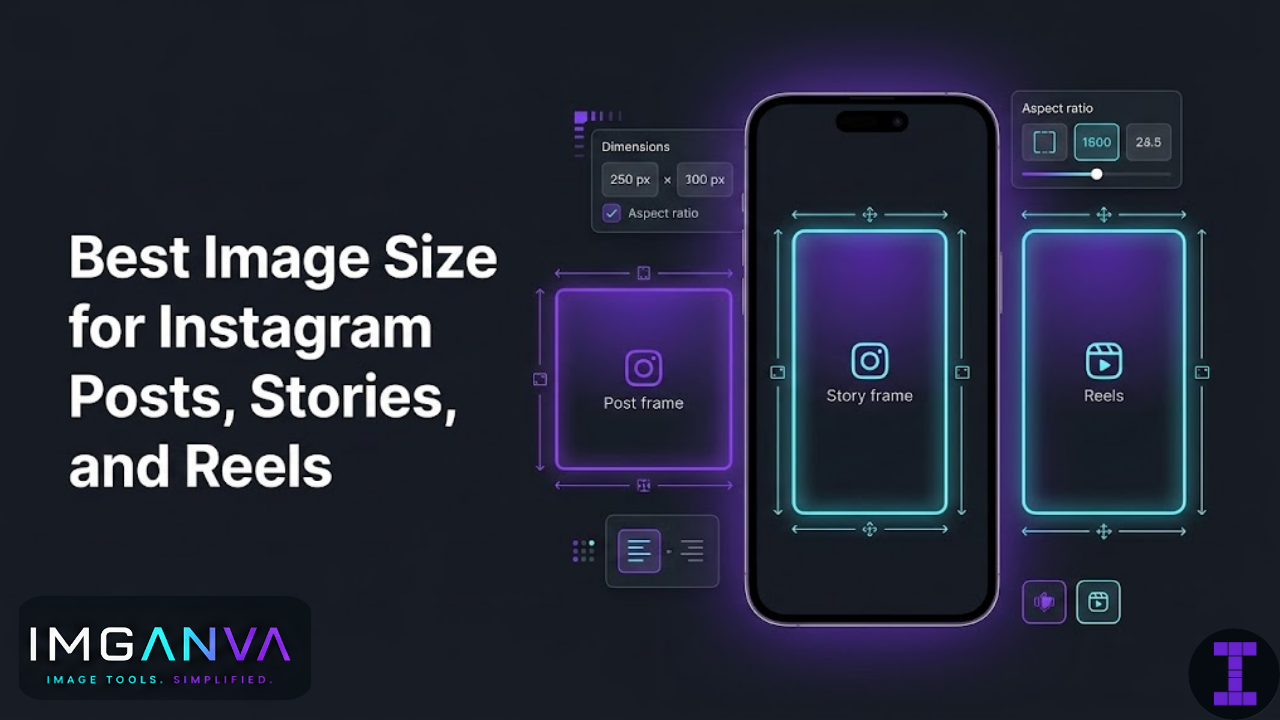

Here are the recommended sizes for every Instagram format in 2024.
Instagram image sizes at a glance
| Format | Recommended size | Aspect ratio | Max file size |
|---|---|---|---|
| Feed post – square | 1080 × 1080 px | 1:1 | 8 MB |
| Feed post – portrait | 1080 × 1350 px | 4:5 | 8 MB |
| Feed post – landscape | 1080 × 566 px | 1.91:1 | 8 MB |
| Stories | 1080 × 1920 px | 9:16 | 8 MB |
| Reels cover image | 1080 × 1920 px | 9:16 | 8 MB |
| Profile photo | 320 × 320 px | 1:1 | – |
| Carousel post | 1080 × 1080 px (or 1080 × 1350 px) | 1:1 or 4:5 | 8 MB per image |
If you need to adjust any of these before uploading, Imganva’s image resizer lets you set exact pixel dimensions without cropping the subject of your photo unexpectedly.
Feed posts
Instagram displays feed images at 614px wide on most phones, but uploads at 1080px wide to stay sharp on high-density screens. Always upload at 1080px anything lower gets upscaled and loses clarity.
Square: 1080 × 1080 px (1:1)
The classic Instagram format. Works well for product photos, portraits, and brand graphics. Fills the feed tile completely and displays cleanly without any cropping by the platform.
Portrait: 1080 × 1350 px (4:5)
This is the recommended format for most feed posts. Portrait orientation takes up more vertical screen space in the feed, meaning viewers spend more time with your image as they scroll. If you’re posting photos of people, food, or products and want maximum visibility, 4:5 is the format to use.
One thing to watch: Instagram will crop any image taller than 4:5 (like a full 9:16 phone photo) to 4:5 in the feed preview. The full image appears when someone taps on the post, but the thumbnail will be cropped. Keep important subjects away from the very top and bottom if you’re uploading portrait photos from your phone.
Landscape: 1080 × 566 px (1.91:1)
Landscape posts show as wider-than-tall tiles in the feed. They take up less vertical space than portrait or square, which usually means less engagement. Generally only worth using when the image genuinely needs a wide format panoramas, architectural shots, group photos where the horizontal span matters.
Instagram Stories
Recommended size: 1080 × 1920 px (9:16)
Stories fill the entire phone screen in portrait orientation. If your image isn’t 9:16, Instagram will either letterbox it (add blurred bars on the sides or top/bottom) or you’ll need to manually reposition it in the Stories editor.
Upload at 1080 × 1920 px to fill the screen cleanly. If you’re designing graphics specifically for Stories, note that the top ~250px and bottom ~300px are partially covered by the username/timestamp and swipe-up or reply areas. Keep important text and subjects out of those zones.
Safe zone for Stories content: between roughly y=250 and y=1620 on a 1920px tall canvas.
Reels cover image
Recommended size: 1080 × 1920 px (9:16)
The Reels cover image is what shows on your profile grid and this is where sizing gets slightly confusing. On the profile grid, Reels thumbnails display as square (1:1), cropped from the center of the 9:16 cover. So if you’re designing a Reels cover, make sure the key visual element is centered both horizontally and vertically it needs to look good both as a full 9:16 image and as a cropped square.
Profile photo
Recommended size: 320 × 320 px (1:1)
Instagram displays profile photos as circles, so anything near the edges gets cut off. Upload a square image at 320 × 320 px minimum and center your subject. For a brand logo, leave some padding around the edges so it doesn’t get clipped by the circular crop.
Instagram actually stores profile photos at 110 × 110 px internally, but uploading at 320 × 320 px or larger ensures it doesn’t look blurry on high-resolution screens.
Carousel posts
Recommended size: 1080 × 1080 px or 1080 × 1350 px
Carousels let you post up to 10 images in a single swipeable post. All images in a carousel will be cropped to the same aspect ratio determined by the first image you upload. If your first image is square, all subsequent images will display square. If it’s 4:5, all will be 4:5.
Keep this in mind when assembling a carousel. Mix portrait and landscape photos in the same carousel and some will get cropped in unexpected ways. The safest approach is to standardize all images to the same dimensions before uploading.
For carousels where you’re designing graphics that span across multiple slides (a common format for educational posts), square (1:1) is the most predictable format to work with.
File format and compression
Instagram accepts JPG and PNG. For photos, JPG works fine. For graphics with text or flat colors, PNG preserves sharpness better.
Instagram compresses every uploaded image automatically, so there’s a ceiling on quality regardless of what you upload. That said, there are things you can do on your end to minimize how much additional quality is lost:
- Upload JPGs at high quality (85–100) Instagram’s own compression will bring the file size down, but starting with a heavily compressed JPG compounds the loss.
- Keep file sizes under 8 MB. Instagram technically allows up to 8 MB per image, but files close to or over that limit may get more aggressively compressed on upload.
- Avoid uploading images that are significantly larger than the recommended dimensions. A 6000px wide photo doesn’t upload “better” it just gets downscaled, sometimes with artifacts.
If you need to reduce file size before uploading without losing visible quality, compressing your images first gives you more control than leaving it entirely to Instagram’s algorithm.
What happens if you upload the wrong size
| Situation | What Instagram does |
|---|---|
| Image is smaller than 1080px wide | Upscales it may look soft or pixelated |
| Image is taller than 4:5 ratio | Crops to 4:5 in feed preview |
| Story image isn’t 9:16 | Adds blurred background bars on the sides/top |
| Image is wider than 1.91:1 | Crops the sides to fit the maximum width |
| Carousel images have mixed ratios | Forces all to the ratio of the first image |
Tips for resizing images for Instagram
A few practical things worth keeping in mind before you resize:
Don’t just stretch. Resizing to a new aspect ratio by stretching distorts the image. Either crop first (deciding what to keep) or add padding (letterboxing). Most tools will do one or the other know which one you’re using.
Work from the original file. If you have a full-resolution photo, always resize from that rather than from a previously resized or compressed version. Each generation of compression or scaling adds a bit of degradation.
Batch resizing saves time. If you’re preparing multiple posts at once, resizing them all to the same dimensions in one pass is faster than doing them individually.
You can resize images to exact Instagram dimensions using Imganva’s resizer just enter the target width and height and it handles the rest.
Frequently asked questions
What is the best image size for Instagram posts in 2024?
For most feed posts, 1080 × 1350 px (4:5 portrait) gives you the most screen space and tends to perform well. For square posts, 1080 × 1080 px is the standard. Both are widely recommended and display cleanly on all devices.
What size should Instagram Stories be?
1080 × 1920 px at a 9:16 aspect ratio. This fills the full screen on most smartphones. If your image is a different ratio, Instagram will add blurred bars to fill the gaps.
Can I upload a portrait photo to Instagram without it being cropped?
Yes, as long as the photo’s aspect ratio is 4:5 or closer to square. Instagram crops anything taller than 4:5 in the feed preview. If your photo is 9:16 (a standard phone photo), you’ll need to either crop it to 4:5 or accept that the feed thumbnail will be cropped.
Does image resolution affect quality on Instagram?
Yes. Instagram displays at 1080px wide, so uploading below that width means the platform upscales your image, which can make it look soft. Always upload at 1080px or wider. Uploading much larger than that doesn’t improve quality Instagram downscales it anyway.
What’s the best image format to upload to Instagram JPG or PNG?
JPG for photos, PNG for graphics with text, logos, or flat colors. Instagram will compress both formats on upload, but PNG preserves crisp edges better for graphic content. For photography, JPG at high quality (85+) is perfectly fine.
Why do my Instagram photos look blurry after uploading?
Usually one of three reasons: the image was too small and got upscaled, it was already heavily compressed before uploading so Instagram’s compression compounded the quality loss, or it was uploaded over a slow connection (Instagram sometimes serves a lower-quality version when bandwidth is limited). Start with a 1080px wide image at high quality to give yourself the best chance of a sharp result.
What size should a Reels cover photo be?
1080 × 1920 px. But since the cover displays as a square crop on your profile grid, center your main subject in the middle of the image so it looks good both ways.
Quick reference
| What you’re posting | Use this size |
|---|---|
| Regular feed photo (portrait) | 1080 × 1350 px |
| Regular feed photo (square) | 1080 × 1080 px |
| Wide/landscape photo | 1080 × 566 px |
| Story | 1080 × 1920 px |
| Reels cover | 1080 × 1920 px |
| Carousel (portrait) | 1080 × 1350 px |
| Carousel (square) | 1080 × 1080 px |
| Profile picture | 320 × 320 px |